Documents
Documents are the fundamental objects in Regulated Content Cloud and consist of metadata. A document can have many associated document versions, and each document version can have different metadata and a different internal or external file associated with it. Each document version also has a lifecycle, can enter workflows, and can be shared with users and groups of users.
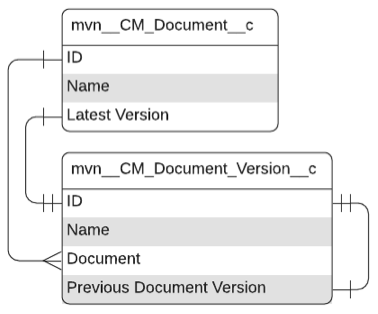
Documents and Document Versions are associated by a one-to-many relationship. The Document and Document Version relationship is a lookup relationship, not a master-detail relationship. The lookup relationship provides the ability to granularly share individual Document Versions and their associated Files (for example, based on status).
For more information on documents and document versions, visit these pages:
-
Navigate document record - a list of document features and their location on a document record.
-
Document Types - the schema for the Document Type custom metadata type and how to configure it.
-
Document Lifecycles - the schema, definitions, and relationship for the custom metadata types that configure document lifecycles. The custom metadata types include:
-
Document Lifecycle
-
Document State
-
Document Lifecycle Type
-
-
Document metadata - an overview of the different attributes or metadata associated with document versions and links to more detailed information about each metadata type. Document metadata types include:
-
Layout locations - an overview of the specific locations in Medical Information Cloud where document layouts are used. You can configure different layouts to display in these locations.
-
Document search - how document search works and a list of supported search operators.
-
Microsoft 365 - how to configure the Microsoft 365 integration.
Navigate document record
Each document record includes information about the document and features to interact with the document. Visit the Document record table below.
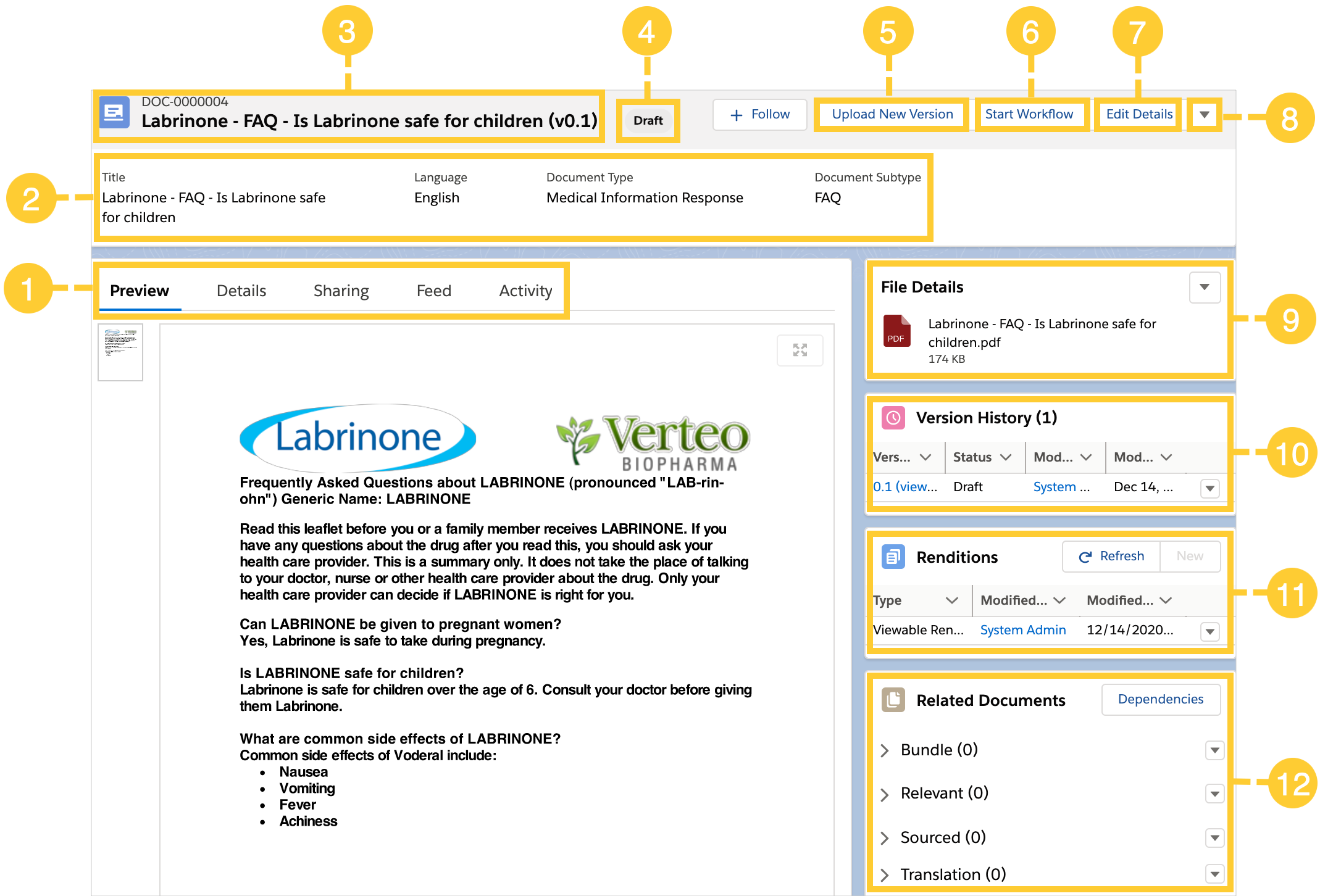
Document record
| Number | Feature | Description |
|---|---|---|
| 1 | Record Tabs | Record tabs include: - Preview - displays a preview of the file associated with the document if the file is hosted in Salesforce. Visit Files. - Details - displays document metadata. - Sharing - lists the users that have access to the document and the role(s) they have. Roles determine what users can see and do as a document goes through its lifecycle. Depending on your permissions, you can perform several actions from the Sharing tab. Actions include: - View assigned permissions. To see the permissions, click the Arrow  menu and select Show Details. The Role Permissions matrix opens. - Remove access to the document. To remove a user's access to the document, click the Arrow menu and select Delete. The user no longer has access to the document. - Share the document. To manually grant another user access to the document, click New, select a User or Group, and select a Role for the User or Group. Visit Document Roles and Document Sharing Rule Groups. - Feed - contains the Chatter feed for the document and is the central channel for collaboration and document events. You can configure notifications for system events to post automatically to feeds when they fire. Visit System Events. - Activity - contains the history of the document divided into two minor tabs: - Workflow History - the workflow history for the document. Visit Workflows and tasks. - Audit Log History - the system event history for the document. Visit System events. menu and select Show Details. The Role Permissions matrix opens. - Remove access to the document. To remove a user's access to the document, click the Arrow menu and select Delete. The user no longer has access to the document. - Share the document. To manually grant another user access to the document, click New, select a User or Group, and select a Role for the User or Group. Visit Document Roles and Document Sharing Rule Groups. - Feed - contains the Chatter feed for the document and is the central channel for collaboration and document events. You can configure notifications for system events to post automatically to feeds when they fire. Visit System Events. - Activity - contains the history of the document divided into two minor tabs: - Workflow History - the workflow history for the document. Visit Workflows and tasks. - Audit Log History - the system event history for the document. Visit System events. |
| 2 | Document Snapshot | Highlights key document metadata, which are Title, Language, Document Type, and Document Subtype. |
| 3 | Document Number and Fully Qualified Name | Identifying document information. The first line lists the Document Number. The second line lists the Fully Qualified Name of the document. The Fully Qualified Name is comprised of the Document Title followed by the Version Number. |
| 4 | Document State | The state of the document. |
| 5 | Upload New Version | Click Upload New Version to upload a new version of the document. |
| 6 | Start Workflow | Click Start Workflow to start a new workflow for the document. Visit Workflows and tasks. |
| 7 | Edit Details | Click Edit Details to modify the document's metadata. |
| 8 | Actions menu | Click the Actions menu to see a list of available actions. Actions that are not available due to document state or your permissions are grayed out, and you cannot select them. Possible actions include: - Check Out Document - Publish Document - Create Draft - Mark Document Obsolete - Delete Version - Delete Document - Clone Document |
| 9 | File Details | Shows which file is associated with the document. Click the Arrow menu to download the Source file or the file as a PDF. Visit Files. |
| 10 | Version History | A brief history of the document. To see more information about a single history event, click the Arrow menu in a history event row and select Show Details. |
| 11 | Renditions | Lists the renditions associated with the document version. A rendition is a high-quality, high-fidelity file that you manually associate with a document version record and that usually takes the form of a PDF. If a document version has a rendition, the document viewer displays the rendition. Visit Renditions. |
| 12 | Related Documents | Lists the documents that have a relationship to the document that you are currently viewing. Relationship types include: - Bundle - Relevant - Sourced - Translation - Local Version Visit Relationships. |
Document Types
Document Type (CM_Document_Type__mdt) is the highest level of
classification for a document and dictates the lifecycle, states,
metadata, and workflows that are available to the document once it is
created. Document subtypes are also managed using this custom metadata
type. To view the Document Type schema, visit
Document Type.
Document classification is not managed in CM_Document_Type__mdt.
Classification is dependent on Subtype. When creating a document, the
value you select for CM_Document_Subtype__c determines the available
CM_Classification__c values that you can choose from for that
document.
Configure Document Types
To configure Document Types, follow the steps in these sections:
Step 1 - Create Document Type records
To create a CM_Document_Type__mdt record:
-
Navigate to the Document Type records list.
-
In the Quick Find box in Setup, search for and select Custom Metadata Types.
-
In the Document Type row, click Manage Records.
-
-
Click New.
-
Complete the Information section.
-
Click Save.
Step 2 - Create picklist values
To create picklist values for the CM_Document_Type__c field on
CM_Document_Version__c:
-
Navigate to
CM_Document_Type__c.-
In the Object Manager tab in Setup, search for and select Document Version.
-
Click the Fields & Relationships tab.
-
Click Document Type.
-
-
In the Values section, click New.
-
Enter picklist values.
CM_Document_Version__c.CM_Document_Type__cpicklist values must match 1:1 to theDeveloperNamevalues for allCM_Document_Type__mdtrecords. For example, if your instance has the Document Type records in the Example Document Type Records table below, enterBrochure__candMagazine__c. The saved picklist value API Names in the Example Picklist Values table below are an exact match for the Document Type DeveloperNames in the Example Document Type Records table below.
Example Document Type Records
| DeveloperName | Label | Category | Default Expiration in Days |
|---|---|---|---|
| Brochure__c | Brochure | Type | 365 |
| Magazine__c | Magazine | Type | 90 |
Example Picklist Values
| API Name | Label |
|---|---|
| Brochure__c | Brochure |
| Magazine__c | Magazine |
- Click Save.
Document Lifecycles
Document lifecycles dictate the states and workflows available to a document.
Document Lifecycle custom metadata type
You can create any number of document lifecycles. The number of
lifecycles your organization needs depends on the statuses and workflows
each document type in your environment needs. If your document types are
homogeneous, you may decide to create a single lifecycle and apply it to
all documents. However, you may need to create multiple lifecycles to
manage more than one document type. For example, certain document types
may only require Draft and Published statuses and a single workflow
while other document types may require several statuses and workflows.
To configure a document lifecycle, use the
Document Lifecycle
(CM_Document_Lifecycle__mdt) custom metadata type.
Document Lifecycle records
| DeveloperName | Label | Initial State | Obsolete State | Published State | Superseded State |
|---|---|---|---|---|---|
| Default_Lifecycle__c | Default | Default_Draft__c | Default_Obsolete__c | Default_Published__c | Default_Superseded__c |
| Special_Lifecycle__c | Special | Special_Draft__c | Special_Obsolete__c | Special_Published__c | Special_Superseded__c |
| :::: |
Associated custom metadata types
Document lifecycles can be associated with document states and document lifecycle types. Document lifecycle types connect document lifecycles to document types.
Document State custom metadata type
Document State (CM_Document_State__mdt) contains the list of possible
states that a document can be assigned as the document progresses
through its lifecycle. To configure Document States, create or modify
Document State records. For a list of Document State fields, visit
Document State.
:::
 :::
:::
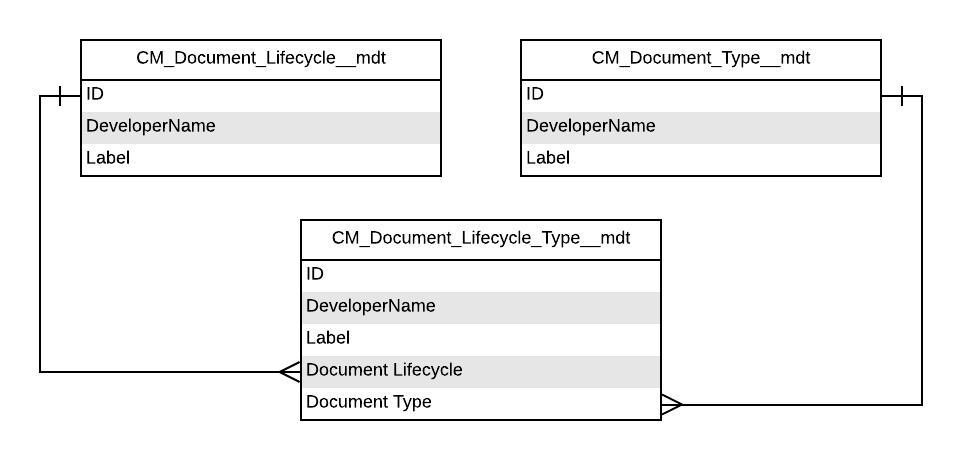
Document Lifecycle Type custom metadata type
Document Lifecycle Type (CM_Document_Lifecycle_Type__mdt) is a
junction between Document Lifecycle and Document Type. To configure
Document Lifecycle Types, create or modify Document Lifecycle Type
records. For a list of Document Lifecycle Type fields, visit
Document Lifecycle Type.
:::
 :::
:::
While Document Lifecycle Type enables many Document Types to be associated with many Document Lifecycles, Regulated Content Cloud V1 only supports a single Document Lifecycle per Document Type and Document Subtype.
Document Lifecycle Type records
In the example of Document Lifecycle Type records below,
Default_Lifecycle_Brochure__c connects the Default_Lifecycle__c
document lifecycle to the Brochure__c document type, and the
Special_Lifecycle_Magazine__c connect the Special_Lifecycle__c
document lifecycle to the Magazine__c document type.
| DeveloperName | Label | Document Lifecycle | Document Type |
|---|---|---|---|
| Default_Lifecycle_Brochure__c | Default Lifecycle - Brochure | Default_Lifecycle__c | Brochure__c |
| Special_Lifecycle_Magazine__c | Special Lifecycle - Magazine | Special_Lifecycle__c | Magazine__c |
| :::: |
Document lifecycle assignment
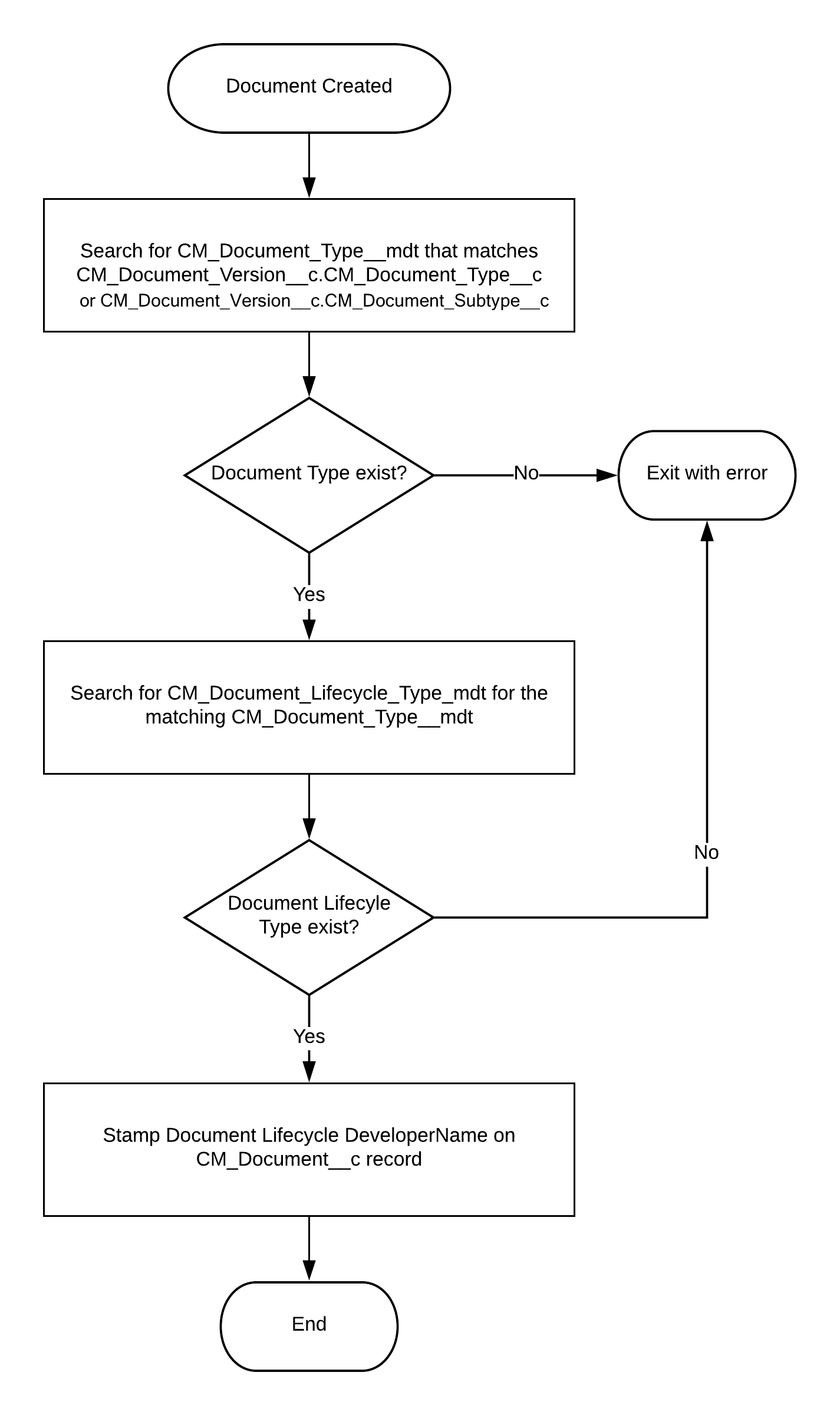
When creating a new document with the Document Wizard, you classify the
new document by CM_Document_Type__c, CM_Document_Subtype__c, and
CM_Classification__c. Regulated Content Cloud uses the value selected for
CM_Document_Type__cor CM_Document_Subtype__c to place the new
document in a lifecycle.
:::
 :::
:::
Keep these assignment considerations in mind:
-
For a document to be assigned a lifecycle when it is created,
CM_Document_Version__c.CM_Document_Type__candCM_Document_Version__c.CM_Document_Subtype__cpicklist values must match 1:1 to theDeveloperNamevalues for allCM_Document_Type__mdtrecords. -
For a document with configurations matching both the type and the subtype, the document subtype takes preference.
:::: ::: title Document lifecycle assignment :::
Using the example custom metadata records from the Document Lifecycle records table above and
Document Lifecycle Type records above and the picklist values in the CM_Document_Version__c.CM_Document_Type__c picklist values table below, if you
select Brochure__c as the CM_Document_Type__c for a new document,
the document will be assigned the Default_Lifecycle__c, and the
DeveloperName of the lifecycle record will be stamped on
CM_Document__c.CM_Document_Lifecycle_Developer_Name__c.
CM_Document_Version__c.CM_Document_Type__c picklist values
| API Name | Label |
|---|---|
| Brochure__c | Brochure |
| Magazine__c | Magazine |