Navigation
The MCM Console and MCM Admin console provide several features to manage your activity.
MCM Console
Designed for end-users, the MCM Console contains features and information end-users need to create and modify documents.
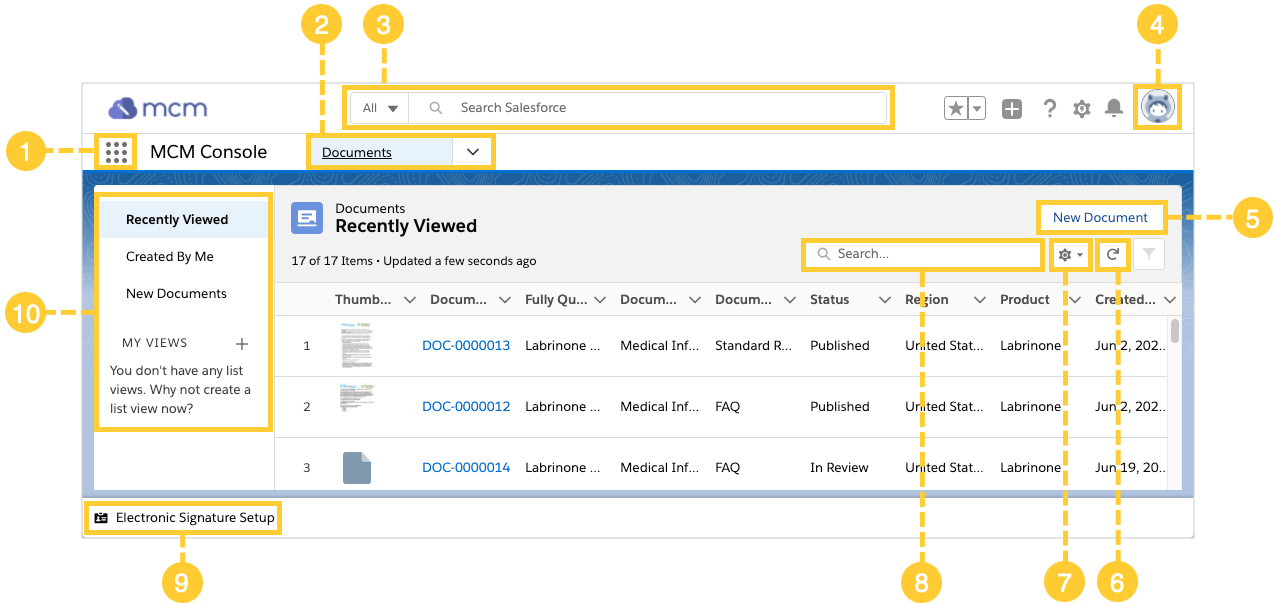
MCM Console features
| Number | Feature | Description |
|---|---|---|
| 1 | App Launcher | Lists all Salesforce apps that are available to you. Through the App Launcher, you can navigate to the MCM Console or the MCM Admin console. |
| 2 | Navigation menu | Access the Home tab and different types of records. To switch between record types, click the Arrow  menu and select a record type. Record types include: - Documents - Chatter - Tasks - Reports - Dashboards menu and select a record type. Record types include: - Documents - Chatter - Tasks - Reports - Dashboards |
| 3 | Global Search | Search for existing records using keywords or record numbers. Select a record type from the All  menu to filter search results by the selected record type. Visit Document search. menu to filter search results by the selected record type. Visit Document search. |
| 4 | User menu | Access user settings and Log Out. |
| 5 | New Document | Add a new document. |
| 6 | Refresh | Update the list view to show the most current data. |
| 7 | List Views Control menu | Reset column widths to the default widths. |
| 8 | Document search | Advanced document search with filters for Status, Language, Region, Product, and Document Type. Visit Document search. |
| 9 | Electronic Signature Setup | Where you set up an electronic signature for yourself. Once you set up your electronic signature and an administrator enables electronic signature in your instance, you will enter a code to verify your identity every time you complete a task. Visit Electronic signatures. |
| 10 | List Views | A list of records defined by a set of criteria. For example, the Recently Viewed list view displays records that you recently viewed. |
MCM Admin console
Designed for administrators, the MCM Admin console contains information administrators need to monitor the health of their instance and create and edit Document Groups, Regions, and Products.
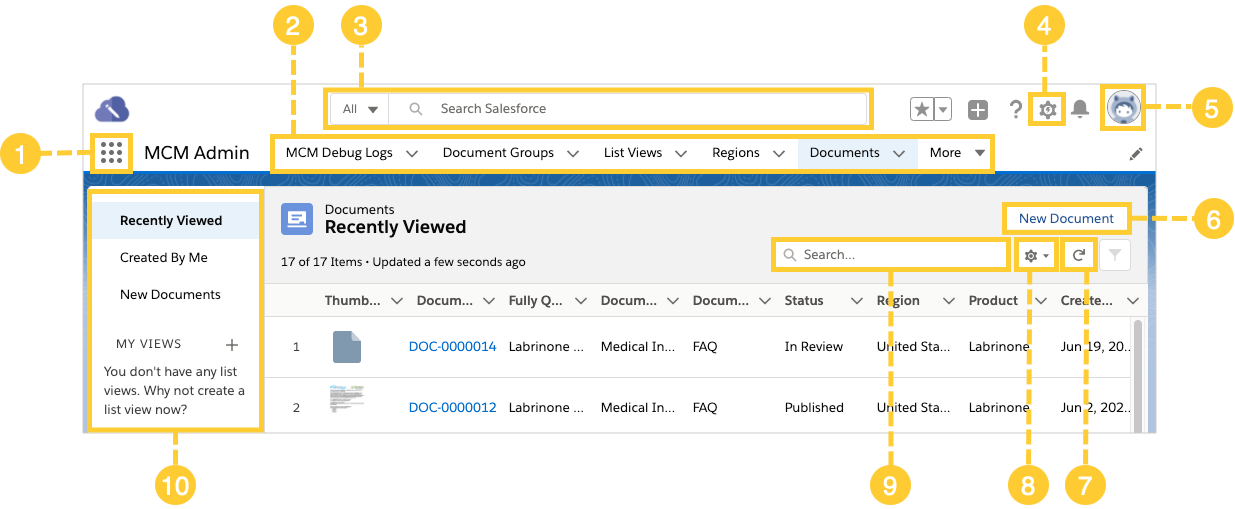
MCM Admin console features
| Number | Feature | Description |
|---|---|---|
| 1 | App Launcher | Lists all Salesforce apps that are available to you. Through the App Launcher, you can navigate to the MCM Console or the MCM Admin console. |
| 2 | Tab strip | Navigate between tabs on the tab strip to view different objects. To see the overflow tabs, click the More menu. |
| 3 | Global search | Search for existing records using keywords or record numbers. Select a record type from the All menu to filter search results by the selected record type. Visit Document search. |
| 4 | Setup | Links to Setup, where you can configure your Medical Information Cloud instance. |
| 5 | User menu | Access user settings and Log Out. |
| 6 | New Document | Add a new document. |
| 7 | Refresh | Update the list view to show the most current data. |
| 8 | List View Controls menu | Reset column widths to the default widths. |
| 9 | Document search | Advanced document search with filters for Status, Language, Region, Product, and Document Type. Visit Document search. |
| 10 | List views | A list of records defined by a set of criteria. For example, the Recently Viewed list view displays records that you recently viewed. |