Fulfillment package generation
A fulfillment is a document or a collection of documents that is sent to a requester via channels like email, mail, chat, fax, and in-person delivery to address some question or concern and resolve the medical information request captured in the Medical Information Cloud system. To generate and send fulfillment packages, Medical Information Cloud first uses Nintex's DocGen service to assemble all of the selected or configured content elements as a Dynamic Document Package (DDP) onto a Fulfillment (MED_Fulfillment__c) record and then lets users choose how to deliver the package to fulfill the request. For email deliveries, the system has two methods: an Email Fulfillment option and a Digital Fulfillment option. The former takes users directly to the email message with the fulfillment package attached, where the email message uses predefined Classic Email Templates as configured on the DocGen Package's Email Delivery Option. The latter, on the other hand, allows users to construct a dynamic email template from content elements that exist within the Regulated Content Cloud module. For more information on how to generate and send fulfillment packages, reference the Generate packages and Send fulfillment packages via email sections below.
Warning
To generate and send fulfillment packages, users must be assigned the DocGen User (DDP_User_All) permission set, which is included in the Medical Information Cloud User (MED_Medical_Information_Cloud_User) permission set group. To customize the cover letter component and email body message, users must also be assigned the Customize Response on Fulfillment (MED_Customize_Response_on_Fulfillment) custom permission.
Generate packages
The fulfillment package generation process involves creating a cover letter, which merges all of the related cover letter component documents with the relevant request and case documents, generating the merged fulfillment package document, and then attaching the fulfillment package as a file on a Fulfillment record, along with any request documents whose delivery option equals Attach Separate, PDF or Attach Separate, Original Format. The package generation functionality must be enabled according to the Enable the package generation functionality section while the components to be included inside the cover letter and the documents to be merged into the package can be configured according to the Configure cover letter component behavior and Configure which cover letter components to merge sections.
After the package generation functionality is properly enabled and configured, users can initiate the fulfillment package generation process by clicking the Generate Package button on a Fulfillment record page. This will open the Configure Fulfillment Package modal for users to modify and confirm both the contents to be included in the different sections of the cover letter as well as any documents to be merged based on their individual delivery options. If there are multiple pieces of information within a section in the cover letter, users can drag and drop the information to reorder how they appear in the cover letter.
The Configure Fulfillment Package modal also lets users choose between two delivery methods. If a user selects Finalize, the package generation job will create a single, compliant PDF file that is automatically attached to the Fulfillment record. On the other hand, if a user selects Customize, the package generation job will instead create a DOCX file for the user to further refine before finalizing as a PDF file.
To actually run the package generation job, users must click Run in the Configure Fulfillment Package modal. Afterwards, users can track the progress of the job with the Running Jobs utility bar at the bottom of the page, which can be minimized or kept open throughout the process.
When the fulfillment package finishes generating or if the package generation process runs into an error, users are notified in the Running Jobs utility bar and via the bell notification at the top of the page. If the fulfillment package is generated successfully, a link to the Fulfillment record will be available and users can subsequently choose how to deliver the fulfillment package to the requester. For email deliveries, there are two ways to send the fulfillment package, as described in the Send fulfillment packages via email section below. If the fulfillment package does not generate successfully, however, please reference the Troubleshoot Nintex errors section below. Once the Fulfillment record is closed or canceled, the package job will no longer appear in the Running Jobs utility bar.
Configure Fulfillment Package modal options 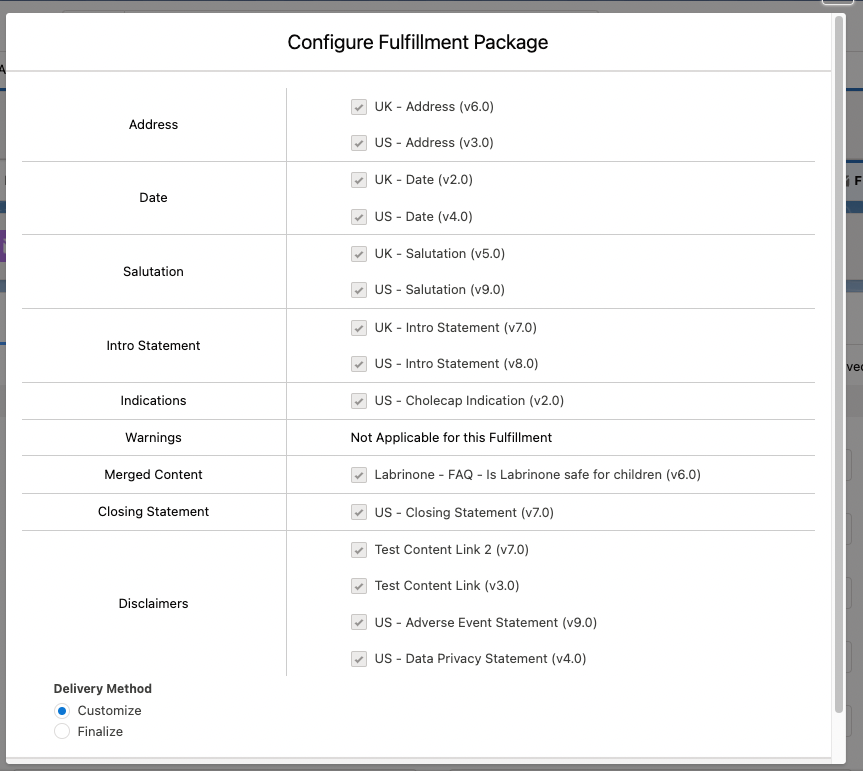 | Running Jobs utility bar 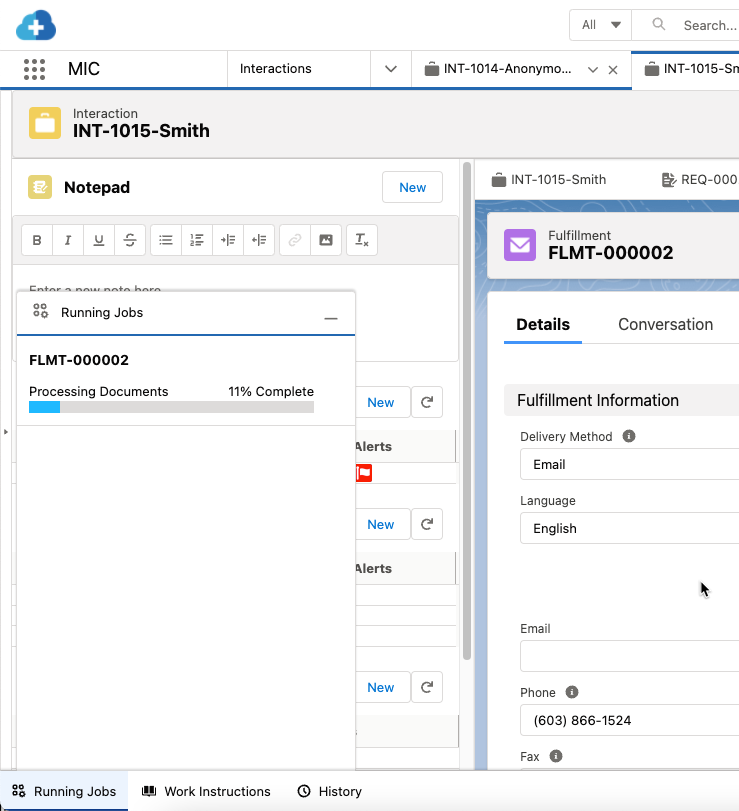 |
Enable the package generation functionality
To enable the fulfillment package generation functionality:
Add the Generate Package (
MED_Generate_Fulfillment_Package) button to the appropriate Fulfillment page layout. For information on how to add buttons to page layouts, visit Salesforce's documentation on how to Define Custom Buttons and Links.Add the MIC - Nintex Queue (
MED_NintexQueue) utility bar component to the Medical Information Cloud app and set the component to run automatically. For more information about the utility bar in Medical Information Cloud, visit Utility bar.Warning
The fulfillment package generation process will not run unless the component is visible in the active app.
In Setup, search for and select App Manager.
To the right of the MIC (
Medical_Information_Cloud) app, click the dropdown arrow and then Edit.Click Utility Items (Desktop Only).
Ensure that the MIC - Nintex Queue (
MED_NintexQueue) component is in the utility bar. If it is not, click Add Utility Items and then MIC - Nintex Queue.(Optional) Rename the label of the component from "MIC - Nintex Queue" to "Running Jobs".
Ensure that the MIC - Nintex Queue component is set to start automatically. If it is not, check Start automatically.
Click Save.
Load default DDPs
Dynamic DocGen Packages (DDPs) are used to generate fulfillment packages as well as to create snapshots of Medical Information Cloud records, enabling the Generate Package, Generate Snapshot, and Send to Safety buttons on Fulfillment (MED_Fulfillment__c), Request (MED_Request__c), and Adverse Event (MED_Adverse_Event__c) record pages, respectively. You can choose to either use Medical Information Cloud's default DDPs, modify them, or create your own. The Package Job (mvn__MED_Package_Job__c) object facilitates the processing of DDPs.
To load the default Inquiry Management default DDPs into your Salesforce environments with the Install Service, install the Medical Information Cloud - Setup configuration and run the optional "Load default DDPs and enable files" step.
Note
The standard Generate Package, Generate Snapshot, and Send to Safety buttons in Medical Information Cloud are object links with URL parameters that contain specific DDP tags. For instance, the filter parameter is the specific tag that the Medical Information Cloud system needs in order to know which DDP to use.
If you are modifying or creating your own DDPs, you can include record data using merge field notation. This will enable you to configure dynamic delivery options under different criteria. For example, if you set the filter parameter in the URL so that it equals REQSnapshotDDP_ plus the 2-digit ISO country code, then the filter for requests in the United States would look like REQSnapshotDDP_US. However, keep in mind that if you update the parameters in the URL to use a dynamic value and there is no DDP with a matching filter value, then the system will fail to generate the DDP.
For more information about object links and merge fields, reference Salesforce's documentation on how to Provide Actions, Buttons, and Links and Merge Fields, respectively.
Configure cover letter component behavior
To identify which content elements can be included in the cover letter of a fulfillment package, such that they can be selected and organized in the Configure Fulfillment Package modal, use the Dynamic Fulfillment Setting (MED_Dynamic_Fulfillment_Setting__mdt) custom metadata type. Each Dynamic Fulfillment Setting metadata record represents a collection of settings that define how the cover letter components should be merged into the cover letter. First, the Subtype (MED_Document_Subtype__c) field determines which Document (mvn__CM_Document__c) record(s) the information should be retrieved from. Then, the other Dynamic Fulfillment Setting metadata fields specify which cover letter components are optional or required, what default values should be set for certain components, what order or what section each piece of information should appear in the cover letter and modal, how the selected components should be combined, and more.
Configure which cover letter components to merge
To configure the optional, conditional criteria that determine which cover letter components should be merged into a fulfillment package, use the Dynamic Fulfillment Filter (MED_Dynamic_Fulfillment_Filter__mdt) custom metadata type. Each Dynamic Fulfillment Filter metadata record represents some criteria for filtering cover letter components by matching the configured Fulfillment Field (MED_Fulfillment_Field__c) value to the corresponding Document Field (MED_Document_Field__c) value. For example, if a typical fulfillment package needs a specific indication statement to apply for a healthcare professional versus a consumer, you may wish to create a Dynamic Fulfillment Filter metadata record related to a Dynamic Fulfillment Setting metadata record for indication cover letter components. On the Dynamic Fulfillment Filter metadata record, the Fulfillment Field value on the former can be set to equal a custom formula field called Account_Type__c that retrieves the Account record type (MED_Account__r.MED_Record_Type_Name__c) value while the Document Field value would relate to the MED Allowed Audience (MED_Allowed_Audience__c) CMS Field Mapping (MED_Document_Field_Mapping__mdt) metadata record. After the filtered components are retrieved, they are displayed in the Generate Fulfillment Package modal and are available to be merged into the fulfillment package in place of all of the cover letter components of that subtype.
Configure documents to merge
To configure how a document in the Regulated Content Cloud module behaves during the fulfillment package generation process, modify the document's metadata. Specifically, the Delivery Option (mvn__CM_Delivery_Option__c) field on the Document Version (mvn__CM_Document_Version__c) object, which is a required field when creating new content in the Regulated Content Cloud module, directs how the document should be handled when it is associated with an Interaction (Case) and Request (MED_Request__c) record.
For example, a document containing a standard response to a question may have a Delivery Option value of Merge Into Package, which indicates that the document will be inserted into the fulfillment package when the fulfillment package generation process completes. Meanwhile, a document containing a journal article may have a Delivery Option value of Attach Separate, Original Format, which indicates that the document will be added as an unmodified article to the Fulfillment record as a file during the fulfillment package generation process and will be included as an attachment when a requester is emailed the fulfillment response.
Table 135, “Document delivery options” below lists all of the possible document behaviors.
Delivery option | Description |
|---|---|
Attach Separate, Original Format | The document will be included in the fulfillment package as a separate file or attachment in the format that it was originally uploaded in. |
Attach Separate, PDF | The document will be included in the fulfillment package as a separate PDF file. |
Merge into Package | The document will be combined with other documents related to the Interaction record that also have the |
Send as Link | The document will be delivered to the requester as a link. |
HTML Only | The document will be included in an email body message. This should only be used if the fulfillment package is to be sent via the Digital Fulfillment method, and only the information on the Content (rich text) ( |
Troubleshoot Nintex errors
If you experience an error during the fulfillment package generation process, Mavens recommends performing the following troubleshooting steps:
Make sure the documents actually have files and placeholders.
Review the Special considerations section below and check every document in the package for compliance.
If you still experience any issues, please open a Nintex case with the error ID.
Special considerations
Please keep the following special considerations in mind when creating and preparing any documents to be included in fulfillment packages and when running the fulfillment package generation process:
Users must be assigned the Medical Information Cloud User (
MED_Medical_Information_Cloud_User) permission set group, which includes the DocGen User (DDP_User_All) permission set.The file types that can be converted to PDFs for generating fulfillment packages include:
Microsoft Word (.doc, .docx)
Microsoft Excel (.xla, .xlsx, .xlsm)
Microsoft PowerPoint (.ppt, .pptx)
PDF
Plain Text (.txt)
CSV (comma-separated values)
Note
Any non-Microsoft documents will be attached separately, producing multiple files instead of one consolidated PDF.
Warning
Do not mix .doc and .docx files within the same package.
Only native Word fonts are supported. If a generated PDF has font issues, embed the fonts in the Microsoft document(s) and regenerate the package.
The following DDP features are supported:
Insert-update
Data sources
Merge fields
The following DDP features are not supported:
Pause to edit
DocGen package forms
Documents (list on DDP is dynamically created and any in the DDP template are ignored)
Do not password protect files.
Do not upload a file and use the Context (rich text) (
mvn__CM_Content_Rich_Text__c) field on a document. This is because the Generate Package button for generating the fulfillment packages merges documents without rich text while the Digital Fulfillment button for creating the email body message for the Digital Fulfillment feature only merges documents with rich text.If you are using the Digital Fulfillment feature, merge fields that reference a nonexistent field and/or return a
nullor empty value will simply appear blank in the email and will not throw an error. However, merge fields that include HTML code (e.g.,<span>elements) will throw an error.If you are using Email-to-Case, make sure you include at least one cover letter component that references the Case Thread Token (
MED_Case_Thread_Token__c) field on the Fulfillment record.
Send fulfillment packages via email
After a fulfillment package is generated, users can send the fulfillment package to the requester via channels like email, mail, chat, fax, and in-person delivery. For email deliveries, users can use either the Email Fulfillment (MED_Email_Fulfillment) button or the Digital Fulfillment (MED_Generate_Fulfillment_Letter) button on the Fulfillment record page. The two buttons use different email components and processes to send the fulfillment package, and Mavens recommends using the latter for emailing as it is a newer feature in Medical Information Cloud that is more flexible for digital deliveries. You will need to add the Digital Fulfillment quick action to the appropriate page layout to enable it for users.
Email Fulfillment
If a user clicks the Email Fulfillment button on the Fulfillment record page, an email component will open in a new subtab and attach the fulfillment package to the email. The email body can be configured with an email template. For more information, reference Salesforce's documentation on Email Templates in Lightning Experience.
Digital Fulfillment
If a user clicks the Digital Fulfillment button on the Fulfillment record page, a Configure Fulfillment Package modal will open where the user can modify and confirm the content to be included in the email. Each piece of information is pulled from the Content (rich text) (mvn__CM_Content_Rich_Text__c) field on a Document Version record, and if a section contains multiple pieces of information, users can drag and drop the content to reorder how they appear in the email body. When the user then clicks Email at the bottom of the Configure Fulfillment Package modal, an email component will open in a new subtab. The email body will be populated according to the information from the Configure Fulfillment Package modal and the email attachments will include the generated fulfillment package. Users without the Customize Response on Fulfillment permission set can change the To and From values but cannot modify the Subject field, the Body message, or the attachments. For more information about the fields in the Digital Component email, reference Table 136, “Digital Fulfillment email component fields” below.
Note
The Configure Fulfillment Package modals for the fulfillment package generation process and for the Digital Fulfillment feature are separate and different. The former is used to generate the cover letter components and merge related documents into the fulfillment package while the latter is used to generate the body message and attach files to the email. However, the format and content of the cover letter and the email body are both controlled by the Dynamic Fulfillment Setting custom metadata type and may be identical. As a result, for information on how to configure the Configure Fulfillment Package modal for Digital Fulfillment, reference the Configure cover letter component behavior section above.
Field | Default value | Additional notes |
|---|---|---|
From | Defaults to the Fulfillment Outbound Email ( | The From field will default to the Fulfillment Outbound Email value but will include all available organization-wide email addresses as well as the current user's email address for the user to select from. |
To | Defaults to the Email ( | |
CC | Defaults to the CC Email ( | |
BCC | N/A. | |
Subject | Defaults to the Fulfillment Email Subject Label ( For new installs of Medical Information Cloud on Fall '25 (or above), the Default ( | The custom label can include merge fields. |
Body | Includes the Content (rich text) ( | The Body field can have a maximum of 384,000 characters, according to Salesforce's Email Body Character Limits. Users can add images to the Body field but should only embed publicly available images that are either hosted in a Salesforce org and shared with a link or hosted on an external website to the Body field; users should not use the image option in the rich text toolbar to attach local images. To best ensure that images are properly included in the fulfillment emails, users should either insert the URL of the image or copy the image from the public location (e.g., right click on the image and select Copy) and then paste the image into the rich text field (e.g., right click in the field and select Paste). |
Related Record | Shows the ID of the related Fulfillment record. | |
Attachments | Includes all of the files on the Fulfillment record. | Users can click the X icon on an attachment to remove it from the email as well as drag and drop the attachments to reorder them. |
Configure follow-up opt in/opt out emails
Requesters can opt in or opt out of receiving email updates from Request Follow-Ups. To configure this feature, first create new public sites for both opting in and opting out and then update the out-of-the-box Fulfillment email templates to include these two options.
Create a public site
To create an opt-in site:
In the Quick Find box in Setup, search for and select Sites.
Click New.
Add a Site Label (this will be the name of the site as seen in the user interface).
The Site Name field automatically populates with an API name based on the value in the Label field.
Set the site's default web address, e.g., "subscribe".
Set the Active Site Home Page to
MED_RequestFollowUpSubscribe.Leave the remaining fields with their default values.
Click Save.
To create an opt-out site:
In the Quick Find box in Setup, search for and select Sites.
Click New.
Add a Site Label (this will be the name of the site as seen in the user interface).
The Site Name field automatically populates with an API name based on the value in the Label field.
Set the site's default web address, e.g., "unsubscribe".
Set the Active Site Home Page to
MED_RequestFollowUpUnsubscribe.Leave the remaining fields with their default values.
Click Save.
Updating out-of-the-box fulfillment email templates
To update the Fulfillment Template for opting in:
In the Quick Find box in Setup, search for and select Classic Email Templates.
Click Fulfillment Template.
Click Edit HTML Version.
In the Subscribe Public Site field replace with the URL of the opt-in site you created.
Click Save.
To update the Follow-up Fulfillment Template for opting out:
In the Quick Find box in Setup, search for and select Classic Email Templates.
Click Follow-up Fulfillment Template.
Click Edit HTML Version.
In the Unsubscribe Public Site field, replace it with the URL of the opt-out site you created.
Click Save.
Updating custom fulfillment email templates for opting in
To update the custom Fulfillment template for opting in:
In the Quick Find box in Setup, search for and select Classic Email Templates.
Click or create the desired template.
Click Edit HTML version.
In the Email Body field, build your embeddable link by combining the Opt In Site link with the URL formula provided and replacing the Subscribe Public Site with the URL of the opt-in site you created.
Example 3. Email Body ExampleOpt In Site link: https://micsit-medinfo.cs122.force.com/subscribe
URL formula: (Subscribe Public Site)?token={!MED_Fulfillment__c.MED_Follow_Up_Token__c}
Result: https://micsit-medinfo.cs122.force.com/subscribe?token={!MED_Fulfillment__c.MED_Follow_Up_Token__c}
Embed the result into the desired text (example: Click Here) within the Email Template.
Click Save.
Updating the custom follow-up fulfillment template for opting out
To update the custom follow-up fulfillment template for opting out:
In the Quick Find box in Setup, search for and select Classic Email Templates.
Click or create the desired template.
Click Edit HTML Version.
Build your embeddable link by combining the Opt Out Site link with the URL formula provided and replacing the Subscribe Public Site with the URL of the opt-out site you created.
Example 4. Email Body ExampleOpt out site link: Build your embeddable link by combining the Opt Out Site link with the URL formula provided by replacing (Subscribe Public Site) with the URL of the opt-out site you created.
URL Formula: (Unsubscribe Public Site)?token={!MED_Fulfillment__c.MED_Follow_Up_Token__c}
Result: https://micsit-medinfo.cs122.force.com/unsubscribe?token={!MED_Fulfillment__c.MED_Follow_Up_Token__c}
Embed the result into the desired text (example: Click Here) within the Email Template.
Click Save.
Consent field updates
When a user clicks either the subscribe or unsubscribe link in one of the templates used above, the follow-up consent fields on the associated request automatically update in the following manner:
Opting In: Sets the Requester Consent checkbox to checked.
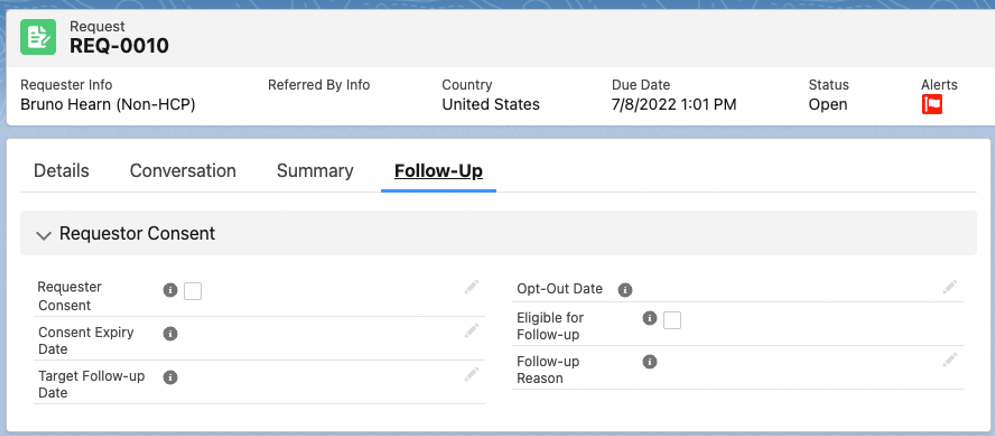
Opting Out: Sets the Requester Consent checkbox to unchecked and populates the opt-out date field.