Quick Actions
Quick actions are object-specific operations that can be used to create a more user-friendly, streamlined experience. The available object-specific quick actions are shown in the table below.
Object-specific quick actions
| Object | Quick action | Description |
|---|---|---|
Interaction (Case) | Account Info (MED_Case_Account_Info__c) | Displays the Case Accounts/Quick Search widget. |
Interaction (Case) | Close (MED_Close_Interaction) | Closes the interaction and related records. |
Interaction (Case) | MIC Snapshot (MED_MIC_Snapshot) | Creates a PDF snapshot of an Interaction record and all related Request, Fulfillment, Adverse Event, and Product Quality Complaint records using the in-house snapshot feature. |
Interaction (Case) | Transfer Interaction (MED_Transfer_Interaction) | Changes the owner of the Interaction. |
Interaction (Case) | Account Search (MED_Account_Search) | Opens the Account Search tab. |
Interaction (Case) | Generate Snapshot (MED_Snapshot) | Makes a PDF snapshot of the record using the in-house snapshot feature. |
Adverse Event (MED_Adverse_Event__c) | Add Interaction Related Items (MED_Add_Interaction_Related_Items) | Allows copying files and emails from the related Interaction onto the AE. |
Adverse Event (MED_Adverse_Event__c) | Add Related Product Quality Complaint (MED_Add_Related_Product_Quality_Complaint) | Creates a new PQC linked to the AE. Note: Mavens recommends adding the Interaction (MED_Case__c) lookup field to the Adverse Event page layout for the best user experience for this quick action. If the Interaction field is not on the page layout and a user clicks Save on the modal, the related Product Quality Complaint record will be created successfully, but the modal will remain open, which can cause users to mistakenly assume the record was not created. |
Adverse Event (MED_Adverse_Event__c) | Generate E2B (MED_Generate_E2B_Action) | Generates E2B file. |
Adverse Event (MED_Adverse_Event__c) | MIC Snapshot (MED_MIC_Snapshot) | Creates a PDF snapshot of the Adverse Event record using the in-house snapshot feature. |
Adverse Event (MED_Adverse_Event__c) | Transfer (MED_Transfer_AE) | Allows the transferring of the AE. |
Adverse Event (MED_Adverse_Event__c) | Send To Safety (MED_Send_To_Safety) | Uses Nintex DocGen to email the AE to the Safety team. |
Fulfillment (MED_Fulfillment__c) | Generate Package (MED_Generate_Fulfillment_Package) | Opens a modal to start the fulfillment package generation process using the new package generation queue in the Utility Bar. |
Fulfillment (MED_Fulfillment__c) | Generate Package (MED_Generate_Package) | Opens tabs to generate the fulfillment package. |
Fulfillment (MED_Fulfillment__c) | Refresh Request List (MED_Refresh_Request_Fulfillments) | Refreshes the Request Fulfillment Related List. |
Fulfillment (MED_Fulfillment__c) | Transfer (MED_Transfer_Fulfillment) | Allows the transferring of the fulfillment. |
Fulfillment (MED_Fulfillment__c) | Email Fulfillment (MED_Email_Fulfillment) | Uses Nintex DocGen to email out the Fulfillment. |
Inbound Form (MED_Inbound_Form__c) | Mass Recreate Request (MED_Mass_Recreate_Request) | Triggers the recreation of a Request for selected Inbound Form. Will create a duplicate if an existing request exists. |
Inbound Form (MED_Inbound_Form__c) | Recreate Request (MED_Recreate_Request) | Triggers the recreation of a Request for selected Inbound Form. Will create a duplicate if an existing request exists. |
Product Quality Complaint (MED_Product_Quality_Complaint__c) | Add Related Adverse Event (MED_Add_Related_Adverse_Event) | Create a new, linked Adverse Event. Note: Mavens recommends adding the Interaction (MED_Case__c) lookup field to the Product Quality Complaint page layout for the best user experience for this quick action. If the Interaction field is not on the page layout and a user clicks Save on the modal, the related Adverse Event record will be created successfully, but the modal will remain open, which can cause users to mistakenly assume the record was not created. |
Product Quality Complaint (MED_Product_Quality_Complaint__c) | MIC Snapshot (MED_MIC_Snapshot) | Creates a PDF snapshot of the Product Quality Complaint record using the in-house snapshot feature. |
Product Quality Complaint (MED_Product_Quality_Complaint__c) | Transfer (MED_Transfer_PQC) | Allows the transfer of the PQC. |
Product Quality Complaint (MED_Product_Quality_Complaint__c) | Send to QC (MED_Send_QC) | Uses Nintex Docgen to email the PQC to the quality team. |
Request (MED_Request__c) | Follow up Request (MED_Follow_up_Request) | Clones the request and makes a follow-up Interaction for it. |
Request (MED_Request__c) | Add Related Adverse Event (MED_Add_Related_Adverse_Event) | Creates a new, linked, Adverse Event from information on the Request. Note: Mavens recommends adding the Interaction (MED_Case__c) lookup field to the Request page layout for the best user experience for this quick action. If the Interaction field is not on the page layout and a user clicks Save on the modal, the related Adverse Event record will be created successfully, but the modal will remain open, which can cause users to mistakenly assume the record was not created. |
Request (MED_Request__c) | Add Related Product Quality Complaint (MED_Add_Related_Product_Quality_Complaint) | Creates a new, linked, PQC from information on the Request. Note: Mavens recommends adding the Interaction (MED_Case__c) lookup field to the Request page layout for the best user experience for this quick action. If the Interaction field is not on the page layout and a user clicks Save on the modal, the related Product Quality Complaint record will be created successfully, but the modal will remain open, which can cause users to mistakenly assume the record was not created. |
Request (MED_Request__c) | Clone Request (MED_Clone_Request) | Clones the Request. |
Request (MED_Request__c) | New Custom Response (MED_Create_Custom_Response) | Opens wizard modal to create a new document with pre-populated fields based on the calling request and Document Wizard Setting (mvn__MED_Document_Wizard_Settings__mdt). |
Request (MED_Request__c) | Create FAQ (MED_Create_FAQ) | Opens wizard modal to create a new document with pre-populated fields based on the calling request and Document Wizard Setting (mvn__MED_Document_Wizard_Settings__mdt). |
Request (MED_Request__c) | MIC Snapshot (MED_MIC_Snapshot) | Creates a PDF snapshot of the Request record using the in-house snapshot feature. |
Request (MED_Request__c) | Snapshot (MED_Snapshot) | Uses Nintex DocGen to generate a PDF snapshot of the request. |
Request (MED_Request__c) | Transfer Request (MED_Transfer_Request) | Allows for the transferring of the Request. |
Request (MED_Request__c) | Update Follow up Consent Details (MED_Update_Follow_up_Consent_Details) | Allows the editing of the follow-up consent information for closed requests. |
In-house snapshot generation
Snapshots are PDFs that format information from designated records into tabular layouts. Snapshots can be generated either with our Nintex integration or our in-house solution. More information about the Nintex integration can be found in Snapshot generation.
Nintex integration vs. in-house solution
| Nintex integration | In-house solution |
|---|---|
| Available for Interaction and Request records. Snapshots of Request records will include any related Request Document records as well. | Available for Interaction, Request, Adverse Event, and Product Quality Complaint records. |
| Can only generate and export 1 snapshot at a time. | Can generate and export an unlimited number of snapshots at a time. |
| The process only runs via manual user action. | The process can run automatically in the background via triggers or batch jobs. Reference Generate snapshots with Apex method. |
| Can merge additional files into the snapshot. | Cannot merge additional files into the snapshot. |
| Has greater configurability overall. | Has greater performance and speed overall. |
With the in-house solution, users can create snapshots via quick actions. When users click Generate Snapshot for a given record, a modal will open to confirm the Snapshot Configuration Name of the parent snapshot object to be generated.
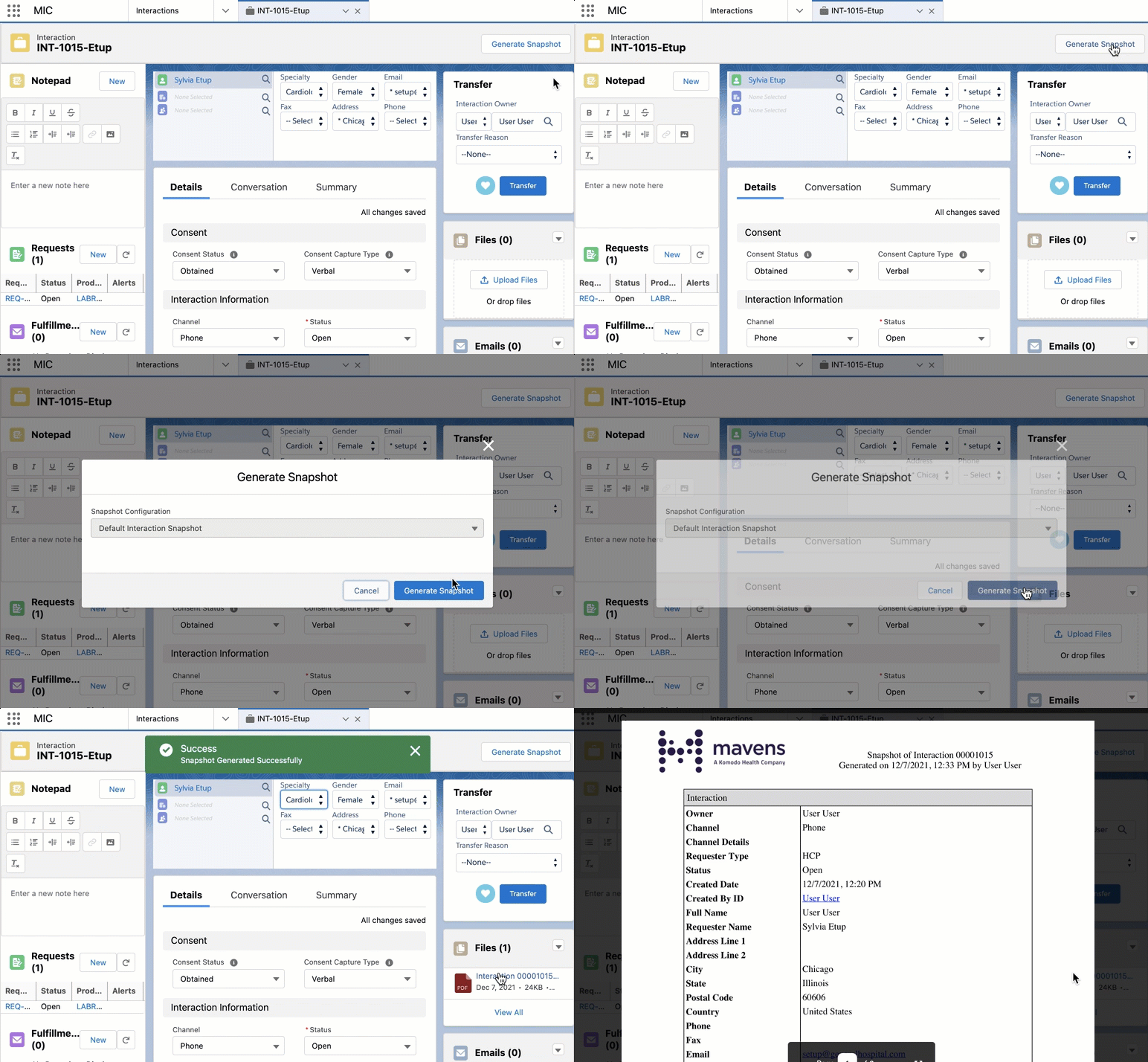
For Adverse Event records, sending an email to Safety automatically generates a new snapshot and merges it into the email attachment. Likewise, for Product Quality Complaint records, sending an email to QC automatically generates and merges a new snapshot into the email attachment as well.
Configure page layouts
To enable the in-house generation of snapshots for an Interaction, Request, Adverse Event, or Product Quality Complaint record:
-
Open the associated Page Layout Editor for the designated object. For more information about Page Layouts, visit Page Layouts in Salesforce Help.
-
Drag and drop the Generate Snapshot (
MED_MIC_Snapshot) Mobile & Lightning Action into the page layout.
The Name of the in-house Generate Snapshot action is
MED_MIC_Snapshot while the Name of the Nintex Generate Snapshot
action is MED_Snapshot.
-
Drag and drop the Files Related List into the page layout.
-
Click Save.
-
Open a page of the page layout in the Lightning App builder.
-
Add a Related List - Single component to the page. The Parent Record should be the current record while the Related List should be Files. This is where the generated snapshot files will be located.
-
Click Save.
Configure snapshot layout
You can configure which parent, child, and grandchild objects as well as which fields of these objects are to be included in the generated snapshots. Visit Objects.
Create and modify snapshot objects
To create a new or modify an existing snapshot object that can be generated:
-
Open the Snapshot Configuration custom metadata type settings in Setup.
-
Click Manage Snapshot Configurations.
-
Click New to create a new snapshot object or select a label and then Edit to modify an existing snapshot object.
-
Enter a Label to represent the snapshot object. Mavens recommends formatting the label so that it includes the parent object, if applicable, followed by a colon and the current object.
-
Enter the Snapshot Configuration Name used by the generate Snapshot Apex method and managed packages to identify the snapshot object.
-
Select the designated Snapshot Object.
-
Enter the desired Field Set Name.
-
If the snapshot object is a child or grandchild object to be included in a parent object's snapshot, enter the Parent Snapshot and select the Relationship Field.
Supported parent objects include:
-
Interaction
-
Request
-
Adverse Event
-
Product Quality Complaint
- Click Save.
Reference the Snapshot Configuration custom metadata.
Create and modify snapshot fields
For each parent, child, or grandchild object, to create a new or modify an existing field set used in a snapshot:
-
Open the object in Object Manager.
-
Click Field Sets.
-
Click New to create a new field set or select a field label to modify an existing field set.
-
Drag and drop the desired fields accordingly. For more information about Field Sets, visit Field Sets in Salesforce Help.
-
Click Save.
Configure snapshot branding
You can customize the design of the generated snapshots to fit your branding needs with the following Static Resources:
Static resources for snapshots
| Static resource | MIME type | Description |
|---|---|---|
| MED_Snapshot_Logo | image/png | The organization's logo that is displayed in the generated snapshots. |
| MED_Snapshot_Style | text/css | The Master style sheet to design the generated snapshots. |
Generate snapshots with Apex method
In-house snapshots can also be generated by calling the globally exposed
MED_SnapshotService.generateSnapshots Apex method. Each snapshot
object listed will have its own snapshot file generated. We recommend
calling this method in a batch job when multiple snapshot files are to
be generated at once.
generateSnapshots parameters
| Parameter | Type | Required? | Description |
|---|---|---|---|
| sObject | List of objects | Yes | The list of snapshot objects that are to be generated. The ID and Name fields for each sObject are required. |
| snapshotConfigName | String | Yes | The Snapshot Configuration Name of the top-level snapshot record will identify and include the linked child records in the snapshots accordingly. |
Metadata
The custom metadata object listed below helps define and configure the in-house snapshot generation functionality.
- Snapshot Configuration (in-house)
(
MED_Snapshot_Config__mdt) - settings related to the in-house snapshot generation functionality. With this metadata, you can configure the objects, fields, and layout of the generated snapshots for the designated records.