
Fall '26 (v19) Release Notes
This topic contains the V19 release notes for Medical Information Cloud. V19 is the Fall '26 release. The release notes are organized into these high-level sections:
-
Installation and upgrades - link to install or upgrade to V19.
-
New features - new features and functionalities introduced in V19.
-
Updated features - existing features and functionalities enhanced in V19.
-
Defect fixes and maintenance - defects and maintenance items fixed in V19.
-
Metadata changes - changes to the underlying data models, user permissions, or system configurations included in V19.
-
Deprecated and deleted items - components of the product that have been deprecated, removed, or retired in V19.
-
Required post-upgrade actions - required actions administrators must take after upgrading to V19.
-
Optional post-upgrade actions - optional actions administrators can take after upgrading to V19.
As this page is maintained and updated over time to ensure accurate and timely information, Mavens recommends referencing the release notes online rather than printing and using static versions of the page.
Installation and upgrades
The Medical Information Cloud Fall '26 release can be installed with the Install Service at https://install.mavens.com/products/mic/19.0.0.14. New installs of Medical Information Cloud will be on the latest release while current customers will need to run and deploy the latest update.
Remember to complete the steps in the Required post-upgrade actions section below as appropriate.
New features
The V19 release of Medical Information Cloud contains several new features whose functionalities are detailed below. Details about enablement and configuration are included within the product documentation.
| Feature | Upgrade state |
|---|---|
| Life Sciences Cloud (LSC) | Default off |
| Quick Fulfillment: automatic assembly of Fulfillment files | Default off |
| Record snapshots and Send Snapshot | Default off |
| Snapshot Template Studio | Default off |
| AI audit trail | Required on. The objects are installed, and no feature writes to them yet. |
| Content Recommendations on Request | Default off |
| Content anchoring | Default off |
| New Send Email action | Default off |
- Required on: Applies to every org after the upgrade. No setting turns it off.
- Default on: On after the upgrade. An administrator can turn it off.
- Default off: Off after the upgrade until an administrator sets it up.
Life Sciences Cloud (LSC)
Medical Information Cloud now integrates with Life Sciences Cloud (LSC). Medical inquiries raised in LSC can be worked in Medical Information Cloud without being entered again. The integration has three parts: inbound inquiry sync, Account Search, and Case status writeback. You configure each part separately, so you can use any combination.
-
Inbound inquiry sync: Medical Information Cloud pulls medical inquiries submitted in LSC into the Inbound Form (
MED_Inbound_Form__c) object. Existing Inquiry Management automation then converts each form into an Interaction (Case) and Request (MED_Request__c). Each LSC inquiry question becomes one Inbound Form, and inquiries already pulled are skipped, so no duplicates are created. If an inquiry has several questions, they're grouped under one Interaction, with a separate Request for each question. -
Account Search: Medical Information Cloud can search LSC for the people on an inquiry and add them to the Interaction:
- Requester: The healthcare provider or institution the inquiry is about.
- Submitting representative: The Medical Science Liaison or Sales Representative who raised the inquiry. This person is a User in LSC and an Employee account in Medical Information Cloud, and is added as Referred By (
MED_Referred_By__c).
Both are found automatically when an inbound inquiry is processed. When specialists run Account Search from an Interaction, LSC results also appear alongside local results, using the same filters. Accounts are matched by External ID (
MED_External_ID__c), so the same person is never created twice. Their email, phone, and address are added as Contact Information records. -
Case status writeback: As specialists work an LSC inquiry, Medical Information Cloud sends the Interaction's status back to the LSC Case every hour. The field user who raised the inquiry can see its progress in LSC. With the mappings included in new installations,
Openis sent asAssigned, andClosedandCancelledare sent asResponded. To send other Case fields, including custom fields, add Outbound field mappings. No code changes are needed.
For configuration, monitoring, and troubleshooting, see Life Sciences Cloud (LSC).
Related work item(s): MIC-4337, MIC-4725, MIC-4780, MIC-4781, MIC-4816, MIC-4826
Quick Fulfillment: automatic assembly of Fulfillment files
Medical Information Cloud can now assemble a Fulfillment's files automatically. When a Fulfillment is created, the documents on its Requests are attached in the format set by each document's Delivery Option. Specialists open a Fulfillment that already has its documents, instead of collecting and converting them by hand.
- Attach Separate, Original Format: The original file is copied to the Fulfillment.
- Attach Separate, PDF: A PDF is attached. If the document has no PDF rendition and isn't already a PDF, a PDF is created for the Fulfillment.
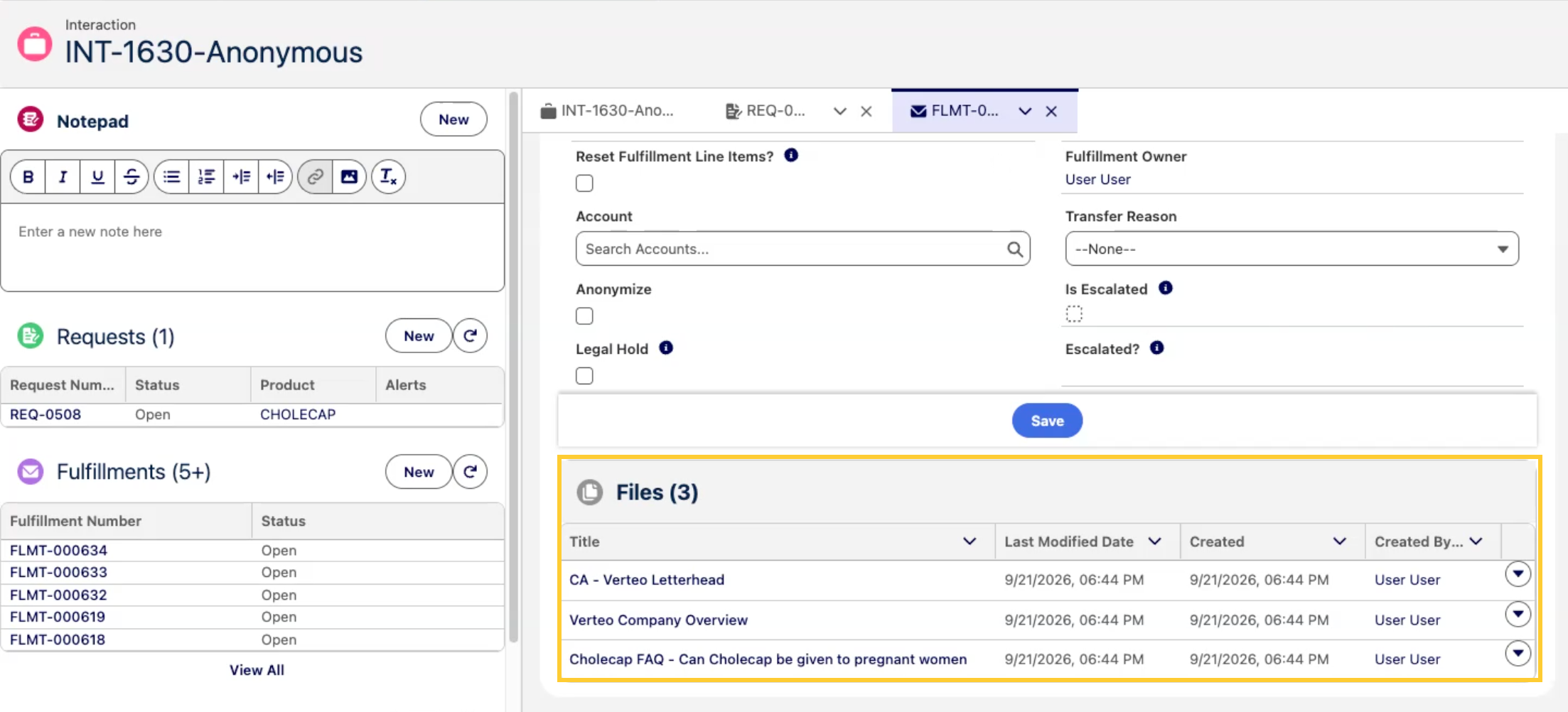
Files uploaded directly to a Request with Attach Request Document are attached the same way. If the Fulfillment's country and account are set up for Prescribing Information, the applicable Prescribing Information documents are attached too.
The new Quick Fulfillment Status (MED_Quick_Fulfillment_Status__c) and Quick Fulfillment Completed (MED_Quick_Fulfillment_Completed__c) fields show each Fulfillment's assembly progress and result. You can report on both fields. Clicking Refresh Requests List updates the files when Requests or documents change. Files users attached by hand are never changed.
Before you turn on Quick Fulfillment in an existing org, make sure the steps in Turn on Quick Fulfillment are complete.
Automatic assembly runs only for countries and segments where Quick Fulfillment (MED_Quick_Fulfillment__c) is selected on the Local Setting (MED_Local_Setting__mdt) custom metadata type. Other countries and segments keep the manual process.
Only a Quick Fulfillment Status of Complete means the Fulfillment has every file it should. Complete with Errors and Failed mean files are missing. Any automated process that acts on assembled Fulfillments must run only when the status is Complete.
For product documentation, see the Quick Fulfillment section.
Related work item(s): MIC-4849, MIC-5003, MIC-5225
Record snapshots and Send Snapshot
Medical Information Cloud now generates record snapshots from Microsoft Word templates with the Mavens Rendition Service, and can email them in a single action. Snapshots of Interactions, Requests, Adverse Events, and Product Quality Complaints no longer depend on Nintex DocGen. Each snapshot keeps its template's letterhead, headings, sections, and tables, and it's saved in the record's Files. Snapshots are configured entirely in custom metadata.
The new Send Snapshot (MED_Send_Snapshot) quick action is available on Interaction, Request, Adverse Event, and Product Quality Complaint.
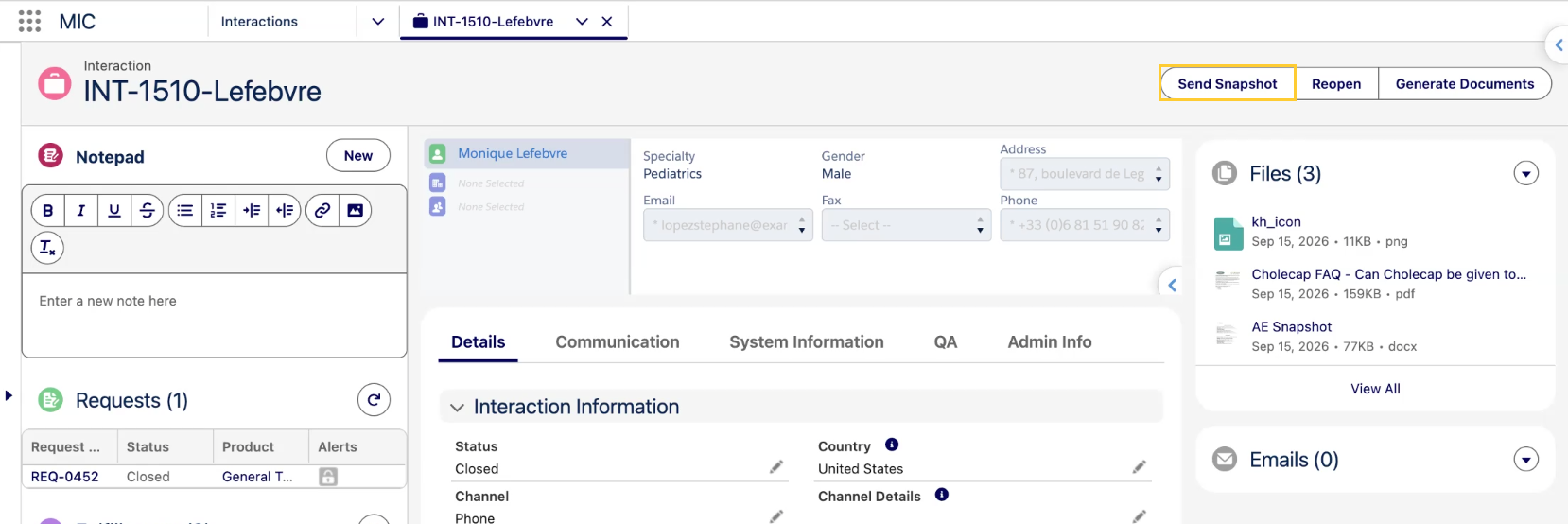
Send Snapshot does the following:
- Generates one PDF that merges the snapshot templates and record files the user selects.
- Lets the user choose and preview the files to attach.
- Opens the email composer with details filled in from the snapshot configuration.
- Can set a Date/Time field on the record after the email is sent.
Administrators configure each snapshot with a CA Rendition Parent Config (mvn__CA_Rendition_Parent_Config__mdt) record, and each set of related records it includes with a CA Rendition Child Config (mvn__CA_Rendition_Child_Config__mdt) record. The configuration sets when the snapshot is offered, what it includes, the file name, the email recipients and other email details, and an optional flow that must pass before the snapshot is sent.
Administrators can edit templates in the new Snapshot Template Studio. Snapshots aren't limited to these four objects. Administrators can configure them for any object that supports Files, and add the action to that object.
Administrators can also add the Generate Snapshot (MED_Generate_Snapshot) quick action, which creates a snapshot with the Mavens Rendition Service and saves it to the record without sending it.
Snapshots respect field-level and object-level security. Any field or related object the user can't read is left out of the document.
The Medical Information Cloud upgrade leaves your existing page layouts and permission assignments as they are. To give your users snapshots, follow Set up record snapshots.
For configuration steps and the full field reference, see Record Snapshots, CA Rendition Parent Config, and CA Rendition Child Config.
Related work item(s): MIC-4747, MIC-4686, MIC-4739, MIC-4933, MIC-4764, MIC-4939, MIC-4746, MIC-5171
Snapshot Template Studio
The new Snapshot Template Studio tab lets administrators build, test, and manage versions of the Word templates that record snapshots use, without leaving Salesforce or learning template syntax.

-
Build: Choose a sample record, and browse the fields, related fields, and related records a snapshot can include, with the sample record's values next to each one. Copy a single tag, or copy a ready-made table for a set of related records. When you paste the table into Word, it includes its repeating rows. The Tag composer adds formatting, such as date formats and a placeholder for empty values.
-
Test: Upload a draft
.docxfile and preview it with the sample record. The draft isn't live until you publish it, and you can publish only after the preview generates successfully. -
Publish and restore: Publish the draft as the next version of the template, view the version history, download any version, and restore an earlier version. No version is ever deleted.
Uploading drafts, publishing, and restoring require the Modify All Data permission. Other users with access to the tab can browse fields and copy tags, but can't change templates.
For details, see Manage snapshot templates.
Related work item(s): MIC-4747, MIC-4917
AI audit trail
Medical Information Cloud adds two objects that record what an AI was asked to do and what it produced. With these records, a quality or compliance reviewer can start from a value an AI set and later explain how the AI arrived at it.
-
AI Invocation (
mvn__AI_Invocation__c): One record for each time the application asks an AI to do something, such as one agent run or one direct prompt call. It records what started the run, which agent or prompt ran, which records the run examined, and what the run was allowed to do. -
AI Outcome (
mvn__AI_Outcome__c): One record for each record the AI created or changed. It holds what the AI proposed and what a reviewer decided. AI Outcome is a master-detail child of AI Invocation, so deleting an invocation also deletes its outcomes. An invocation can have many outcomes or none. If a run examines a record and correctly proposes nothing, it produces no outcome. A missing outcome doesn't mean the run failed.
Three design choices make the trail useful for review:
-
Each invocation records what the AI was allowed to do. Authorized Autonomy (
Authorized_Autonomy__c) stores the permission in effect when the run started: Proposal Only, Execute After Approval, or Execute Autonomously. Each outcome records what actually happened in Disposition (Disposition__c). A reviewer can compare the two to confirm that the AI stayed within its permissions, without relying on configuration that may have changed since.noteAuthorized Autonomy is a required field, so you can't restrict it with field-level security. Every user who can read AI Invocation can read Authorized Autonomy.
-
What the AI proposed is kept separate from what a person decided. AI Payload (
AI_Payload__c) holds the values the AI produced before anyone reviewed them. Reviewers record their decision in Disposition, Reviewed By, and Rejection Rationale (Rejection_Rationale__c). Only users with the Review or Admin permission set can see AI Payload, AI Payload Comparison (AI_Payload_Comparison__c), and Rejection Rationale. -
Changes to outcomes are tracked. Field history tracks Disposition and Reviewed By. Edits to AI Payload, AI Payload Comparison, and Rejection Rationale are recorded in the Mavens Field Audit Trail. AI Invocation isn't tracked, because it isn't meant to be edited after it's created.
Use these permission sets to control access:
| Permission set | AI Invocation | AI Outcome | AI Payload |
|---|---|---|---|
AI Audit: Read (AI_Audit_Read) | Read | Read | Not visible |
AI Audit: Review (AI_Audit_Review) | Read | Read; Edit Disposition, Reviewed By, and Rejection Rationale only | Read |
AI Audit: Admin (AI_Audit_Admin) | Read, including View All | Read and Edit | Read and Edit |
-
No sharing rules are included. The org-wide default for AI Invocation is Private, and AI Outcome inherits access from its invocation. Users with only AI Audit: Read or AI Audit: Review see only the records that are shared with them. Plan how your org will share these records before you rely on them for review.
-
None of the included permission sets grant create or delete access to AI Invocation or AI Outcome, or edit access to AI Invocation. Only the application creates these records.
-
Users with the AI Audit: Admin permission set can change AI Payload after it's created, and no validation rule or trigger prevents this. These edits are recorded in the Field Audit Trail. Assign AI Audit: Admin only to users who need it, and use AI Audit: Read or AI Audit: Review for everyone else.
This release delivers only the two objects, their fields, page layouts, and permission sets. No Medical Information Cloud feature writes to these objects yet, so your org has no AI Invocation or AI Outcome records after the upgrade.
Related work item(s): MIC-4391, MIC-5329
Content Recommendations on Request
Medical Information Cloud now suggests relevant published content automatically when an agent opens a Request (MED_Request__c). Agents no longer need to retype the question into Search Content to find documents that match the Request's details.
When a Request has both a Country and a Product (or product family), the new MIC - Content Recommendations (mvn:medContentRecommendations) card searches published content. The search uses the Request's Country, Product, Question, Requester account type, and preferred language. Matching documents appear in the Request sidebar, ranked by relevance.
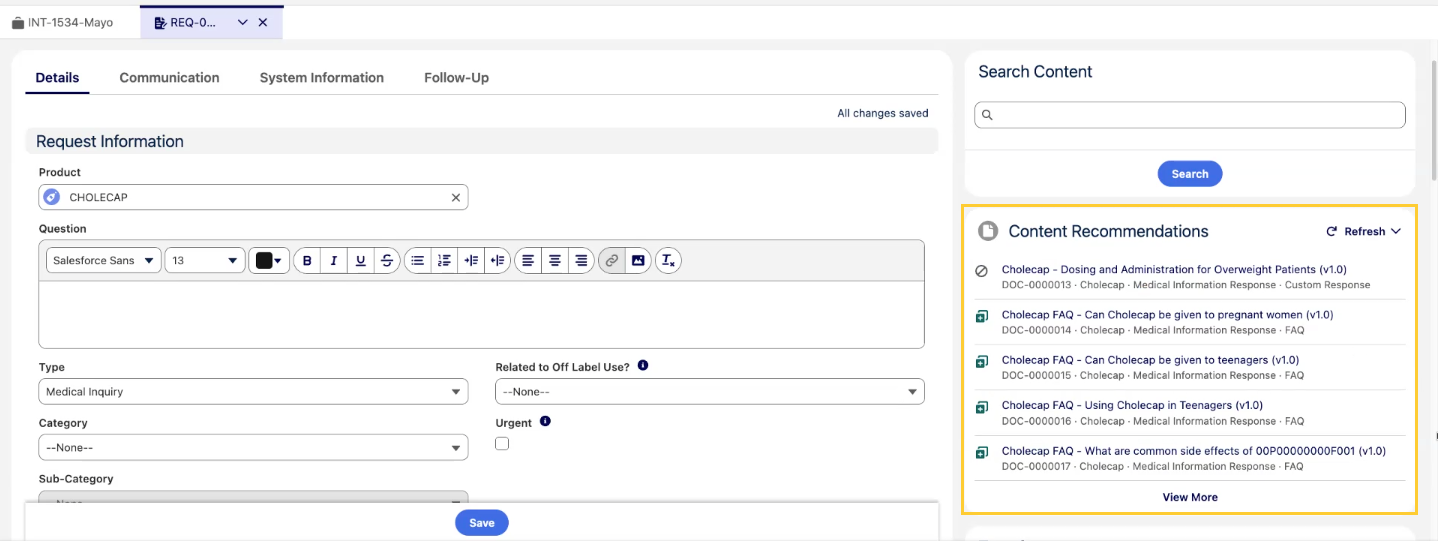
From the card, agents can:
- Open a document.
- Attach a document to the Request as a Request Document (
MED_Request_Document__c). - Remove an attached document.
The card groups recommendations into Prescribing Information, Approved Documents, and Custom Responses. Each group shows its document count in a badge. Prescribing Information and Approved Documents start expanded; Custom Responses starts collapsed. Empty groups remain collapsed and cannot be expanded. Grouping does not change which documents are returned, their order, or their ranking.
Agents don't need to open the manual search modal for any of these actions. For details on using and configuring the card, see Content Recommendations.
Related work item(s): MIC-4014, MIC-4901
Content anchoring
Authors can now link a Scientific Statement in one Regulated Content Cloud document to the Reference that supports it, either a passage in another document or that whole document. For example, a Scientific Statement in a standard response can be anchored to the adverse events section of the prescribing information. Readers who follow the anchor go straight to the Reference passage instead of page 1, so they can check the Scientific Statement against its source faster.
-
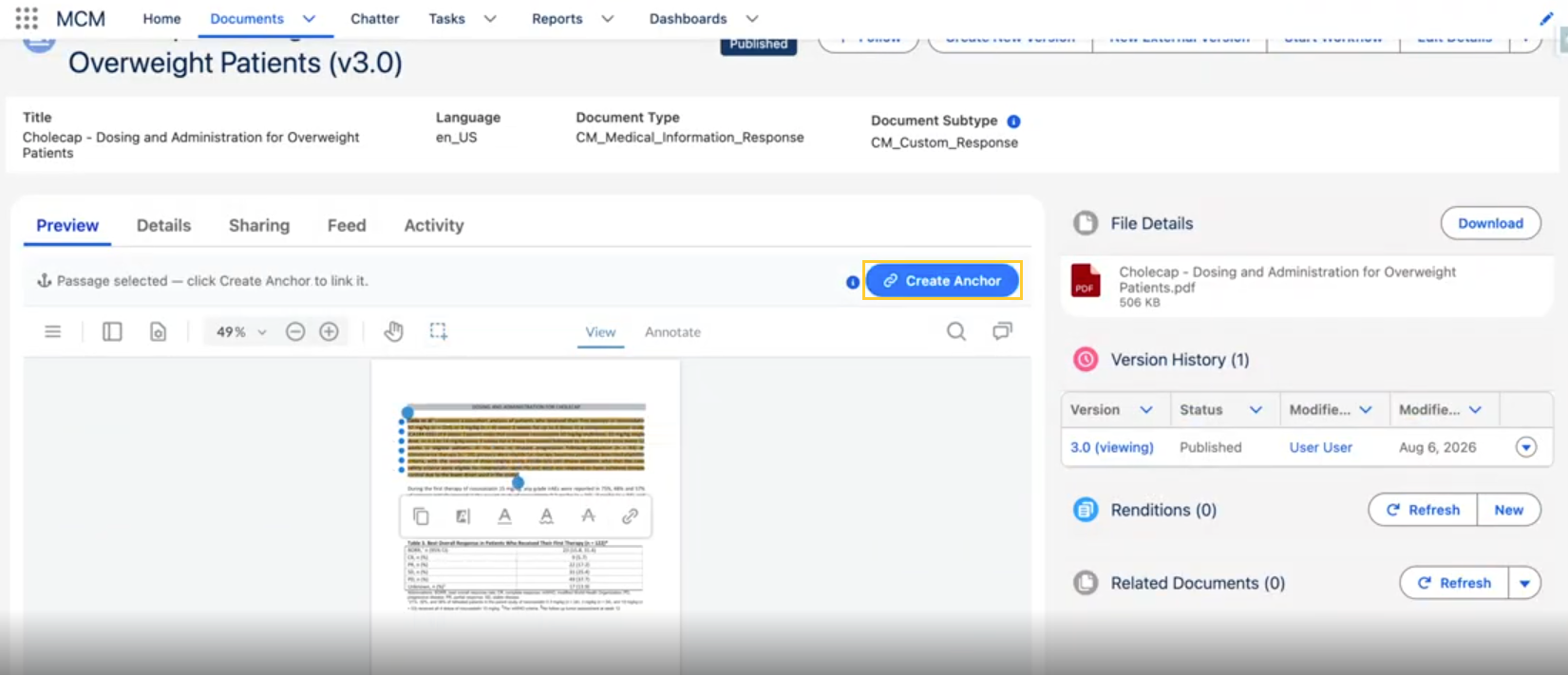
Create anchors: On the Preview tab of a Document record, authors select a Scientific Statement, click Create Anchor, and choose its Reference in a side-by-side view. The Create Anchor window suggests possible References and lets authors browse the library. By default, suggestions use keyword matching on document fields such as Title and Answer. If an administrator sets up Data 360 semantic search, suggestions use the file text instead. This requires version 0.5 or later of the Data 360 content search connector (
mvn-content-dc-search). Obsolete, superseded, withdrawn, expired, and rejected document versions aren't offered as References. -
View and manage anchors: Saved anchors appear as markers in the enhanced document viewer. Clicking a marker opens the other document at the anchored passage. The new Anchors panel (MCM - Anchor Rail component) on the Document record page lists a document's anchors, and lets authors view, edit, repoint, and remove them. The new All Anchors (
mvn__CM_All_Anchors) tab lists anchors across all documents, and the Relationship Visualizer shows documents connected by anchors as Anchor Links. -
Security: Anchors are stored in the new Anchor Link (
mvn__WV_Anchor_Link__c) object. Users see each end of an anchor only if they can read that document version and its file, so anchors never reveal documents a user can't otherwise read. -
Supported files: Content anchoring works with PDF and Word (
.docx) files that open in the enhanced document viewer. Older Word (.doc) files aren't supported. Files that open in Salesforce's own file preview can only be linked as a whole document. -
New document versions: When a document gets a new version, its anchors are copied to the new version, with some exceptions. If the file is unchanged, anchors keep their position. If the file changed, anchors are marked Check for the author to confirm. While the Scientific Statement document is still in draft or review, Medical Information Cloud tries to find the passage again automatically. For details, see When anchors are not copied.
A background job copies anchors whenever a new document version gets its file. This job runs in every org, whether or not you use content anchoring.
Content anchoring is turned on for each user, not for the whole org. Users need the Content Anchoring User custom permission, which comes with the WV Content Anchoring (mvn__WV_Content_Anchoring) permission set. The All Anchors tab also requires the CM Content Anchoring (mvn__CM_Content_Anchoring) permission set. If you installed the packages with Install for Admins Only, System Administrators might already have content anchoring turned on.
For configuration steps and full details, see Content anchoring. To turn on the feature, see Set up content anchoring.
Related work item(s): MIC-4851, MIC-4853, MIC-4856, MIC-4857, MIC-4858, MIC-4863, MIC-4864, MIC-4931, MIC-4948, MIC-4949, MIC-4978, MIC-4998, MIC-5029, MIC-5033, MIC-5052, MIC-5060, MIC-5105, MIC-5128, MIC-5137, MIC-5161, MIC-5170, MIC-5193, MIC-5198, MIC-5204, MIC-5210, MIC-5220
New Send Email action
Contact center users can now write and send emails from any Medical Information Cloud record by using the new Send Email Lightning component (mvn:emSendEmailAction). The component opens the Lightning email composer. Users can add recipients, edit the subject and body, attach files, and send the email. It doesn't need Email-to-Case or any custom metadata configuration.
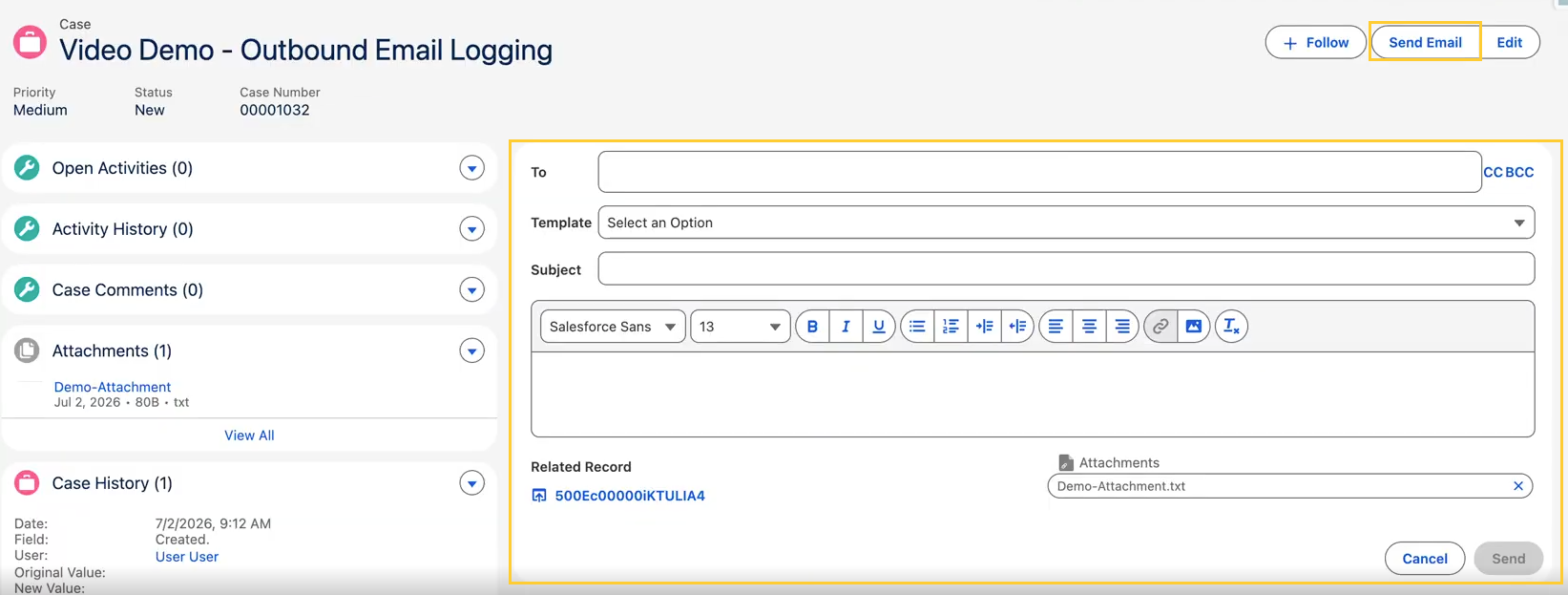
Administrators can add Send Email to a Lightning record page for Interaction (Case) or other Medical Information Cloud objects. They can also add it as a screen action. On a record page, these design attributes control the default behavior:
-
Auto Attach Files: Automatically attaches files linked to the record when the composer opens.
-
Allow Template Selection: Lets users choose a Classic or Lightning email template. The template fills in the subject and body, and users can still edit them.
-
Default Email Template Id: The ID of an email template to fill in the subject and body when the composer opens. You can enter the ID directly or use a formula.
-
Default From Address: A verified org-wide email address to use as the default From address.
-
Merge Context Id Field: A field on the source record to use when resolving template merge fields, such as
ContactIdon an Interaction. This field is used only for merge fields. It doesn't add a recipient.
For setup steps, see Send Email in the Inquiry Management User Interface Components topic.
Related work item(s): MIC-4737, MIC-4738
Updated features
| Update | Upgrade state |
|---|---|
| MIC - Fulfillment Files List deprecated and replaced by Related files | Required on |
| Enhanced document viewer no longer limited to files under 2 MB | Required on |
| Enhanced Inbound Form product matching | Required on |
| Data 360 search: ranking and scoring | Required on |
| Data 360 search: filtering inside the index | Default off |
- Required on: Applies to every org after the upgrade. No setting turns it off.
- Default on: On after the upgrade. An administrator can turn it off.
- Default off: Off after the upgrade until an administrator sets it up.
MIC - Fulfillment Files List deprecated and replaced by Related files
The MIC - Fulfillment Files List component (medFulfillmentAttachments) is deprecated. Its replacement is the new Related files component (mvn:caRelatedFilesList), which can be added to the Lightning record page of any object.
You don't need to change your record pages. After the upgrade, MIC - Fulfillment Files List displays the Related files component with fixed settings, so users see the new list wherever the deprecated component is. They can check out, check in, cancel a checkout, rename, remove, and convert files as before, with these differences:
-
Convert to PDF: The Mavens Rendition Service converts the file, and Nintex DocGen is no longer used. Convert to PDF is offered for Word and PowerPoint files that aren't checked out:
doc,docx,docm,dot,dotm,dotx,ppt,pptx,pptm,pot,potm,potx,pps,ppsm, andppsx. Users must be authorized for the service. See Authorize users for the Mavens Rendition Service. -
Universal checkout: Check out and check in now work the same way on a Fulfillment as they do in other Mavens products.
To choose which columns appear, add an Upload button, or use a different checkout permission, replace the deprecated component with the Related Files List component. For details, see Replace MIC - Fulfillment Files List with Related Files.
Related work item(s): MIC-4356
Enhanced document viewer no longer limited to files under 2 MB
The enhanced document viewer
now renders files of any size. Previously, files of 2 MB or larger fell back to the standard
Salesforce preview even when their extension was listed in Enhanced Viewer Extensions
(mvn__CM_Enhanced_Viewer_Extensions__c).
Files Connect files and files with unsupported extensions still open in the Salesforce preview.
Related work item(s): PLTFM-3721
Enhanced Inbound Form product matching
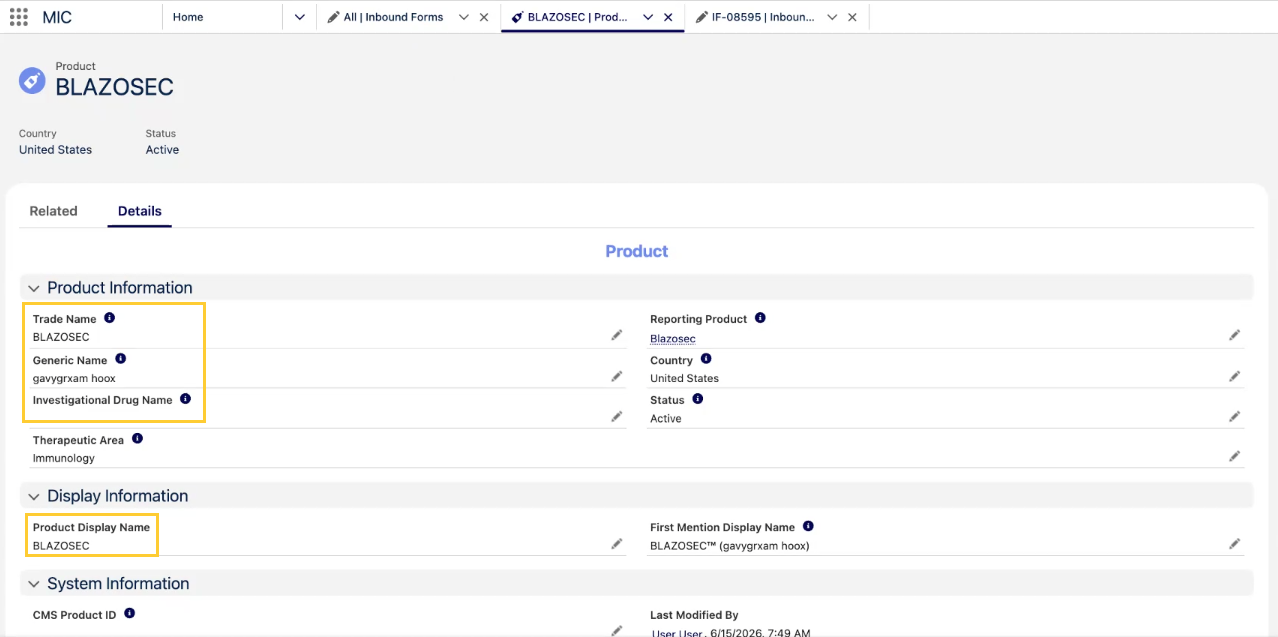
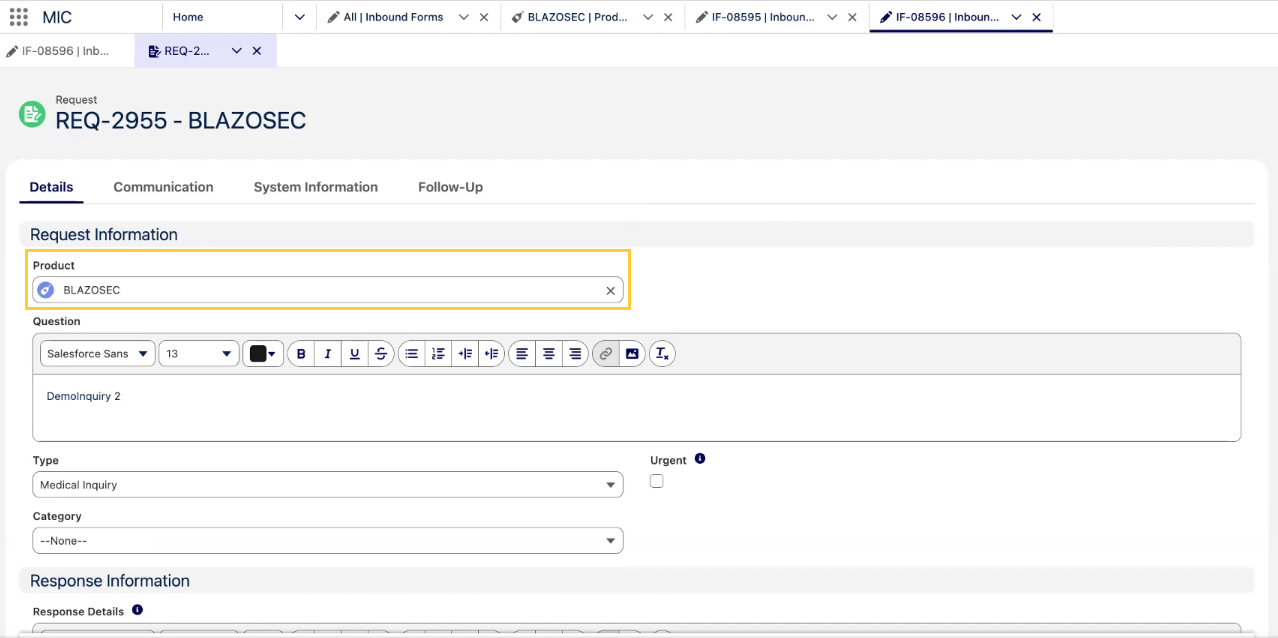
When an Inbound Form creates a Request (MED_Request__c), Inquiry Management now matches the inbound product text against more product name fields and normalizes the text before comparing it. More Requests now get their product set automatically. This includes Requests from integrations that send trade names without registered-trademark symbols, or generic names that differ from the product's display name.
What's changed
-
More name fields: After any Value Mappings are applied, the inbound text is compared against each candidate Product record's fields:
- Product Display Name
- Trade Name
- Generic Name
- Investigational Drug Name
- First Mention Display Name
-
Normalization: Matching ignores case, special characters (such as
®and™), punctuation, and extra spaces. -
Country precedence: A country-specific product takes precedence over a
ZZ(Global) product.
Matching results
- One match: Inquiry Management sets the Product lookup on the Request.
- More than one match: Inquiry Management leaves the Product lookup blank and logs a More than one product found message in the Request Creation Log (
MED_Request_Creation_Log__c) field. It does not guess which product to use. - No match: The lookup is left blank.
For configuration details and the full set of matching rules, see Product matching in the Inbound Forms topic.
Related work item(s): MIC-4267
Data 360 search filters documents inside the index
Data 360 content search can now apply a search's filters inside the search index, before it ranks documents. Previously, Data 360 ranked every document in the index, and Medical Information Cloud removed documents that didn't match the filters afterward. When only a few documents matched, they could rank below the result limit and not appear at all. Now, the result limit counts only documents that match the filters, so narrow searches return every match. This improves filtered searches in Search Content, Content Recommendations, and content list views.
How filters are sent to Data 360 depends on the search:
-
Searches with a product, country, or file search, such as Search Content and Content Recommendations: Medical Information Cloud sends Data 360 the IDs of the documents that pass its filters. On
Hybridindexes, if there are more than 4,096 IDs, the ID list is left out and the field filters are sent instead. -
Searches without an ID list, such as a keyword search in a list view: Medical Information Cloud sends the search's field filters, such as status, document type, and language.
This release also improves how Data 360 ranks and scores results, with no setup needed:
-
More passages ranked: Data 360 now ranks up to 16,000 passages on
Vectorindexes and up to 2,048 onHybridindexes, regardless of how many results are requested. Previously, the number of passages depended on the result limit, so documents with many matching passages could push other documents out of the results. -
Consistent minimum score on Hybrid indexes: On
Hybridindexes, Min Search Score (mvn__CM_Min_Search_Score__c) is now compared with each passage's vector score, the same as onVectorindexes. Previously, it was compared with the hybrid score, which reflects a passage's rank, not how closely it matches the search terms. As a result,Hybridsearches that matched by meaning but not by keyword returned no results at the usual minimum of0.80, and the same document could pass or fail depending on the search's filters. Now,HybridandVectorindexes return the same documents for the same Min Search Score.Hybridstill orders results by the hybrid score, so documents that contain the search terms appear first. -
Stable order: On both index types, results with equal scores now always appear in the same order.
To turn on filtering inside the index, add filter fields to your Data 360 search index, and enter them in the new Index Filter Fields (mvn__CM_Index_Filter_Fields__c) field on Content Search Settings. If Index Filter Fields is blank, filters are applied the same way as in previous releases. The ranking and scoring improvements apply after you upgrade, whether or not you turn on filtering. For setup steps, see Filter documents inside the index.
Related work item(s): MIC-5339, MIC-5340, MIC-5341, MIC-5342, MIC-5343, MIC-5344
Defect fixes and maintenance
The following defects and maintenance items have been fixed in the Fall '26 release.
Account Search ignored the search term when restricted to the selected institution
When Restrict to Selected Institution was selected and a user typed a term in the free-text Search box, a person search in Account Search discarded the term. Instead, it returned accounts for everyone affiliated with the selected institution, so users got a page of unrelated people instead of the person they searched for. For institutions with many affiliated accounts, the search failed with one of these errors:
Aggregate query has too many rows for direct assignment, use FOR loopSystem.LimitException: Too many query rows: 50001
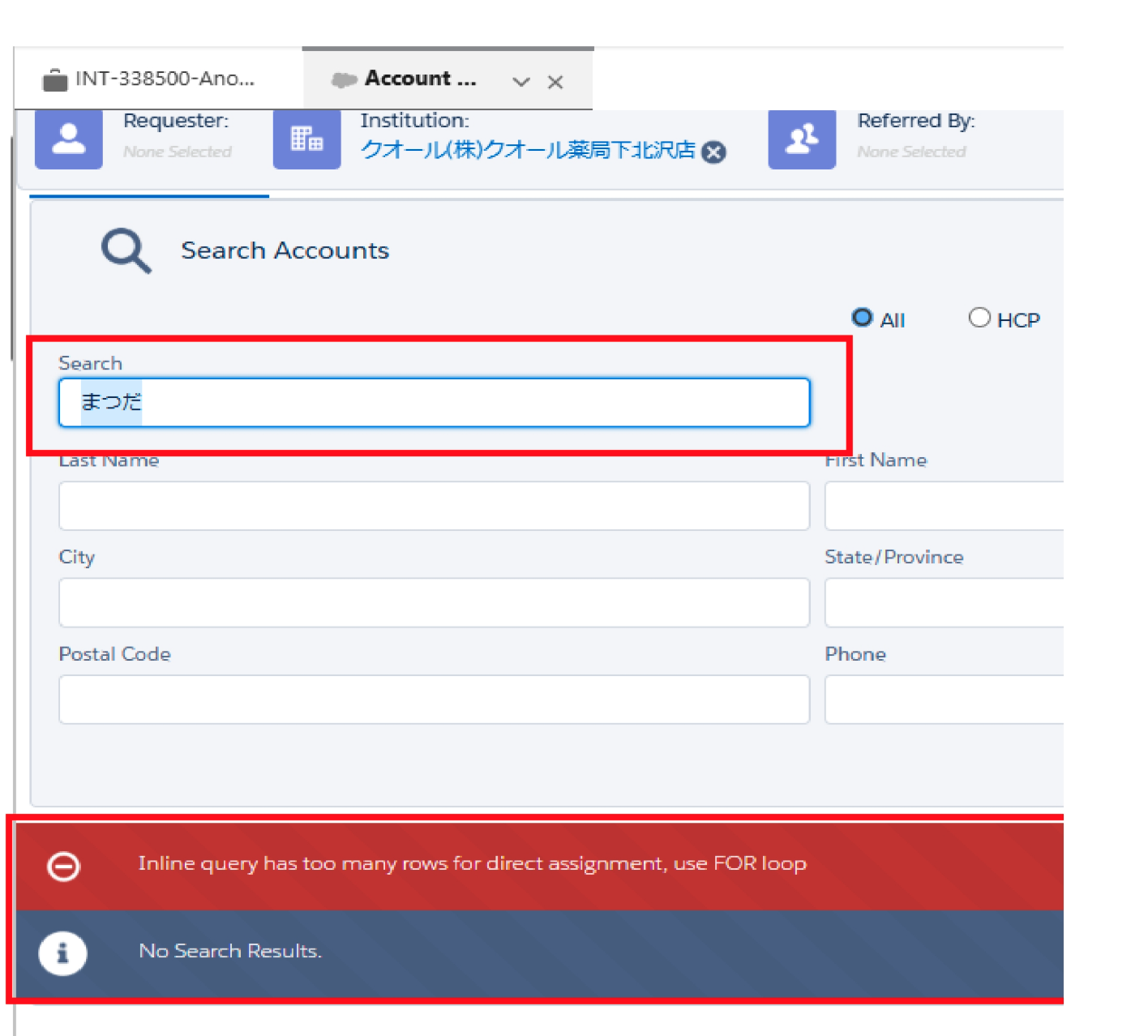
Now, a restricted search returns only accounts that match the search term and are affiliated with the selected institution. It also completes for large institutions without hitting these limits.
The same fix applies to institution searches with Restrict to Selected Requester. These searches now return only institutions that match the term and are affiliated with the selected requester. Both the Lightning and Visualforce versions of Account Search include the fix. These searches return the same results as before:
- Searches that leave the free-text Search box empty and use only field filters, such as Last Name
- Searches with the restriction disabled
This fix resolves KI-157.
Related work item(s): MIC-4883
Focus moved between the Notepad and Account Search when an Interaction opened
When a user opened an existing Interaction (Case) that already had an account selected, the cursor was placed in the Notepad (medNotepad) rich text editor. It then moved again when the Account Search panel finished loading. Users who had already started typing a note could lose their place.
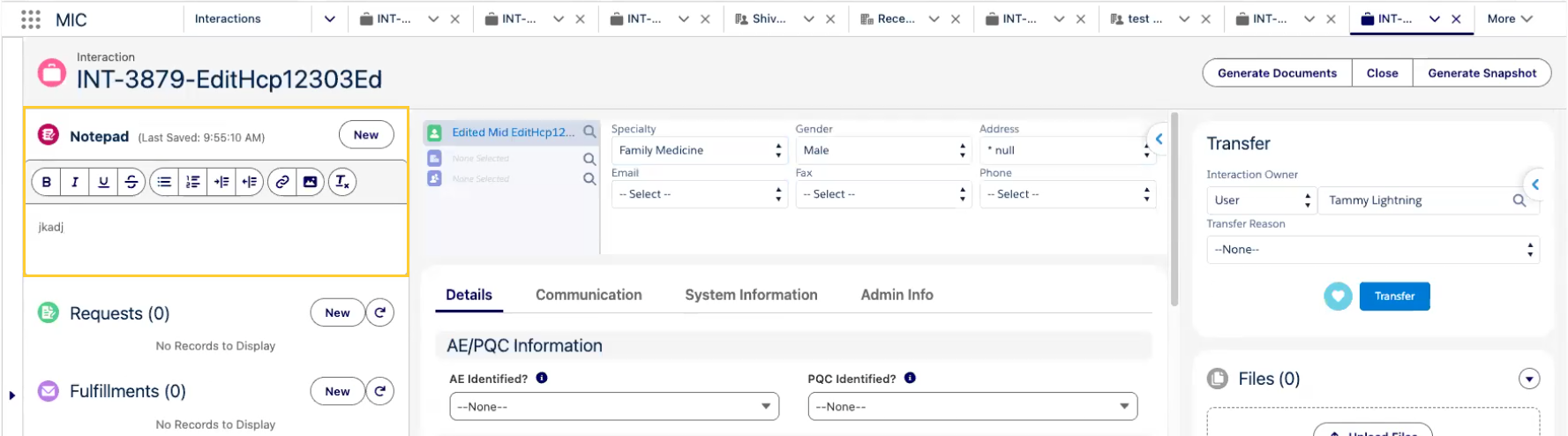
The automatic focus on the Notepad, added in V18, has been removed. Account Search also no longer places the cursor in a field. Previously, it placed the cursor in the selected account's first field, or in the first search field if no account was selected. Now, when the Interaction page loads, the cursor isn't placed in any field. The page follows the standard Salesforce focus behavior, and users click into the Notepad or another field to start typing.
Related work item(s): MIC-5228
Request creation failed for accounts with large affiliation networks
Previously, creating a Request from an Inbound Form could fail silently if the resolved Account had a very large affiliation network, such as a large hospital or institution account. No Request was created, and no error appeared.
Now, Requests are created from Inbound Forms regardless of how large the account's affiliation network is.
Related work item(s): MIC-4421
HCPs with an inactive institution affiliation appeared in restricted account search results
When users searched for HCPs in account search with Restrict to Selected Institution or Restrict to Selected Requester selected, the results included HCPs whose affiliation with the selected institution or requester was Inactive.
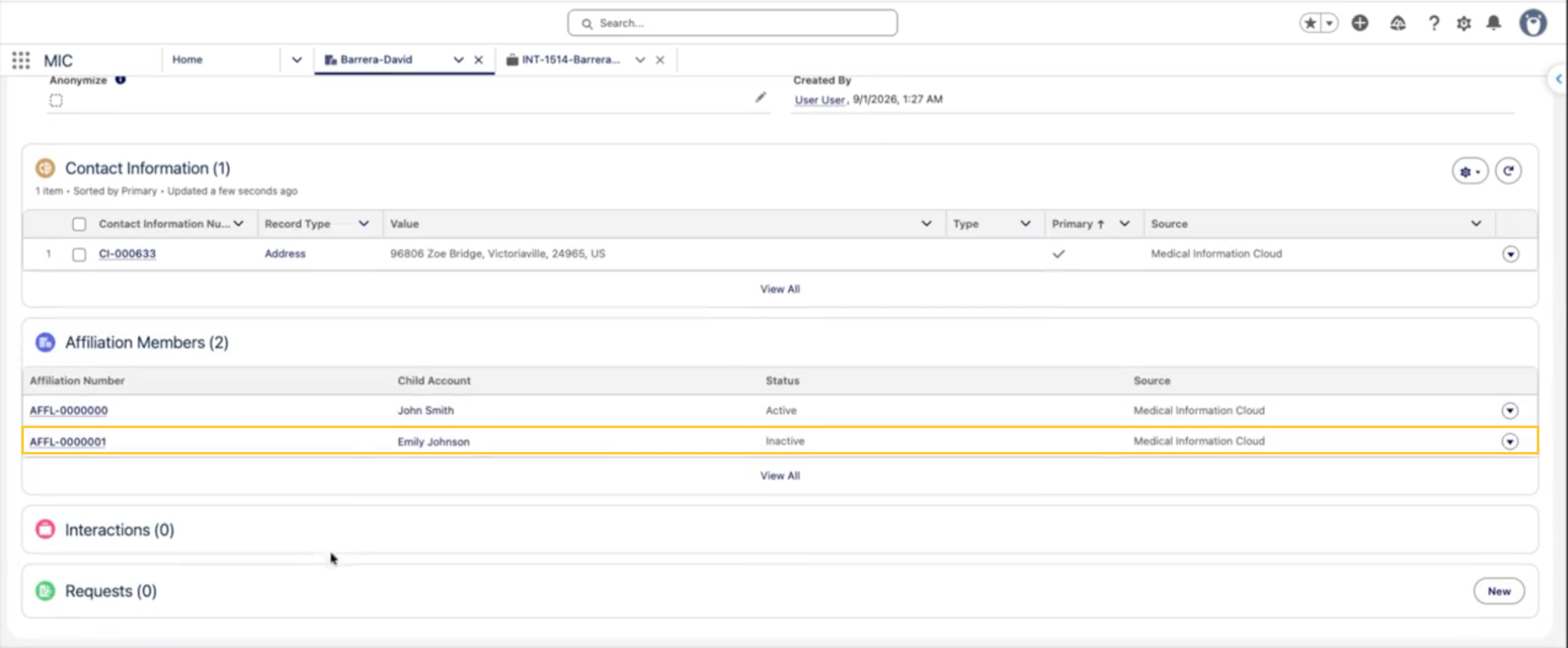
Account search now leaves out affiliations with an excluded status when either option is selected (Restrict to Selected Institution or Restrict to Selected Requester). By default, the only excluded status is Inactive, but your org can configure others. This works the same way as account search's existing filters, which already leave out accounts and contact information with an excluded status.
Related work item(s): MIC-4874
Account search returned no local results for a single, ungrouped contact-information filter
Apex code and integrations can build an Account Search Request (mvn.MED_AccountSearchRequestV3) with a single contact-information filter that isn't wrapped in a filter group. An example is one State (MED_State__c) filter on the Address record type. Although this kind of request is supported, the local Medical Information Cloud Search Handler (mvn.MED_MICAccountSearchHdlr) failed on it and returned no results.
Users had no way to notice the failure. The Search Service (mvn.MED_AccountSearchService) adds handler errors to the response instead of stopping the search, so the other configured search handlers still returned results. The caller received an incomplete result set with no visible error, and the only record was an ERROR entry in the Debug Log (mvn__Debug_Log__c). Searches from the Account Search user interface weren't affected, because the interface always groups its filters.
The local search handler now handles a single, ungrouped contact-information filter the same way as a grouped filter. It returns local results and doesn't log an error. This fix also changes how the local search handler reads filter groups. These changes apply to searches from the user interface, Apex, and integrations:
-
Filters after a nested group: The handler now finds a Country, Status, or Phone filter that comes after another nested filter group. Previously, it missed these filters, which caused three problems:
- A country-scoped search could run as a global search.
- A deliberate search for an excluded status, such as Inactive, returned no results.
- A phone filter used exact matching instead of the phone search that tolerates different formatting.
-
Status-only filters: A contact-information filter on Status alone is now applied like any other filter. Previously, the handler skipped it but still turned off the default exclusion of inactive records, so the search returned more accounts than the filter asked for.
-
Unknown record types: When a search field is configured with a Contact Information record type that doesn't exist in the org (for example, a typo in the search key), the search now ignores that filter and writes a WARN entry to the Debug Log ("Contact filters ignored: no Contact Information record type named …") instead of returning no results with no explanation.
If your org's Apex code or integrations call mvn.MED_AccountSearchService with a contact-information filter on Status only, these searches now return only accounts whose contact information matches that status. Before this release, they also returned accounts with inactive contact information.
Related work item(s): MIC-4877
Attached documents failed to open from a Request
Previously, clicking a document title in the Attached Documents related list on a Request could produce an unexpected error, and the Veeva Vault preview or download didn't open.
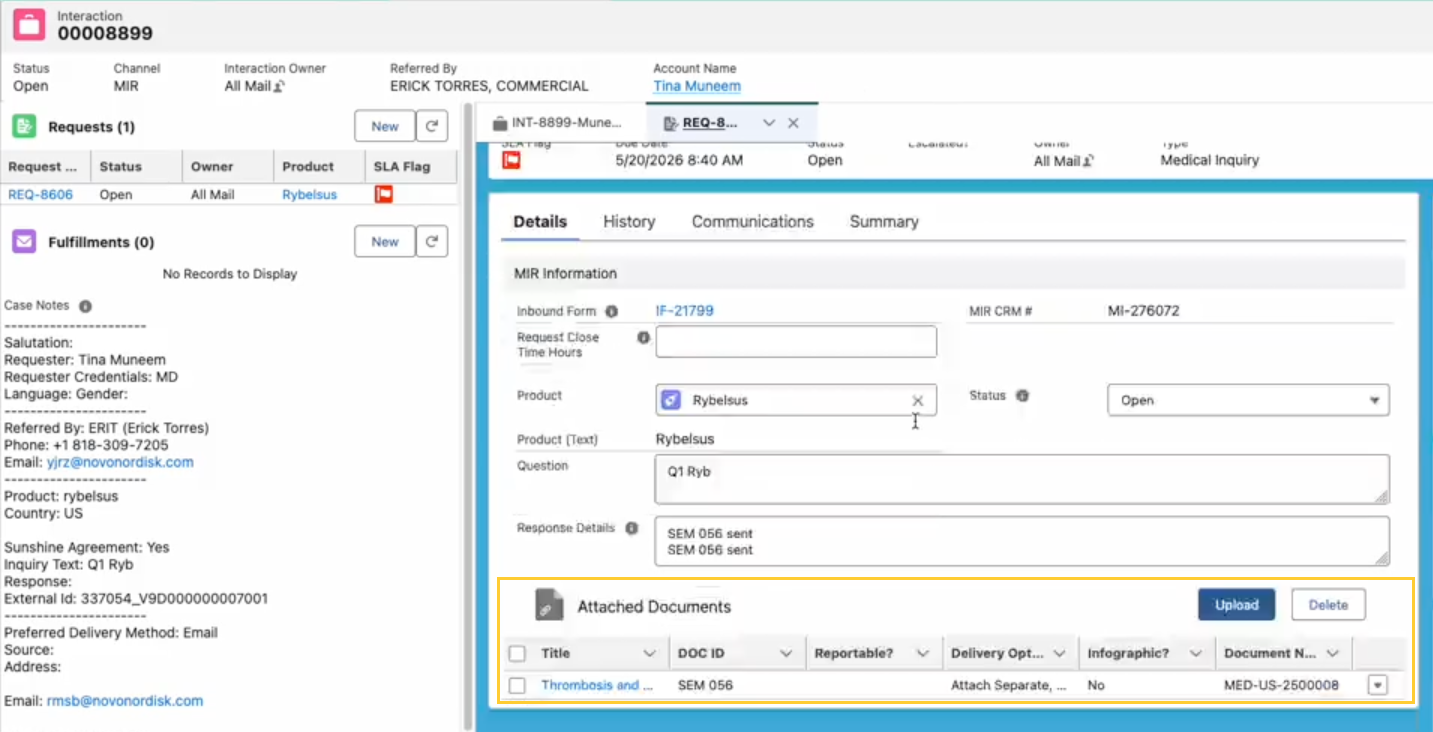
Now, clicking a document title opens the preview or download. Users need read access to Request Document (MED_Request_Document__c) to download a document.
Related work item(s): MIC-4712
Account Search V3 selection failures reported incorrectly
Previously, selecting an account in Account Search V3 could show a success message even when the account could not be saved, leaving it unassociated with the Interaction. Contact Information records that failed to save were also silently dropped.
Account Search V3 now shows an error when the account cannot be saved and a sticky warning when the account is associated successfully but one or more Contact Information records could not be saved.
Related work item(s): MIC-4444, MIC-4519
Account Search V3 failed for accounts with thousands of contact information or affiliation records
Previously, Account Search V3 failed with an "Apex heap size too large" error if the results included an account with thousands of contact information or affiliation records. On the Visualforce Account Search page, the same search failed with a view state error.
Now, each search result loads up to 50 contact information records and 50 affiliation records. If an account has more, the message "More contact information or affiliations exist. Open the account to see all." appears under the account name. When a user selects the result, all of the account's records are still loaded. The account search API no longer fails for accounts with many contact information records. Each record in the response now includes hasMoreChildRecords, which shows whether more records exist than were returned. For details, see Changes to the account search API response.
Administrators can change the limit in the new Account Search Max Child Records (mvn__MED_Account_Search_Max_Child_Records__c) field on the Global Setting record. The maximum is 199.
If Account Search V3 is turned on, the Visualforce Account Search page uses the same limit but doesn't show the message.
Related work item(s): MIC-5162
Reopening an Adverse Event didn't reopen its child records
Previously, reopening a closed Adverse Event didn't reopen its child records, such as AE Drug, AE Primary Source, AE Reaction, AE Drug History, AE Medical History, and AE Test Result. These records stayed closed, so users couldn't edit product or reporter information on the reopened Adverse Event.
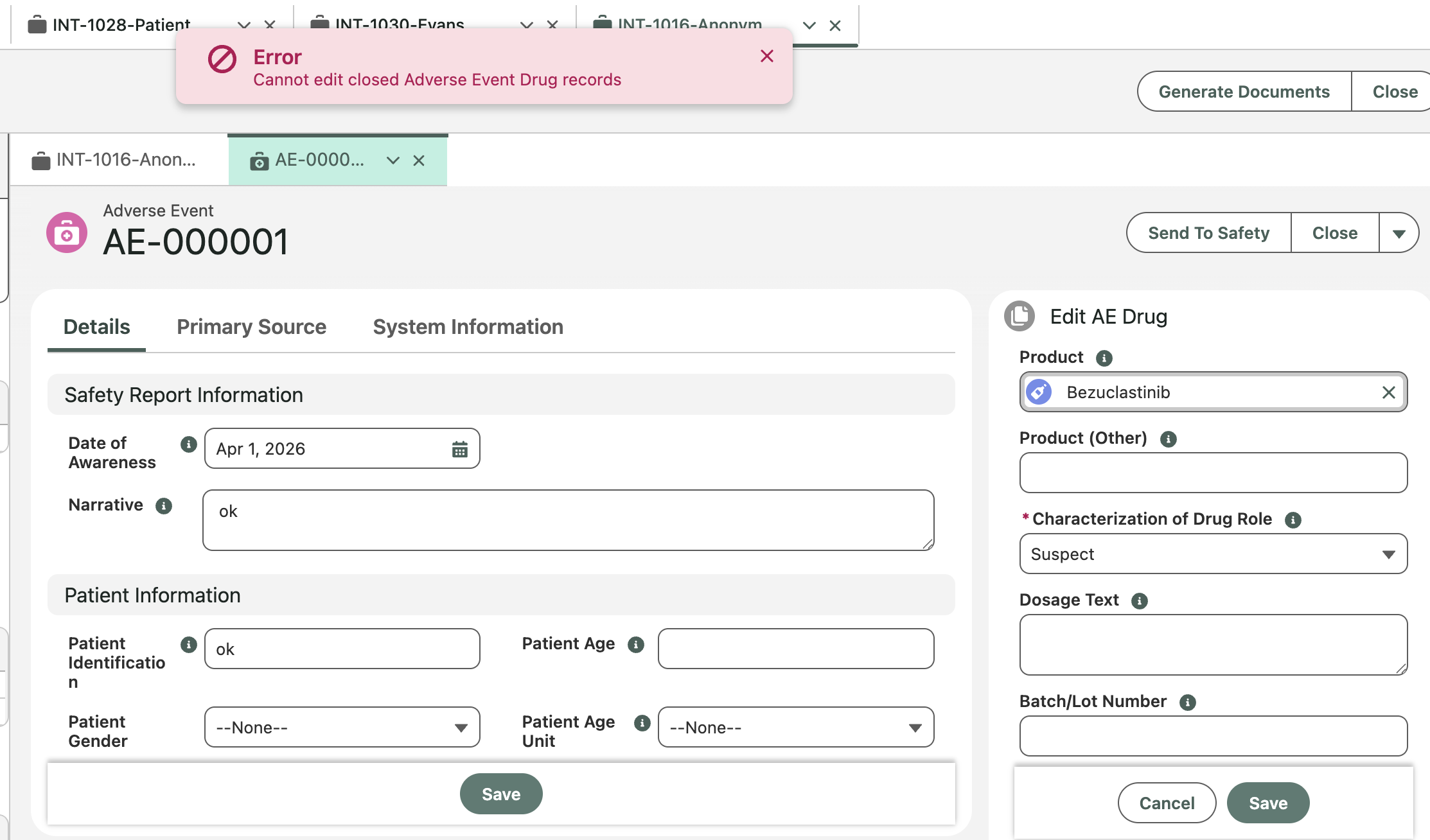
Now, reopening an Adverse Event also reopens its child records and users can edit product and reporter information again.
Related work item(s): MIC-4492
Field Audit Trail Download button failed in Salesforce Winter '27
In orgs on Salesforce Winter '27 with Lightning Web Security (LWS) turned on, clicking Download on the Field Audit Trail Related List (mvn:atFieldAuditTrail) component caused an error. Salesforce Winter '27 blocked some JavaScript functions that Salesforce previously recommended, and the component relied on them.
Now, Download works in Winter '27 orgs with LWS turned on.
This fix resolves KI-158.
Related work item(s): PLTFM-3720
Document header named newer versions that the user couldn't access
When a user viewed a document version that was not the latest version, the banner at the top of the Document record page named the newer version and linked to it, even when the user didn't have access to that version.
The banner now shows the newer version's title and link only to users who can read that version. Other users see "A newer version of this document exists." without the title or a link. For details, see Documents.
Related work item(s): MIC-5056
Enhanced document viewer stayed blank when a file couldn't be opened
When the enhanced document viewer couldn't open a file, for example a corrupted or password-protected PDF, the preview stayed blank or kept loading. The viewer now shows "This document could not be opened. It may be corrupted or password protected." and an error message from the viewer.
Related work item(s): MIC-4851
Data 360 list view searches ignored the list view's filters
When a list view keyword search without full search ran on Data 360, the results weren't checked against the list view's filters. Results could include documents of other types, older document versions, and other documents that didn't match the list view's filters. Published-document searches without file search had the same problem and could return unpublished documents.
Now, Medical Information Cloud checks every result that Data 360 returns against the search's filters, and keeps the order Data 360 returned. As a result, a filtered list can show fewer rows than the result limit. To fill the list, set up filtering inside the index.
Related work item(s): MIC-5345
Metadata changes
The following subsections capture the changes against entities in key areas of Medical Information Cloud that are introduced in this release. This list is scoped to the work items documented above and is not exhaustive of the full Fall '26 release.
Custom labels
New custom labels
| Work item(s) | Label API name | Value or description |
|---|---|---|
| MIC-4014 | MED_Content_Recommendations_Title | Content Recommendations |
| MIC-4014 | MED_Content_Recommendations_Prompt | More Information Needed |
| MIC-4014 | MED_Content_Recommendations_Prompt_Detail | Add a product and country to the request to see recommendations. |
| MIC-4014 | MED_Content_Recommendations_Empty | No Recommendations Found |
| MIC-4014 | MED_Content_Recommendations_Empty_Detail | Nothing was found related to the current request. Refine the request for recommendations. |
| MIC-4014 | MED_Content_Recommendations_View_More | View More |
| MIC-4014 | MED_Content_Recommendations_Error | Recommendations could not be loaded. Try again or contact your administrator. |
| MIC-4014 | MED_Content_Recommendations_Refresh | Refresh recommendations |
| MIC-4014 | MED_Content_Recommendations_Refresh_Button | Refresh |
| MIC-4014 | MED_Content_Recommendations_Collapse | Collapse recommendations |
| MIC-4014 | MED_Content_Recommendations_Expand | Expand recommendations |
| MIC-4014 | MED_Content_Recommendations_Open | Open document |
| MIC-4014 | MED_Content_Recommendations_Attach | Attach to record |
| MIC-4014 | MED_Content_Recommendations_Detach | Remove from record |
| MIC-4014 | MED_Content_Recommendations_Attached | Attached |
| MIC-4014 | MED_Content_Recommendations_Attach_Done | Attached {0} |
| MIC-4014 | MED_Content_Recommendations_Detach_Done | Removed {0} |
| MIC-4014 | MED_Content_Recommendations_Not_Attachable | This document cannot be attached to this record |
| MIC-4901 | MED_Content_Recommendations_Group_PI | Prescribing Information |
| MIC-4901 | MED_Content_Recommendations_Group_Approved | Approved Documents |
| MIC-4901 | MED_Content_Recommendations_Group_Custom | Custom Responses |
| MIC-4901 | MED_Content_Recommendations_Group_Empty | No documents in this group. |
| MIC-4444, MIC-4519 | MED_Associate_Account_Error MED_Associate_Account_Not_Linked MED_Associate_Account_Error_Detail MED_Contact_Info_Not_Saved_Warning MED_Contact_Info_Not_Saved_Case_Note | Account save error and Contact Information warning labels. See the Account Search custom-label reference. |
| MIC-5162 | MED_Account_Search_More_Child_Records | More contact information or affiliations exist. Open the account to see all. |
| MIC-4851 | WV_Document_Load_Failed | - |
| MIC-4858 | RV_Legend_Anchor_Links CM_Anchor_Edge_Label | - |
| MIC-4948 | CM_Anchor_Graph_Truncated | - |
| MIC-5052 | WV_Anchoring_Unavailable | - |
| MIC-5056 | CM_a_newer_version_of_this_document_exists | - |
| MIC-5105 | 15 WV_Anchor_* labels and 21 CM_Anchor_* labels for the Scientific Statement and Reference terminology. See Regulated Content Cloud custom labels. | - |
| MIC-5137 | WV_Anchor_Relocation_Refused CM_Anchor_Relocation_Source_Not_Changeable CM_Anchor_Relocation_Status_Unconfirmed CM_Anchor_Relocation_Target_Not_Approved | - |
| MIC-5170 | CM_Anchor_Standard_Preview_Notice | - |
| MIC-5204 | CM_Anchor_Preview_No_Passage CM_Anchor_Preview_Not_Highlightable CM_Anchor_Preview_Not_Highlightable_Whole_Doc | - |
Objects
Object changes are listed below.
New objects
| Work item(s) | Object | API name | Description |
|---|---|---|---|
| MIC-4391 | AI Invocation | mvn__AI_Invocation__c | One record per agent run or direct prompt call. See Objects. |
| MIC-4391 | AI Outcome | mvn__AI_Outcome__c | One record per record the AI created or changed. See Objects. |
| MIC-4851, MIC-4863 | Anchor Link | mvn__WV_Anchor_Link__c | Stores content anchors: each record links a passage in one document version (the Scientific Statement) to a passage in, or the whole of, another document version (the Reference). |
New object fields
| Work item(s) | Object | Field(s) |
|---|---|---|
| MIC-4849 | Fulfillment | MED_Quick_Fulfillment_Status__c MED_Quick_Fulfillment_Completed__c |
| MIC-4780, MIC-4781 | Case | mvn__MED_Updates_Pending__c (Checkbox) mvn__MED_Writeback_Attempts__c (Number) |
| MIC-4851 | mvn__WV_Anchor_Link__c | mvn__WV_Link_Type__c mvn__WV_Status__c mvn__WV_Search_Score__c mvn__WV_Source_File_Id__c mvn__WV_Source_Marker_Id__c mvn__WV_Source_DocVersion_Id__c mvn__WV_Target_File_Id__c mvn__WV_Target_Marker_Id__c mvn__WV_Target_DocVersion_Id__c |
| MIC-4863, MIC-5029 | mvn__WV_Anchor_Link__c | mvn__WV_Match_State__c mvn__WV_Match_Method__c mvn__WV_Matched_On__c mvn__WV_Matched_By__c |
| MIC-5029 | mvn__WV_Anchor_Link__c | mvn__WV_Source_Relocated__c mvn__WV_Target_Relocated__c mvn__WV_Source_Best_Match__c mvn__WV_Target_Best_Match__c |
Modified object fields
| Work item(s) | Object | Field(s) | Modification description |
|---|---|---|---|
| MIC-4585 | Case | MED_Alerts__c | The formula no longer includes the Inquiry Routing Flag. |
| MIC-4585 | Case | mvn__MED_Urgent__c | The description and help text no longer reference KHBI routing rules. |
Deleted object fields
| Work item(s) | Object | Field(s) |
|---|---|---|
| MIC-4585 | Case | mvn__MED_Inquiry_Routing_Flag__c mvn__MED_Inquiry_Routing_Flag_Icon__c |
Custom metadata types
Custom metadata type changes are listed in the table(s) below:
New custom metadata types
| Work item(s) | Custom metadata type | Description |
|---|---|---|
| MIC-4686 | mvn__CA_Rendition_Parent_Config__mdt | CA Rendition Parent Config. Configures a record snapshot. See CA Rendition Parent Config. |
| MIC-4686 | mvn__CA_Rendition_Child_Config__mdt | CA Rendition Child Config. Configures a set of related records that a snapshot includes. See CA Rendition Child Config. |
Modified custom metadata types
| Work item(s) | Custom metadata type | Field(s) | Modification description |
|---|---|---|---|
| MIC-5342 | mvn__CM_Content_Search_Settings__mdt | mvn__CM_Index_Filter_Fields__c | New optional Long Text Area field. A JSON map from Document Version fields to the filter columns of the Data 360 search index. See Filter documents inside the index. |
Deleted custom metadata types
| Work item(s) | Custom metadata type |
|---|---|
| MIC-4585 | mvn__MED_Insights_Routing_Settings__mdt mvn__MED_Insights_Routing_Rules__mdt mvn__MED_Insights_Therapy_Areas__mdt |
New custom metadata type fields
| Work item(s) | Custom metadata type | Field(s) | Description |
|---|---|---|---|
| MIC-5003 | MED_Local_Setting__mdt | MED_Quick_Fulfillment__c | Quick Fulfillment. Turns on automatic assembly of Fulfillment files for the country or segment. Not selected by default. |
| MIC-5162 | mvn__MED_Global_Setting__mdt | mvn__MED_Account_Search_Max_Child_Records__c | Account Search Max Child Records. Maximum contact information and affiliation records loaded per account in Account Search V3 results. Default 50, maximum 199. |
Permissions
Permission set changes are listed in the table(s) below:
New permission sets
| Work item(s) | Permission set | Description |
|---|---|---|
| MIC-4391 | mvn__AI_Audit_Read (AI Audit: Read) | Read access to AI Invocation and AI Outcome. Does not grant field-level security on AI Payload, AI Payload Comparison, or Rejection Rationale. |
| MIC-4391 | mvn__AI_Audit_Review (AI Audit: Review) | Read access to both objects, plus edit on Disposition, Reviewed By, and Rejection Rationale on AI Outcome. Grants read-only field-level security on AI Payload and AI Payload Comparison. |
| MIC-4391 MIC-5329 | mvn__AI_Audit_Admin (AI Audit: Admin) | Read access to AI Invocation and AI Outcome, including View All on AI Invocation. Edit access to AI Outcome, including AI Payload, AI Payload Comparison, and Rejection Rationale. Can't create or delete records on either object, or edit AI Invocation records. |
| MIC-4686, MIC-4764 | mvn__CA_Record_Snapshot_User (Record Snapshot User) | Lets users generate and send record snapshots. |
| MIC-4686, MIC-4764 | mvn__CA_Record_Snapshot_Administrator (Record Snapshot Administrator) | Lets administrators edit snapshot configurations and use the Snapshot Template Studio. |
| MIC-5000, MIC-5001 | mvn__CA_Rendition_Generation_User (Rendition Generation User) | Lets users generate PDFs with the Mavens Rendition Service. |
| MIC-4851, MIC-4863, MIC-5029 | mvn__WV_Content_Anchoring (WV Content Anchoring) | Grants the Content Anchoring User custom permission, create, read, and edit access to mvn__WV_Anchor_Link__c, and read and edit access to its optional fields. |
| MIC-4949 | mvn__CM_Content_Anchoring (CM Content Anchoring) | Makes the All Anchors tab visible. |
Modified permission sets
| Work item(s) | Permission set | Modification description |
|---|---|---|
| MIC-4853, MIC-4857, MIC-4864 | mvn__CM_ContentAuthor, mvn__CM_ContentReadOnly, mvn__CM_SystemAdmin | Added read access to mvn__WV_Anchor_Link__c, which the anchoring screens and the Relationship Visualizer use. |
| MIC-5052 | mvn__CM_ContentAuthor, mvn__CM_SystemAdmin | Added access to the CM_AnchorContextProvider Apex class, which content anchoring uses to check access to document versions. |
| MIC-4014 | MED_Medical_Information_Cloud_Admin | Added Apex class access for MED_ContentRecommendationsProviderImpl. |
| MIC-4014 | MED_Medical_Information_Cloud_User | Added Apex class access for MED_ContentRecommendationsProviderImpl. |
| MIC-4014 | MED_Medical_Information_Cloud_User_Read_Only | Added Apex class access for MED_ContentRecommendationsProviderImpl. |
| MIC-4849 | MED_Medical_Information_Cloud_Admin MED_Medical_Information_Cloud_User MED_Medical_Information_Cloud_User_Read_Only MED_Medical_Information_Cloud_Test_User | Added Read access to MED_Fulfillment__c.MED_Quick_Fulfillment_Status__c and MED_Fulfillment__c.MED_Quick_Fulfillment_Completed__c. Neither field is editable through any permission set; both are set by the assembly process only. |
New custom permissions
| Work item(s) | Custom permission | Description |
|---|---|---|
| MIC-4851 | Content Anchoring User (mvn__WV_Content_Anchoring) | Turns on content anchoring for a user. Granted by the WV Content Anchoring permission set. |
Triggers
Trigger changes are listed in the table(s) below:
New triggers
| Work item(s) | Trigger | Object |
|---|---|---|
| MIC-4391 | AI_OutcomeTrigger | mvn__AI_Outcome__c |
Validation rules
Validation rule changes are listed in the table(s) below:
New validation rules
| Work item(s) | Object | Validation rule | Description |
|---|---|---|---|
| MIC-4851 | mvn__WV_Anchor_Link__c | WV_Search_Score_Immutable | Blocks changes to Search Score after the anchor is created. |
| MIC-4851 | mvn__WV_Anchor_Link__c | WV_Status_Manage_Only | Blocks status changes by users without the Content Anchoring User custom permission. |
| MIC-4863 | mvn__WV_Anchor_Link__c | WV_Match_State_Manage_Only | Blocks changes to Match State by users without the Content Anchoring User custom permission. |
Platform events
Platform event changes are listed in the table(s) below:
Deleted platform events
| Work item(s) | Platform event |
|---|---|
| MIC-4585 | mvn__MED_Inquiry_Routing_Event__e |
Apex classes
Apex class changes are listed in the table(s) below:
New Apex classes
| Work item(s) | Class | Description |
|---|---|---|
| MIC-4849 | mvn.MED_QuickFulfillmentTriggerAction | Starts automatic file assembly when a Fulfillment is created and when Refresh Requests List is used. |
| MIC-4849 | mvn.MED_QuickFulfillmentFieldGuard | Rejects manual edits of Quick Fulfillment Status and Quick Fulfillment Completed, including edits through the API and data loads. |
| MIC-4849 | MED_SupplementaryDocumentsProviderImpl | Supplies the Prescribing Information to Quick Fulfillment. |
| MIC-4849 | mvn.MED_ISupplementaryDocumentsProvider | Interface that a downstream package implements to add documents other than Request Documents, such as Prescribing Information, to a Quick Fulfillment. |
| MIC-4337 | mvn.MED_AflsInquiryPullSchedulable | Schedulable entry point for the LSC inbound Inquiry pull. |
| MIC-4816 | mvn.MED_AflsAccountSearchHdlr | Account Search V3 handler that resolves LSC healthcare providers and institutions, for both inbound resolution and interactive search. |
| MIC-4826 | mvn.MED_AflsUserSearchHdlr | Account Search V3 handler that resolves the LSC submitting representative to a MIC Employee account. |
| MIC-4780 | mvn.MED_AflsStatusWritebackSchedulable | Schedulable entry point for the outbound status writeback; enqueues the writeback dispatcher. |
| MIC-4780 | mvn.MED_CaseFlagAflsUpdate | Trigger action that flags an LSC-originated interaction for writeback when a mapped field changes. |
| MIC-4014 | MED_ContentRecommendationsProviderImpl | - |
| MIC-4901 | MED_HostSettingsProviderImpl | - |
Modified Apex classes
| Work item(s) | Class | Modification description |
|---|---|---|
| MIC-4901 | MED_ContentRecommendationsProviderImpl | Supplies the two additional recommendation values from data already retrieved. No additional queries are run. |
| MIC-4492 | MED_AEChildObjectsUpdate | Propagates the Adverse Event closed flag to related child records on both close and reopen. |
| MIC-4267 | MED_CreateRequestsForInboundForms | Matches inbound product text against more Product name fields. See Enhanced Inbound Form product matching. |
| MIC-5162 | mvn.MED_AccountSearchResultV3 | New global Boolean hasMoreChildRecords: true when the result's child records were limited. |
Lightning components
Lightning component changes are listed in the table(s) below.
New Lightning components
| Work item(s) | Component | Description |
|---|---|---|
| MIC-4014 | mvn:medContentRecommendations | MIC - Content Recommendations card for the Request record page. |
| MIC-4738 | mvn:emSendEmailAction | New Send Email action that works on any object. |
| MIC-4356 | mvn:caRelatedFilesList | Related files. Lists the files on a record, with check out, rename, remove, and Convert to PDF actions. Can be added to the Lightning record page of any object. |
| MIC-4857, MIC-4863, MIC-5029, MIC-5170 | mvn:cmAnchorRail | Lists the document's content anchors and lets users view, open, edit, repoint, and remove them. |
Modified Lightning components
| Work item(s) | Component | Description |
|---|---|---|
| MIC-4901 | mvn:medContentRecommendations | Groups recommendations into Prescribing Information, Approved Documents, and Custom Responses, each with its own count badge, expand/collapse state, and View More control. |
| MIC-4851, MIC-4856, MIC-4857, MIC-4863, MIC-4949, MIC-5029, MIC-5137, MIC-5170 | mvn:cmDocumentPreview | MCM - Document Preview shows the anchoring bar with the Create Anchor button, draws anchor markers, re-finds anchored passages that need checking when the document is opened, and works with the Anchors panel, for users who have the Content Anchoring User custom permission. |
| MIC-4858, MIC-4948 | mvn:cmDocumentRelationshipPage | MCM - Document Relationships shows an Anchor Links count, and a banner when a document version has more anchor links than the Relationship Visualizer can display. |
| MIC-4858 | mvn:rvGraphCanvas | Relationship Visualizer Graph Canvas applies the per-group node limit to the categories shown in the legend and keeps Anchor Links nodes ahead of other related nodes; its default legend includes Anchor Links. |
| MIC-5056 | mvn:cmDocumentDetailHeader | The newer-version banner shows the newer version's title and link only to users who can read it. |
Deprecated Lightning components
| Work item(s) | Component | Description |
|---|---|---|
| MIC-4356 | medFulfillmentAttachments | MIC - Fulfillment Files List now displays mvn:caRelatedFilesList with fixed settings. Use Related files on new pages. |
Tabs
Tab changes are listed in the table below.
New tabs
| Work item(s) | Tab | Description |
|---|---|---|
| MIC-4864 | mvn__CM_All_Anchors | All Anchors. Lists content anchors across documents. Visible to users with the CM Content Anchoring permission set. |
| MIC-4917 | mvn__CA_Snapshot_Template_Studio | Snapshot Template Studio. Builds, tests, and publishes snapshot templates. |
Quick actions
Quick action changes are listed in the table below.
New quick actions
| Work item(s) | Quick action | Object(s) | Description |
|---|---|---|---|
| MIC-4764 | MED_Send_Snapshot | Interaction, Request, Adverse Event, Product Quality Complaint | Send Snapshot. Generates a snapshot and opens the email composer. |
| MIC-4746 | MED_Generate_Snapshot | Interaction, Request, Adverse Event, Product Quality Complaint | Generate Snapshot. Generates a snapshot without sending it. |
APIs
Modified APIs
| Work item(s) | API | Modification description |
|---|---|---|
| MIC-5162 | Inquiry Core API account search (/services/apexrest/mvn/mic/v1/accounts/search) | Adds hasMoreChildRecords to each record. See Changes to the account search API response. |
Platform Cache
Deleted Platform Cache partitions
| Work item(s) | Platform Cache |
|---|---|
| PLTFM-3418 | mvn.metadataApi |
Deprecated and deleted items
Earlier snapshot actions
The new Send Snapshot (MED_Send_Snapshot) and Generate Snapshot (MED_Generate_Snapshot) quick actions replace these earlier actions, which are deprecated and will be removed in a future release:
| Deprecated action | Type | Label | Objects |
|---|---|---|---|
MED_MIC_Snapshot | Quick action | Generate Snapshot | Interaction, Request, Adverse Event, Product Quality Complaint |
MED_Snapshot | Custom button (Nintex DocGen) | Generate Snapshot on Interaction; Request Snapshot on Request | Interaction, Request |
The new Generate Snapshot quick action and the deprecated MED_MIC_Snapshot quick action have the same label, so check the API name when you update your page layouts.
Komodo Insights Component and inquiry routing
Komodo Aperture has been sunset, so the Komodo Insights Component (KHBI) and the Medical Information Cloud inquiry routing feature that depended on it are removed in V19.
- The Komodo Insights Component package is no longer installed with Medical Information Cloud. For existing orgs, the Uninstall legacy mic packages step of the upgrade plan queues the package for uninstall.
- The Insights Routing Settings, Insights Routing Rules, and Insights Therapy Areas custom metadata types, the Inquiry Routing Event platform event, and the Inquiry Routing Flag and Inquiry Routing Flag Icon fields on Case are removed by the Delete deprecated items step of the upgrade plan.
Related work item(s): MIC-4585
Post-deploy seed data and sandbox post-copy classes
Medical Information Cloud no longer ships seed data or the classes that load it.
The MED_PostDeployData static resource and the MED_DataLoader, MED_DeploySandboxDDps,
and MED_DeployDeveloperSandbox Apex classes are deleted by the upgrade.
To populate a sandbox with your production Nintex DocGen Packages, use Nintex's Migrate DocGen Packages tool.
Related work item(s): MIC-5246
Live Chat interaction launcher
Salesforce has retired Legacy Chat (Live Agent), so Medical Information Cloud V19 removes its Live Chat interaction launcher.
- Visualforce page and controller removed: The MED_LiveChatInteractionLauncher Visualforce page and its controller are removed from the Medical Information Cloud package and deleted from your org when you upgrade. When an agent started a Live Chat, the page created a Case and opened account search. If the page is still on a Live Chat Transcript page layout, remove it.
- Permission set access removed: The MED_Medical_Information_Cloud_Admin, MED_Medical_Information_Cloud_User, and MED_Medical_Information_Cloud_User_Read_Only permission sets no longer grant access to the page and controller.
- No replacement in this release: This release doesn't replace Live Chat with Messaging for In-App and Web.
Related work item(s): MIC-5244
Medical Engagement Interface (MEI)
The Medical Engagement Interface (MEI) embed component and the Salesforce components behind it are no longer part of the product direction and are removed in V19.
- REST endpoints: The MEI REST endpoints
/mic/mei/auth/*and/mic/mei/config/*are removed. - Permission set: The MED_MEI_Integration permission set is removed.
- Custom metadata: The Engagement Component Settings (
MED_Engagement_Component_Settings__mdt) custom metadata type is removed, along with its Komodo Health Template record. - Generator tab, component, and labels: The Medical Engagement Component Generator tab, its Lightning web component, and the
MED_MEI_*custom labels are removed.
Related work item(s): MIC-5245
Required post-upgrade actions
Authorize users for the Mavens Rendition Service
Required for: Customers whose users are on a profile other than System Administrator or Lightning Medical Information AgentFinalizing a file to PDF in the MIC - Fulfillment Files List and Related files components, record snapshots, and Quick Fulfillment all generate PDFs with the Mavens Rendition Service. The service signs in to Salesforce as the user who starts the request, so each of these users must be pre-authorized for the Mavens Rendition Service external client app (mvn__CA_Rendition_Service).
The upgrade sets the app's Permitted Users policy to Admin approved users are pre-authorized, and pre-authorizes the System Administrator and Lightning Medical Information Agent profiles and the mvn__CM_ContentAuthor and mvn__CM_SystemAdmin permission sets. Users who have none of these can't finalize Fulfillment files to PDF until you complete these steps:
-
In the Mavens Rendition Service external client app, add each additional profile or permission set whose users generate PDFs.
-
Assign the Rendition Generation User (
CA_Rendition_Generation_User) permission set to the same users, if they don't already have it through the Medical Information Cloud User Permissions or Medical Information Cloud Admin Permissions permission set group.
If your organization restricts network traffic by IP address, also allowlist the Rendition Service addresses in IP ranges.
For steps, see Authorize users in the Mavens Rendition Service topic.
Related work item(s): MIC-5000, MIC-5001
Optional post-upgrade actions
Turn on Quick Fulfillment
Recommended for: Existing Digital Fulfillment customers who want Fulfillment files assembled automaticallyQuick Fulfillment is off for every country and segment after the upgrade. A Medical Information Cloud upgrade does not change your existing Fulfillment record pages or page layouts, so set them up for Quick Fulfillment before you turn it on. Until you do, users can run Digital Fulfillment, Send Email, or Generate Package on a new Fulfillment before all of its files are attached.
For steps, see Set up Quick Fulfillment in an existing org.
Related work item(s): MIC-4849, MIC-5003
Set up the Life Sciences Cloud integration
Recommended for: Existing customers who use Life Sciences CloudIn an existing organization, create the integration's credentials, mappings, and search handlers before you turn on the integration.
For steps, see Configure the LSC connection and Configuration the Setup plan does not backfill.
Related work item(s): MIC-4337, MIC-4778, MIC-4780, MIC-4816, MIC-4826
Replace MIC - Fulfillment Files List with Related files
Recommended for: Customers who want to choose the file list's columns, add an Upload button, or use a different checkout permissionThe Medical Information Cloud upgrade leaves MIC - Fulfillment Files List on your record pages, where it now displays the new list with fixed settings. To choose your own settings, replace it with the Related files component in the Lightning App Builder and set these properties:
-
Checkout custom permission (API name): The custom permission a user needs for the file actions. On an unlocked Fulfillment, the deprecated component uses
MED_Customize_Response_on_Fulfillment. -
Columns (ContentDocument field API names, comma-separated): The columns to show, in order. The default is
Title,FileExtension,ContentSize,LastModifiedDate. -
Show upload button: Adds an Upload button to the list header.
To preserve the deprecated component's lock-dependent behavior on a Fulfillment page:
- Create a custom permission for the locked list and don't assign it to any users.
- Add two Related files components in the Lightning App Builder. Set their columns and other properties as needed.
- On the first component, set Checkout custom permission (API name) to
MED_Customize_Response_on_Fulfillmentand add a component visibility filter for Locked (MED_Locked__c) equalsfalse. - On the second component, set Checkout custom permission (API name) to the unassigned custom permission's API name, turn off Show upload button, and add a component visibility filter for Locked equals
true. Users can view and download files but cannot use file actions while the Fulfillment is locked. - Save and activate the page. Test both locked and unlocked Fulfillments with the intended user profiles, and ensure the locked-list permission remains unassigned.
The visibility filters require users to be able to read Locked. If they cannot, retain MIC - Fulfillment Files List, which treats an unreadable lock field as locked, until an equivalent restriction is in place.
For all properties, see Related Files List.
Related work item(s): MIC-4356
Set up record snapshots
Recommended for: Customers who want to replace Nintex DocGen snapshotsThe Medical Information Cloud upgrade leaves your existing snapshot setup as it is. To give your users the new snapshot actions:
-
Create a CA Rendition Parent Config record for each object.
-
Add the Send Snapshot quick action to your page layouts or record pages.
-
Assign Record Snapshot User (
mvn__CA_Record_Snapshot_User) and Rendition Generation User (mvn__CA_Rendition_Generation_User) to users, and Record Snapshot Administrator (mvn__CA_Record_Snapshot_Administrator) to administrators. -
Set your organization's own From and CC addresses on each configuration before users send snapshots.
For steps, see Record Snapshots.
Related work item(s): MIC-4686, MIC-4764
Add Content Recommendations to your Request record page
Recommended for: Customers using Regulated Content Cloud content searchThe Medical Information Cloud upgrade leaves your existing Request record pages as they are. To show recommendations to your users, add the MIC - Content Recommendations component in the Lightning App Builder. See Content Recommendations.
Related work item(s): MIC-4014
Add the Send Email component for your users
Recommended for: All customersThe Send Email component (mvn:emSendEmailAction) is available after the upgrade. Your existing record pages stay as they are. To let users send emails from Inquiry Management records, add it in one of these ways:
-
On a record page: In the Lightning App Builder, open the record page for the object (such as Interaction) and add the Send Email component. Then set its design attributes. For most contact center pages, we recommend turning on Auto Attach Files and Allow Template Selection.
-
As a Lightning action: Create a Lightning web component action that uses
mvn:emSendEmailAction, then add it to the Mobile & Lightning Actions section of the object's page layout. The action uses the default design attribute values.
Existing pages that use the shared email composer, such as the Digital Fulfillment email, don't change after the upgrade. Template selection stays off on those pages until it's turned on for each one.
Related work item(s): MIC-4737, MIC-4738
Add filter fields to your Data 360 search index
Recommended for: Customers using Data 360 searchIf you use Data 360 content search, set up your search index so Data 360 can apply each search's filters inside the index. Until you do, searches apply filters the same way as in previous releases.
You can't add filter fields to an existing search index, so create a new one:
-
In Data Cloud, create a new search index with the filter fields you need. For example: the record ID, Status, Document Type, Document Subtype, Language, and Is Latest Version. A search index can have up to 10 filter fields.
-
Wait until the new search index's status is Ready.
-
On each Content Search Settings record that uses Data 360, change Search Index to the new search index, and enter the filter fields in Index Filter Fields.
-
Run a test search to confirm the results. Then delete the old search index.
For details, see Filter documents inside the index.