
Files
You can associate document versions to files and host the files either with Salesforce or externally.
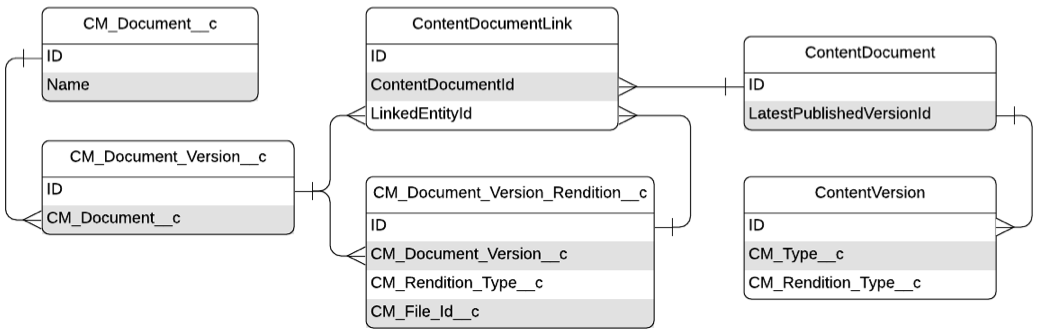
Supported file types
Regulated Content Cloud supports the file types that Salesforce supports. 100 MBs is the maximum supported file upload size. Files larger than 5MB may not be previewed and will need to be opened in another program. Visit Salesforce's Files documentation.
File previews
File previews are generated for files hosted in Salesforce and displayed
in the Preview tab on the document record page. The MCM-enhanced
document viewer attempts to render all files. If the file does not meet
the viewer's requirements, Salesforce's content previewer attempts to
generate the preview. If a document does not have a file and the Content
(rich text) (mvn__CM_Content_Rich_Text__c) field on the Document
Version (mvn__CM_Document_Version__c) record is available on the
document preview layout, then the rich text content will appear in place
of the file for the document preview instead.
Enhanced document viewer
The enhanced document viewer renders a preview of supported files and
enables you to interact with the files. With video files, you can use
the video timeline bar to play the videos from specific timestamps. With
PDF files, you can zoom in and out, search text, and copy and paste
selected text. To enable the enhanced document viewer, you must populate
the Enhanced Viewer Extensions (mvn__CM_Enhanced_Viewer_Extensions__c)
field on the Default (CM_Default)
MCM Global Setting
(mvn__CM_Global_Setting__mdt) custom metadata record to include all of
the file types that you want to be able to preview in your org (e.g.,
pdf, docx: lowercase extensions without dots). Don't list legacy Office formats (doc, ppt, xls).
You can also add annotations to PDF files as long as the files are not
part of a bundle document. To enable the annotating functionality,
activate the File Annotations (WV_File_Annotations)
Feature Activation
(mvn__Feature_Activation__mdt) metadata record and create a custom
Document State Role Permission
(mvn__CM_Document_State_Role_Permission__mdt) metadata record that
looks up to the Annotate (CM_Annotate)
Permission (mvn__CM_Permission__mdt)
metadata record. If you do not have the Annotate permission or if the
file is part of a bundle package, then annotations can only be viewed
and cannot be created. Video files do not support annotations. All
annotations are stored in the File Marker
(mvn__WV_File_Marker__b) big object.
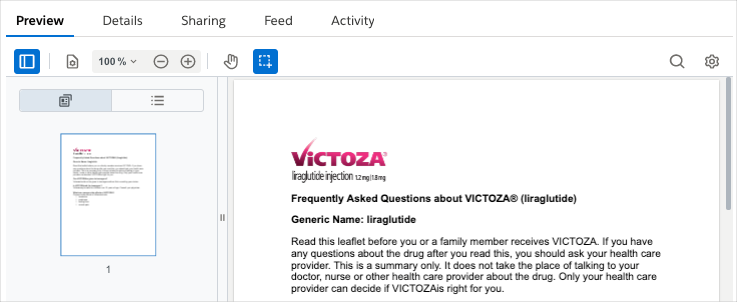
The enhanced document viewer only renders previews of files that meet these requirements:
-
The file must be a
mvn__CM_Document_Version__crecord. -
The file extension must be supported. Supported extensions include the following:
| Text files | Media files |
|---|---|
| - .pdf - Microsoft Office documents: - .docx - .pptx - .xlsx | - .bmp - .gif - .jpeg - .mp4 - .mov - .ogg - .png - .webm |
If a document does not meet these requirements, Salesforce's content previewer attempts to render the document.
Legacy Office formats (.doc, .ppt, .xls) aren't supported by the
enhanced document viewer. If one of them is listed in Enhanced Viewer
Extensions, its preview can stay on a loading spinner and never open.
Remove doc, ppt, and xls from the list so that these files open in
Salesforce's content previewer instead.
Content anchoring
Content anchoring works in
the enhanced document viewer. Users can select and highlight anchored
passages only in files whose extension is listed in Enhanced Viewer
Extensions (mvn__CM_Enhanced_Viewer_Extensions__c) and that aren't
Files Connect previews. A file that Salesforce's content previewer
renders instead can be linked only as a Whole document Reference.
Its Anchors panel shows a notice that the file opens in
Salesforce's content previewer and still lists the file's existing
anchors.
- PDF (
pdf) and Word (docx) files can be anchored. Word documents needdocxin Enhanced Viewer Extensions. - Legacy Word files (
.doc) are not supported for anchoring. Ifdocis listed in Enhanced Viewer Extensions, a.docfile's preview can stay on a loading spinner and never open. Removedocso that.docfiles open in Salesforce's content previewer. Visit Known limitations and troubleshooting.
Anchoring is not controlled by the File Annotations feature activation,
the Annotate (CM_Annotate) permission, or the
Role Permissions matrix. It is
enabled per user with permission sets. Visit
Set up content anchoring.
Anchor markers are stored in the same
File Marker
(mvn__WV_File_Marker__b) big object as annotations.
Regenerating a file preview
If you need to regenerate a file preview, visit Salesforce's Regenerate a File Preview documentation for instructions.
Salesforce's content previewer
Salesforce's content previewer can render both
mvn__CM_Document_Version__c and ContentVersion files that meet
Salesforce's specified
criteria.
PDF renditions
PDF renditions are generated for doc, docx, xls, xlsx, ppt,
and pptx file extensions.
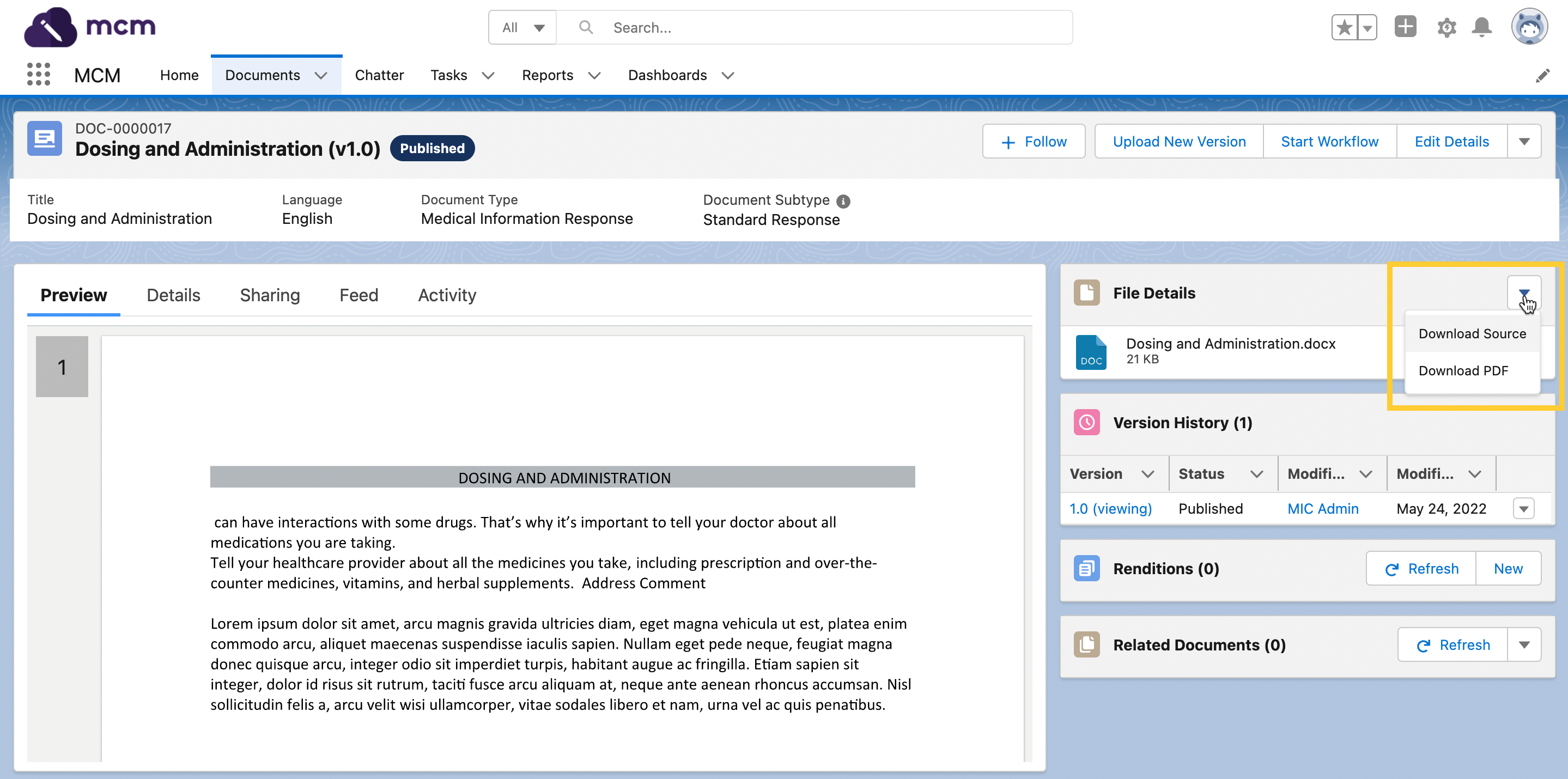
To download a PDF rendition when it is available, click the
Arrow menu
in the File Details component, and then click Download PDF.
:::
 :::
If you do not like the PDF rendition that is generated, you can upload a Document Version Rendition. A rendition is a high-quality, high-fidelity file that you manually associate with a document version record and that usually takes the form of a PDF. Visit Renditions.
External files
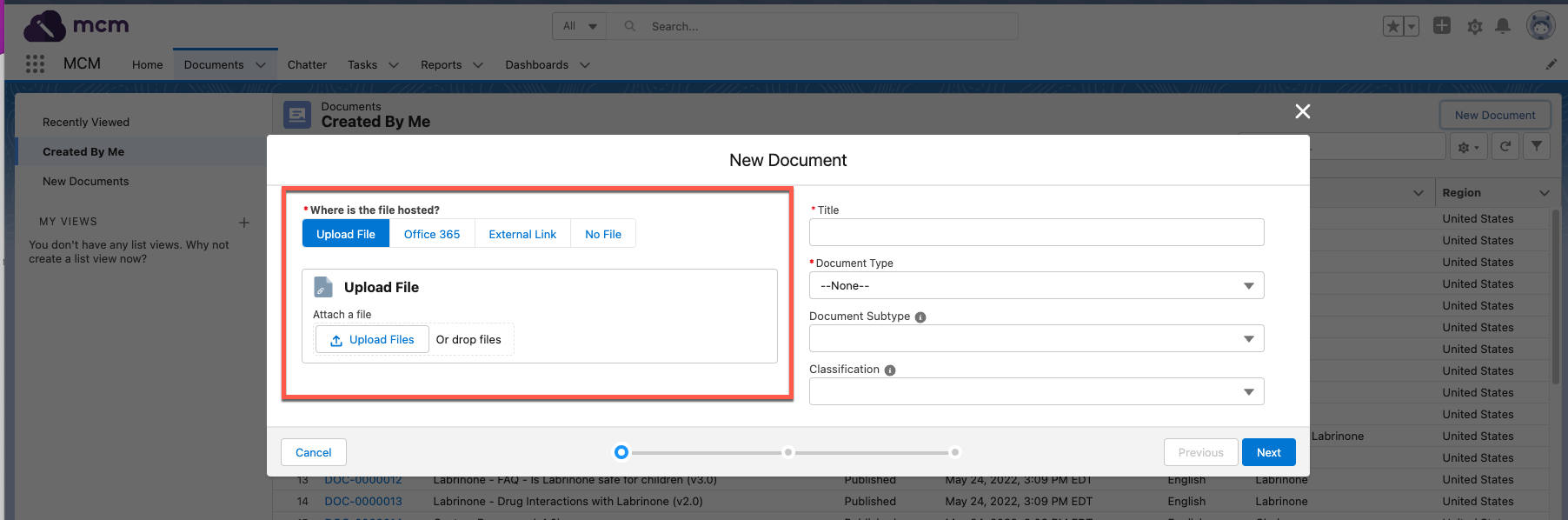
Documents may also be associated with files hosted externally. To associate a new document to an external file, click External Link when creating a new document.
Regulated Content Cloud does not have version control for externally hosted files.
:::
 :::