
Inbound Forms
The Inquiry Management module supports the receipt of Medical Inquiries via data
integration to streamline business processes within an organization. The
primary manner in which this is supported is through the Inbound Form
object (MED_Inbound_Form__c), made available within Inquiry Management. This object
serves as an integration staging table of sorts. When Inbound Form
instances are created within Inquiry Management, there exists functionality behind the
scenes to propagate this information into the appropriate locations
within Inquiry Management such that a User can begin working on the Medical Inquiry as they
would normally.
This propagation is facilitated via two main components:
-
A series of field and value mappings are made available within the administrative interfaces of Inquiry Management. These configurations instruct the system on how to map fields in addition to any value transformations that should be performed before the creation of the corresponding Interaction and Request.
-
Apex triggers to perform the custom processing upon receipt of a new Inbound Form record to read the available configuration and create the corresponding Interaction and Request.
For organizations looking to develop custom integrations with Inquiry Management to transfer Medical Inquiries to Inquiry Management, the Inbound Form is the primary option made available. Medical Information Cloud also ships a scheduled inbound pull for Life Sciences Cloud (LSC) orgs; see Life Sciences Cloud (LSC) for configuration and monitoring guidance. For information on the APIs available to create records within a Salesforce environment programmatically please refer to the Salesforce Developer Site.
Inbound Form groups
Each Inbound Form record has a 1:1 relationship with the Request
(MED_Request__c) object within Inquiry Management. Inbound Forms have a Many:1
relationship with Interactions. Should several Inbound Forms share the
same Group Identifier (MED_Group_Identifier__c) and Channel Details
(MED_Channel_Details__c) they will all be housed under a single
Interaction record, each with their corresponding Request record.
Fields used for account resolution
Beyond the fields propagated onto the Interaction and Request, four fields on the Inbound Form drive how the people on the inquiry are resolved. An integration that populates them gets automatic account matching; one that does not still creates the Interaction and Request, but leaves the accounts unresolved.
Inbound Form account resolution fields
| Inbound Form Field | Purpose |
|---|---|
| MED_External_ID__c | Required, unique, case-sensitive source-system identifier. The LSC inbound pull checks for existing IDs and skips questions already imported; custom integrations must handle existing IDs rather than attempt duplicate inserts. |
| MED_Requester_External_ID__c | The source system's identifier for the requester. Resolved through the configured Account Search handlers and stamped as the Interaction's account. |
| MED_Federation_Id__c | The source system's identifier for the person who submitted the inquiry. Resolved and stamped on Referred By (MED_Referred_By__c). |
| MED_Requester_Name__c | The requester's name as supplied by the source system, retained for reference when no account matches. |
For a worked example of these being populated by an integration, including which remote fields they come from, see Life Sciences Cloud (LSC).
Inbound Form field mappings
The table below details how fields present on the Inbound Form object are mapped and propagated in the course of the automated Interaction and Request creation.
Interaction (Case) Field Mappings
| Inbound Form (Source) Field | Case Field | Notes |
|---|---|---|
| MED_Address_Line_1__c | Case.MED_Address_Line_1__c | |
| MED_Address_Line_2__c | Case.MED_Address_Line_2__c | |
| MED_Channel__c | Case.Origin | |
| MED_Channel_Details__c | Case.MED_Channel_Details__c, Case.MED_Incoming_Inquiry_Group_Identifier__c | Case.MED_Incoming_Inquiry_Group_Identifier__c is a compound value comprised of MED_Inbound_Form__c.MED_Channel_Details__c + '::' + MED_Inbound_Form__c.MED_Group_Identifier__c |
| MED_City__c | Case.MED_City__c | |
| MED_Country__c | Case.MED_Country__c | |
| MED_Email__c | Case.MED_Email__c | |
| MED_Fax_Number__c | Case.MED_Fax__c | |
| MED_Group_Identifier__c | Case.MED_Incoming_Inquiry_Group_Identifier__c | Case.MED_Incoming_Inquiry_Group_Identifier__c is a compound value comprised of MED_Inbound_Form__c.MED_Channel_Details__c + '::' + MED_Inbound_Form__c.MED_Group_Identifier__c |
| MED_Interaction_Notes__c | Case.MED_Case_Notes__c | Available only in Inquiry Management Classic |
| MED_Phone_Number__c | Case.MED_Phone__c | |
| MED_Postal_Code__c | Case.MED_Postal_Code__c | |
| MED_Referred_By_Email__c | Case.MED_Referred_By_Email__c | |
| MED_State__c | Case.MED_State__c |
Request field mappings
| Inbound Form (Source) Field | Request Field | Notes |
|---|---|---|
| MED_Country__c | MED_Request__c.MED_Country__c | |
| Id | MED_Request__c.MED_Inbound_Form__c | |
| MED_Delivery_Method__c | MED_Request__c.MED_Preferred_Delivery_Method__c | |
| MED_Inquiry_Text__c | MED_Request__c.MED_Question__c |
Additional fields of note
| Inbound Form (Source) Field | Notes |
|---|---|
| MED_Requester_External_ID__c | Used to perform a lookup for an Account with a matching MED_External_ID__c. If a match is found, the corresponding Account Id is populated into the Case.AccountId field. |
| MED_Federation_ID__c | Used to perform a lookup for an Account with a matching MED_External_ID__c. If a match is found, the corresponding Account Id is populated into the Case.MED_Referred_By__c. |
| MED_Group_Identifier__c | Used in conjunction with MED_Channel_Details__c to ascertain whether a given record belongs to an Inbound Form Group. |
| MED_Channel_Details__c | Used in conjunction with MED_Group_Identifier__c to ascertain whether a given record belongs to an Inbound Form Group. |
| MED_External_ID__c | All custom integrations or custom code creating Inbound Forms must populate MED_External_ID__c with a unique value. Integrations that do not fill out this required field will fail. |
Inbound Form value mappings
In addition to the field mappings available to route inbound fields to local fields, there exists the ability to map or convert values within fields contained on inbound MIRFs. Organizations can swap out the inbound product data with values that align with how the product catalog is structured within Inquiry Management. This abstraction allows Administrators to manage the product catalog in the most advantageous manner within Inquiry Management without impacting or constraining the ability to integrate with Veeva CRM to process MIRFs.
Regardless of whether the received product name is utilized as-is or swapped with a configured map, the product search is dependent upon the structure and configuration of your product catalog within Inquiry Management. The two must work in conjunction with one another to ensure product matches are located as expected. This includes considerations such as whether:
-
the simplified product catalog within Inquiry Management is being leveraged
-
a country is designated on the Inbound Form and corresponding products
-
the product Reporting Group or Product is case sensitive
Presently value maps are only supported within the Product field
(MED_Product__c) on Inbound Forms.
Product matching
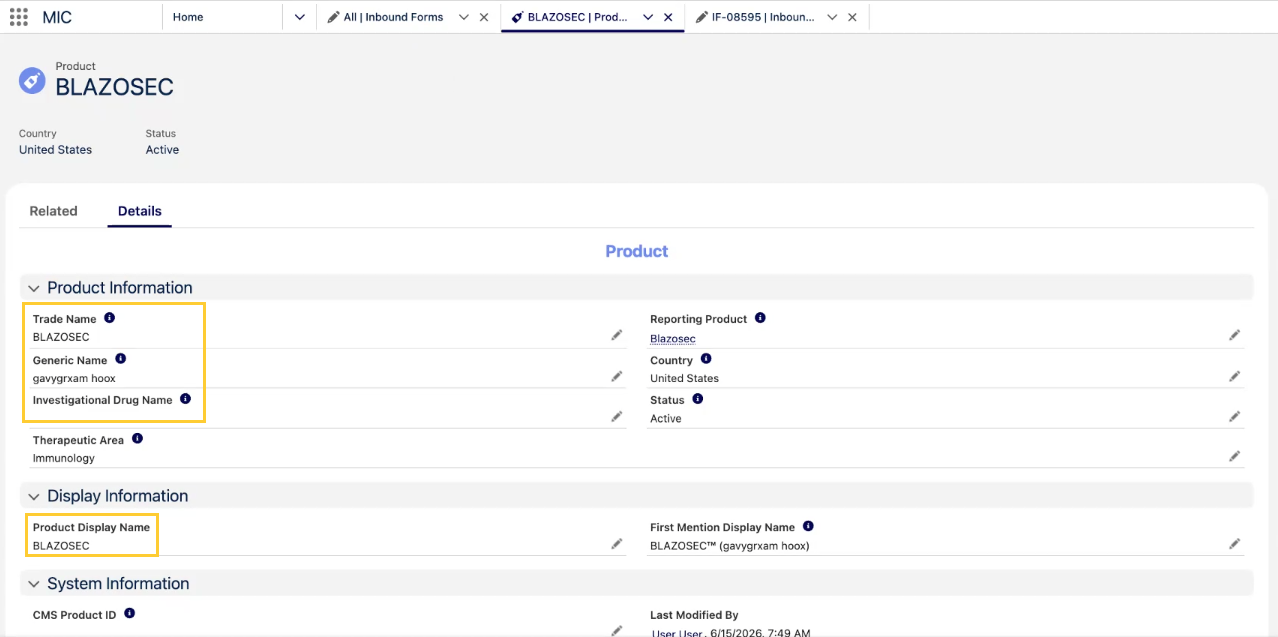
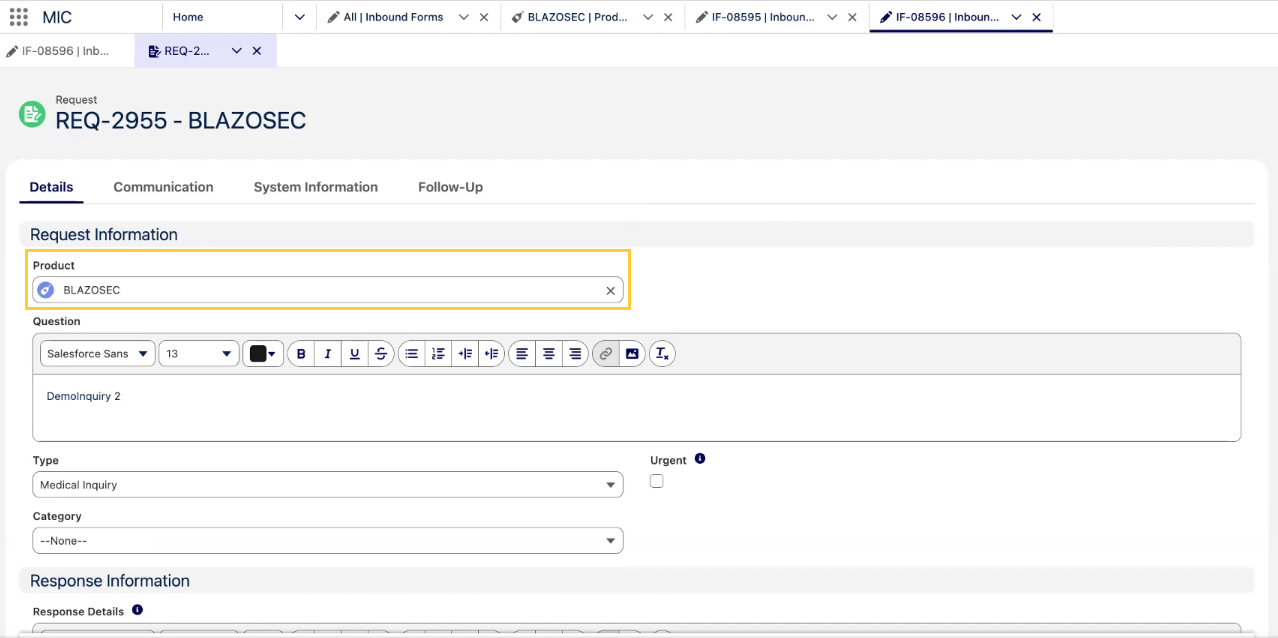
When Inquiry Management creates a Request (MED_Request__c) from an Inbound Form, it tries to match the Inbound Form Product (MED_Product__c) text to a Product record. If any Inquiry Management Value Mappings apply, they transform the text first, and the matching rules below then apply to the result.
Which products are considered
A product is a candidate for matching only if all of the following are true:
- The product is Active.
- The product's Country matches the Inbound Form Country, or is
ZZ(Global). If both a country-specific product and aZZproduct match, the country-specific product is used. - The product's record type fits the Simplified Product Catalogue setting:
- Enabled: Only products with the Product Family (
MED_Product_Family) record type are considered. - Disabled: Products with the Product Family record type are excluded.
- Enabled: Only products with the Product Family (
How the text is compared
Inquiry Management compares the inbound text against each of the following names on every candidate product:
- Product Display Name (
Name) - Trade Name (
MED_Trade_Name__c) - Generic Name (
MED_Generic_Name__c) - Investigational Drug Name (
MED_Investigational_Drug_Name__c) - First Mention Display Name (
MED_First_Mention_Display_Name__c)
Both the inbound text and the product names are normalized before they are compared. Normalization ignores case, special characters (such as ® and ™), punctuation, and extra spaces. For example, an inbound value of Kalytex matches a product with the display name KALYTEX®.
What happens after matching
| Result | Outcome |
|---|---|
| One match | Inquiry Management sets the Product lookup on the Request. |
| More than one match | Inquiry Management leaves the Product lookup blank and logs a More than one product found message in the Request Creation Log (MED_Request_Creation_Log__c) field. It does not guess which product to use. |
| No match | Inquiry Management leaves the Product lookup blank. |
When the Product lookup is blank, the original product text from the Inbound Form is still available in the Inbound Product Text (MED_Inbound_Product_Text__c) formula field on the Request. On the Request record page, the Product lookup component shows this text with a notice that no product match was found, so contact center specialists can select the correct product manually.
Matching now includes generic and investigational names, which are often shared across several products. As a result, you may see multiple matches more often than when only display names were used. When the Product lookup is blank, review the original product text and select the correct product on the Request.
Creating value maps
Value maps are managed within the Inquiry Management Value Mapping custom metadata type. The following points should be considered when creating value maps:
-
Each inbound value may only be mapped to a single target value.
-
It is possible to have multiple inbound values map to the same local value.
For details on the fields to be specified for value maps, visit the Inquiry Management
Value
Mapping (MED_MIC_Value_Mapping__mdt) custom
metadata type.
A sample Inquiry Management Value Map for MIRF integration can be seen below.
MIRF value map example
| Field | Value |
|---|---|
| Inbound | Checked |
| Outbound | Checked |
| Source Entity | <Label of the Veeva Org (MED_Veeva_Org__mdt) metadata record to be mapped> |
| Source Value | <Product display name> |
| Target Value | <Product display name> |
| Type | MIRF.MED_Product__c |
| Unique Key | MIRF.MED_Product__c:<Source Entity>:<Source Value>:<TargetValue> |
Anonymization
When MED_Request__c.MED_Anonymize__c is checked and the record is not
marked for legal hold, MED_Anonymize__c is checked on all related
Inbound Forms.
Data propagation suppression
Should a Customer desire not to trigger the automatic propagation of
Request and Interactions from the creation of a new Inbound Form record,
the MED_Suppress_Request_Creation__c should be set to true. When set
to true, all processing associated with the processing and propagation
of data will be bypassed for the Inbound Form record in question.
Troubleshooting Inbound Forms
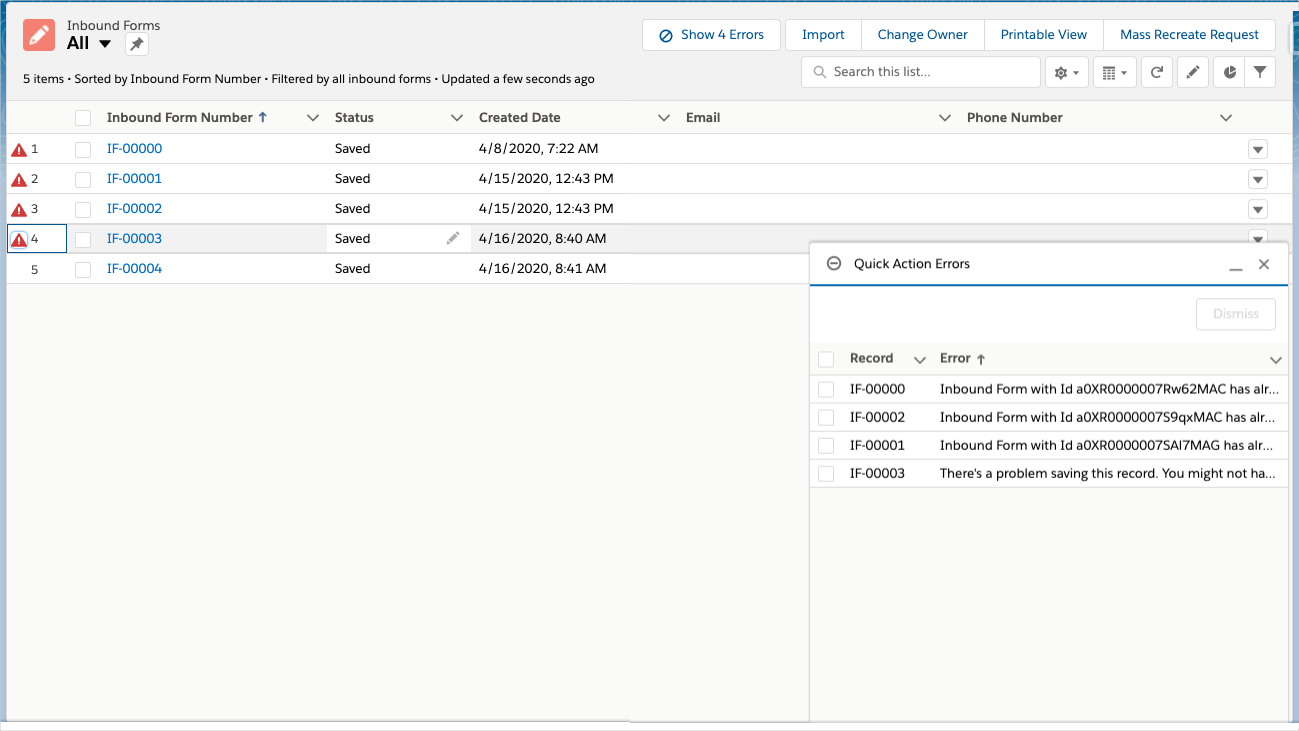
If an Inbound Form fails, an Error
 icon appears
next to the Inbound Form on the Inbound Forms list view. The warning
message for the Inbound Form is listed in the Quick Action Errors
utility item and the Alt text for the Error
icon.
:::
 :::
Once errors have been addressed, Lightning administrators can use quick actions to rerun errored Inbound Forms and trigger the creation of Request records. The creation of a new Request is blocked if the Inbound Form being rerun is already associated with a Request.
Lightning quick actions include:
-
Mass Recreate Request - select multiple Inbound Forms and process them as a single batch. The quick action is located on the Inbound Form list view.
-
Recreate Request - refire a single Inbound Form. The quick action is located on the Inbound Form page layout.