
Quick Fulfillment
Quick Fulfillment assembles a Fulfillment's files automatically. When a Fulfillment is created, Medical Information Cloud reads the Request Documents on the Interaction's Requests and attaches a file for each one, in the format set by the document's Delivery Option. This includes documents added from content search and files uploaded directly to a Request. If the Fulfillment's country requires Prescribing Information, the applicable Prescribing Information documents are attached too. Specialists open a Fulfillment that already has its documents, instead of collecting and converting them by hand.
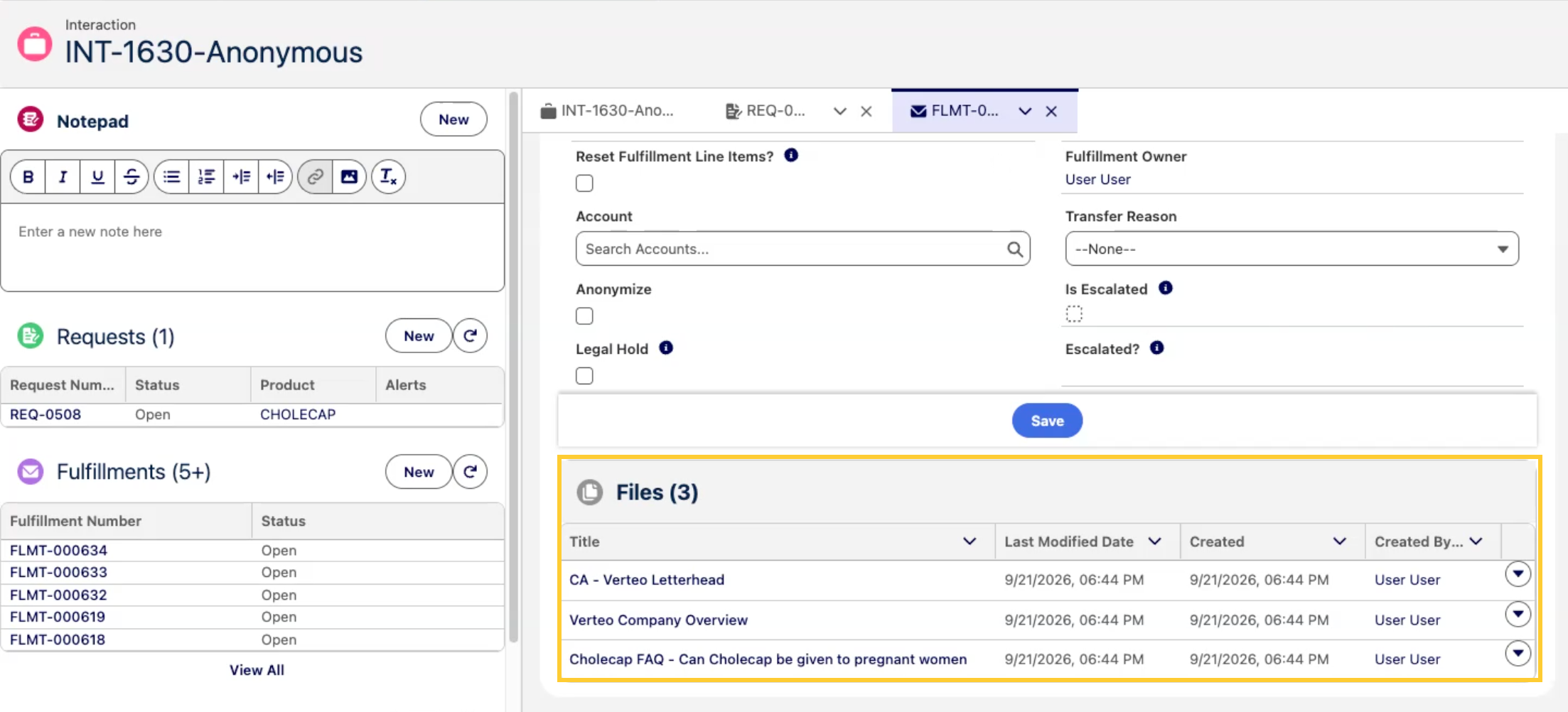
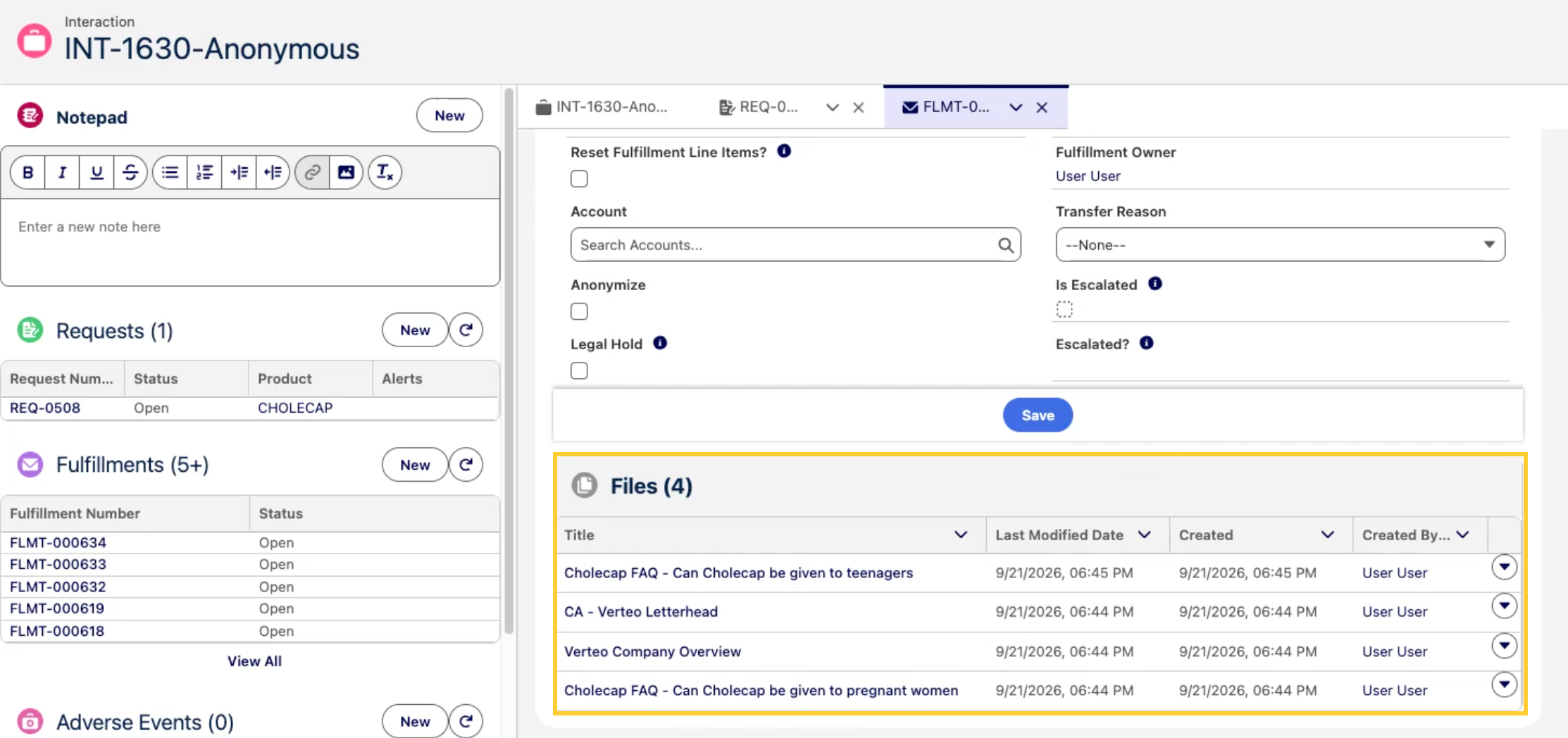
Assembly runs again whenever a user clicks Refresh Requests List, so the Fulfillment stays up to date when Requests or documents change after it was created. Refreshing adds and removes only the files that Quick Fulfillment attached. Files that a user attached by hand are never changed.
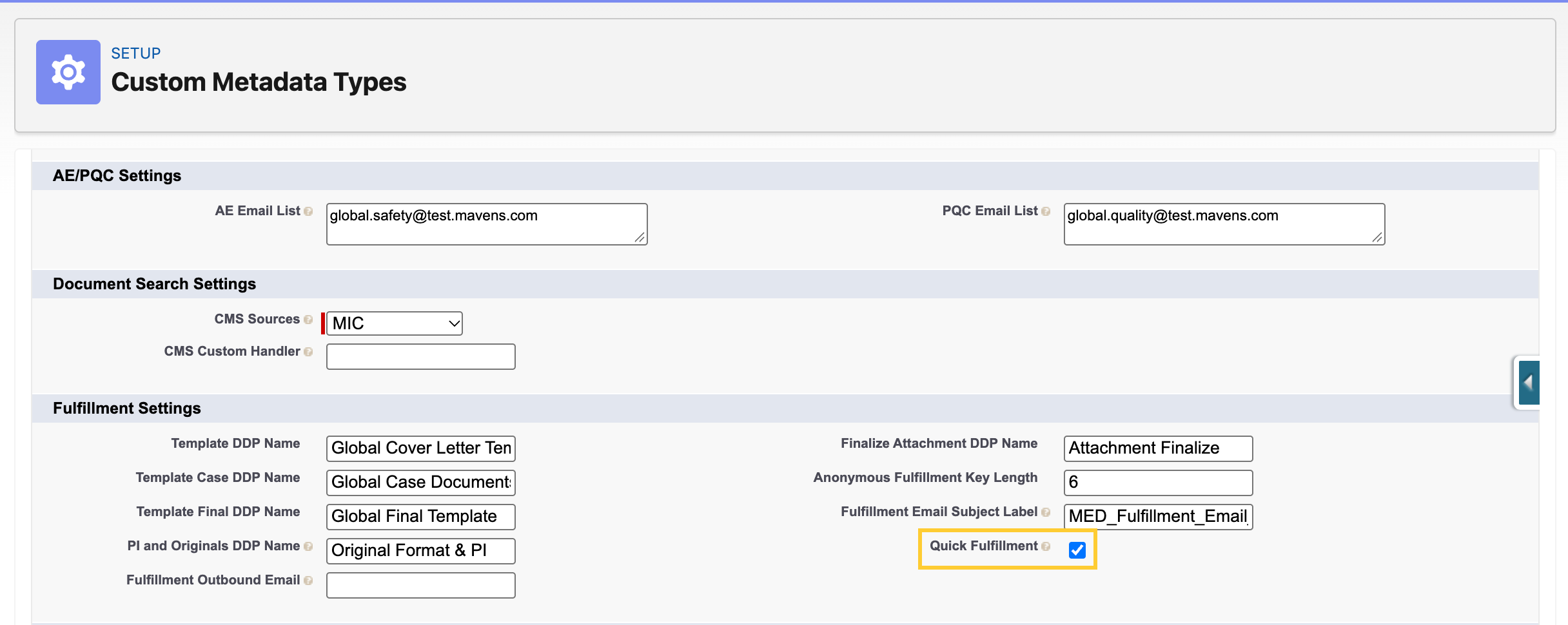
Quick Fulfillment is turned on for one country or segment at a time, with the Quick Fulfillment (MED_Quick_Fulfillment__c) checkbox on the Local Setting (MED_Local_Setting__mdt) custom metadata type. Countries and segments where the checkbox is cleared keep the current manual process.
Assembly runs in the background, so a new Fulfillment has no files for a few moments. To tell whether a Fulfillment is still being assembled or is finished, check the Quick Fulfillment Status field, described below.
What gets attached
Quick Fulfillment attaches each Request Document according to its Delivery Option (MED_Delivery_Option__c):
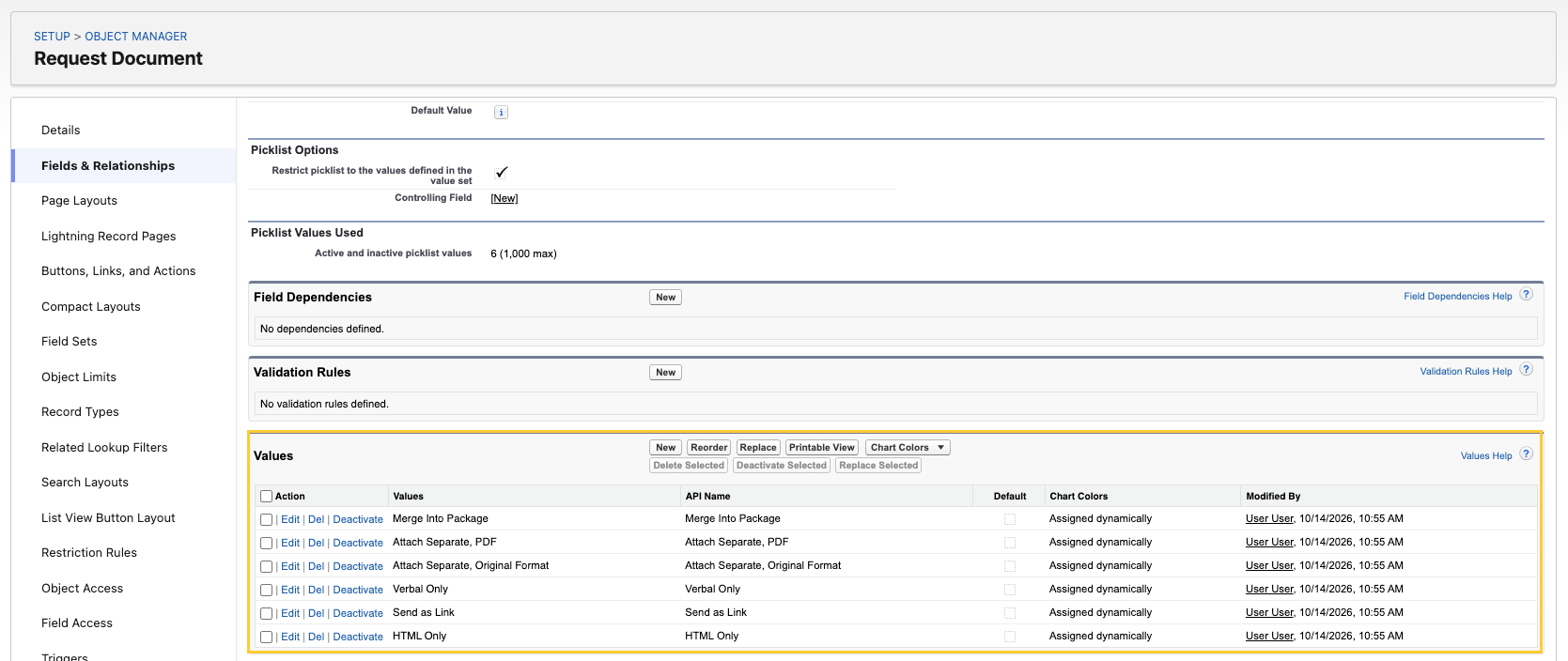
| Delivery Option | What Quick Fulfillment attaches |
|---|---|
| Attach Separate, Original Format | A copy of the source file, unchanged. |
| Attach Separate, PDF | A PDF of the document. If the document already has a PDF rendition, the rendition is copied. If the source file is already a PDF, it's copied directly. Otherwise, a PDF is created from the source file. |
| Merge Into Package | Nothing. These documents are assembled into the fulfillment package rather than attached separately. |
| Verbal Only | Nothing |
| Send as Link | Nothing |
| HTML Only | Nothing |
The same rules apply to:
-
Files uploaded directly to a Request: A non-PDF file with Attach Separate, PDF is converted to a PDF with the same name and a
.pdfextension. -
Prescribing Information documents: These are attached according to their own Delivery Option.
If more than one Request on the same Interaction includes the same document, it's attached only once. If a document can't be converted to PDF, it isn't attached. The Fulfillment's Quick Fulfillment Status is set to Complete with Errors, and the problem is recorded in the Debug Log.
A PDF created during assembly is a copy for that Fulfillment only. It doesn't become a rendition of the source document and doesn't appear in the document's renditions in Regulated Content Cloud.
Documents you upload to the Request
A file you add to a Request with Attach Request Document is attached to the Fulfillment the same way as a document added from content search. The uploaded file is a Request Document like any other, so it follows its Delivery Option:
- Attach Separate, PDF: A PDF of the file is attached. If you uploaded a PDF, it's copied as is. Otherwise, it's converted to a PDF.
- Attach Separate, Original Format: A copy of the file is attached, exactly as you uploaded it.
- Merge Into Package: Nothing is attached separately.
You don't need to attach uploaded files to the Fulfillment by hand. The result is the same as what the Nintex fulfillment package flow produces for the same Request. If you upload a file after the Fulfillment is created, click Refresh Requests List to add it.
When an uploaded file is converted to PDF, the new extension replaces the original one. For example, Letter.docx becomes Letter.pdf, not Letter.docx.pdf. Files attached in their original format keep the name and extension you uploaded. If an uploaded file can't be converted to PDF, the Fulfillment's Quick Fulfillment Status is set to Complete with Errors, and the problem is recorded in the Debug Log (mvn__Debug_Log__c).
Uploaded files have no document version in Regulated Content Cloud, so there's no existing PDF rendition to copy, and no rendition is created. The PDF is made for that Fulfillment only, the same as for any document that doesn't have a rendition yet.
Request Documents uploaded in earlier releases might be stored as Salesforce Attachments instead of files. Quick Fulfillment can't read Attachments, so it skips these documents and records the reason in the Debug Log. Skipping them doesn't change the Fulfillment's status to Complete with Errors. Attach these documents to the Fulfillment by hand, or upload them to the Request again so they're stored as files.
Prescribing Information
If a Fulfillment's country and account are set up for it, Quick Fulfillment also attaches Prescribing Information along with the Request Document files. This matches what the fulfillment package generation flow already does.
When Prescribing Information is attached
Prescribing Information is attached when all of the following are true:
-
The settings include it: The Fulfillment's Country (
MED_Country__c) and the record type of its Account match a Fulfillment PI Setting that has Include PI Docs turned on. For how the setting is chosen, see How the Fulfillment PI Setting is chosen. -
A matching document exists: A document in the content library has the Type and Subtype set in the PI Component Document Type (
MED_PI_Component_Document_Type__c) and PI Component Document Subtype (MED_PI_Component_Document_Subtype__c) Global Settings, and it's tagged with the Fulfillment's country. -
The product matches: The document's product is the product of a Request on the Fulfillment, and that Request is in the Fulfillment's country. Requests with no product, or in a different country, are ignored.
How Prescribing Information is attached
Each Prescribing Information document is attached according to its own Delivery Option, using the same rules as Request Documents. Documents with Merge Into Package are ignored. If a Prescribing Information document is already on the Fulfillment as a Request Document, it's attached only once. If a product has no Prescribing Information document in the content library, nothing is attached for it, and this isn't treated as an error.
Refreshes and errors
When a user clicks Refresh Requests List, Quick Fulfillment checks Prescribing Information again. It adds documents that now apply and removes ones it attached that no longer apply. If a Prescribing Information document is found but can't be attached, the Fulfillment's Quick Fulfillment Status is set to Complete with Errors. If the content library search itself fails, the status is set to Failed, and no files are added or removed.
How the Fulfillment PI Setting is chosen
- Settings come from the segment for the Fulfillment's country. The All Countries segment is used only if the country has no Prescribing Information settings at all.
- Within that segment, a setting for the Account's exact record type is used. If there isn't one, the All setting is used.
- If the country has settings but none matches the Account's record type, and there's no All setting, no Prescribing Information is attached.
Quick Fulfillment Status
The Quick Fulfillment Status (MED_Quick_Fulfillment_Status__c) field on the Fulfillment shows the progress and result of assembly:
| Value | Meaning |
|---|---|
| Not Applicable | Quick Fulfillment isn't turned on for the Fulfillment's country or segment. No files were attached and no documents were converted. |
| Queued | Assembly is scheduled but hasn't started. |
| In Progress | Assembly is running. |
| Complete | Every applicable document, including Prescribing Information, was attached. |
| Complete with Errors | Assembly finished, but at least one document wasn't attached. |
| Failed | Assembly couldn't run, or couldn't determine which files belong on the Fulfillment. No files were added or removed. |
Only Quick Fulfillment sets this field. Users can't edit it, but you can report on it, for example to find Fulfillments with Complete with Errors or Failed. For the reason behind an error, check the Debug Log (mvn__Debug_Log__c). The Quick Fulfillment Completed field records the date and time the Fulfillment first reached Complete. Clicking Refresh Requests List runs assembly again and updates the status, but it doesn't change this date.
Only Complete means the Fulfillment has every file it should. Complete with Errors means at least one document is missing. Any automated process that acts on assembled Fulfillments must run only when the status is Complete. To avoid acting on the same Fulfillment again after a refresh, base the process on Quick Fulfillment Completed rather than on a change to the status.
Which documents count toward Complete
Some documents are never attached, by design. These don't count toward the status and never change it to Complete with Errors:
- Documents with a Delivery Option of Merge Into Package, Verbal Only, Send as Link, or HTML Only
- Documents already attached from another Request on the same Interaction
- Files uploaded in an earlier release and stored as Salesforce Attachments
If all of a Fulfillment's documents are of these kinds, the Fulfillment reaches Complete with no files attached. Files uploaded to a Request count the same as any other Request Document. If an uploaded file is set to Attach Separate, PDF or Attach Separate, Original Format, it must be attached for the Fulfillment to reach Complete.
A document counts as missing, and the status is set to Complete with Errors, when:
- Its Delivery Option is blank, or has a value Quick Fulfillment doesn't recognize.
- It doesn't reference a source document.
- Its source document version has no file.
- Its file couldn't be copied or converted to PDF.
Quick Fulfillment Completed
Quick Fulfillment Completed (MED_Quick_Fulfillment_Completed__c) records the date and time the Fulfillment first reached Complete. It's set only once, so refreshing doesn't change it. To find a Fulfillment's first completion, use this field rather than a change in Quick Fulfillment Status.
Access and reporting
Only the assembly process sets Quick Fulfillment Status and Quick Fulfillment Completed. Both fields are read-only on Fulfillment page layouts and in the Medical Information Cloud permission sets. Attempts to set them through the API or a data load are rejected. Both fields are reportable, so you can list Fulfillments with a status of Complete with Errors or Failed without checking the logs.
Refreshing an assembled Fulfillment
Clicking Refresh Requests List reassembles the Fulfillment based on the current Requests and documents. A refresh never deletes files a user added, and running it more than once is safe.
| Situation | What happens |
|---|---|
| A Request Document doesn't have a file on the Fulfillment yet. | The file is attached. |
| A file was uploaded to the Request after the Fulfillment was created. | The file is attached, in the format set by its Delivery Option. |
| A file's source is still on the Request, in the same format. | Nothing changes. The file isn't copied or converted again. |
| A document's Delivery Option changed after the Fulfillment was created. | The file is replaced with one in the new format. |
| A Request Document was removed from the Request, including an uploaded one. | The file Quick Fulfillment attached for it is removed. |
| A file's source Request Document is no longer on the Request, or its Prescribing Information document no longer applies | The file is removed. |
| A user attached a file to the Fulfillment by hand. | The file is never removed or changed. |
Refreshing removes only files that Quick Fulfillment attached. Medical Information Cloud records the source of every file it attaches. Files without that record, such as files a user uploaded to the Fulfillment, are never touched.
If you run Refresh Requests List twice in a row, the second run changes nothing: no duplicate files and no repeated conversions. Each refresh updates Quick Fulfillment Status, but it doesn't change Quick Fulfillment Completed. If a refresh can't complete its Prescribing Information search, no files are added or removed, and the status is set to Failed.
When a source can't be read
If Quick Fulfillment can't find the file for a document's source during a run, it can't safely tell which existing files are still needed. Instead of deleting files that an earlier run attached, it doesn't remove any files from that Fulfillment. It records which files it kept in the Debug Log (mvn__Debug_Log__c).
If a run can't determine what belongs on the Fulfillment at all, for example because a Prescribing Information search fails, the status is set to Failed and no files are changed. Existing files, including Prescribing Information, stay in place.
Actions hidden while assembly runs
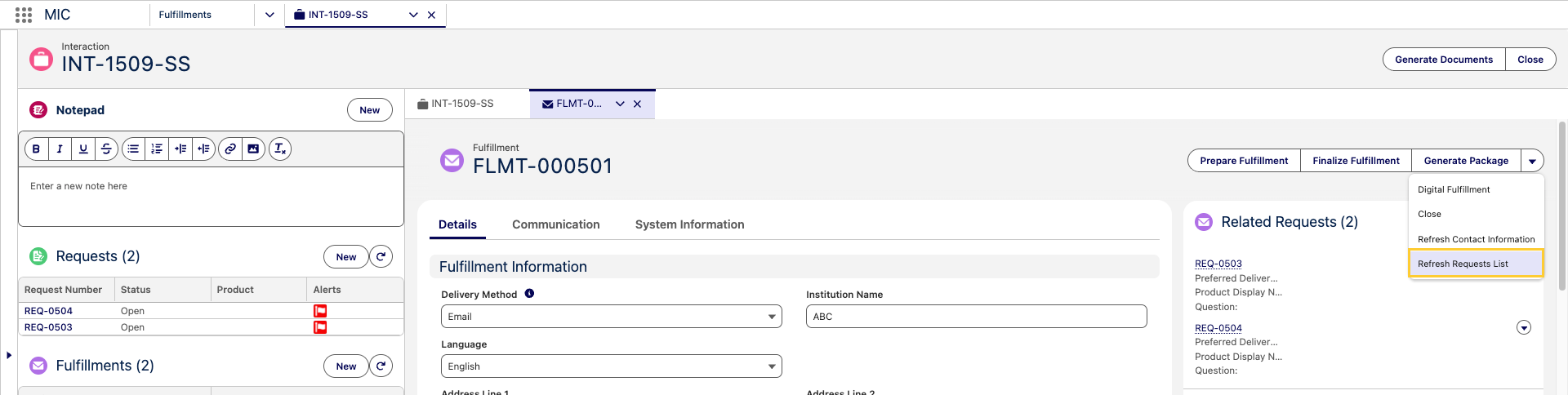
While a Fulfillment is still being assembled, its files are incomplete, so it must not be sent, closed, or packaged. When Quick Fulfillment Status is Queued or In Progress, these actions are hidden on the Fulfillment record page:
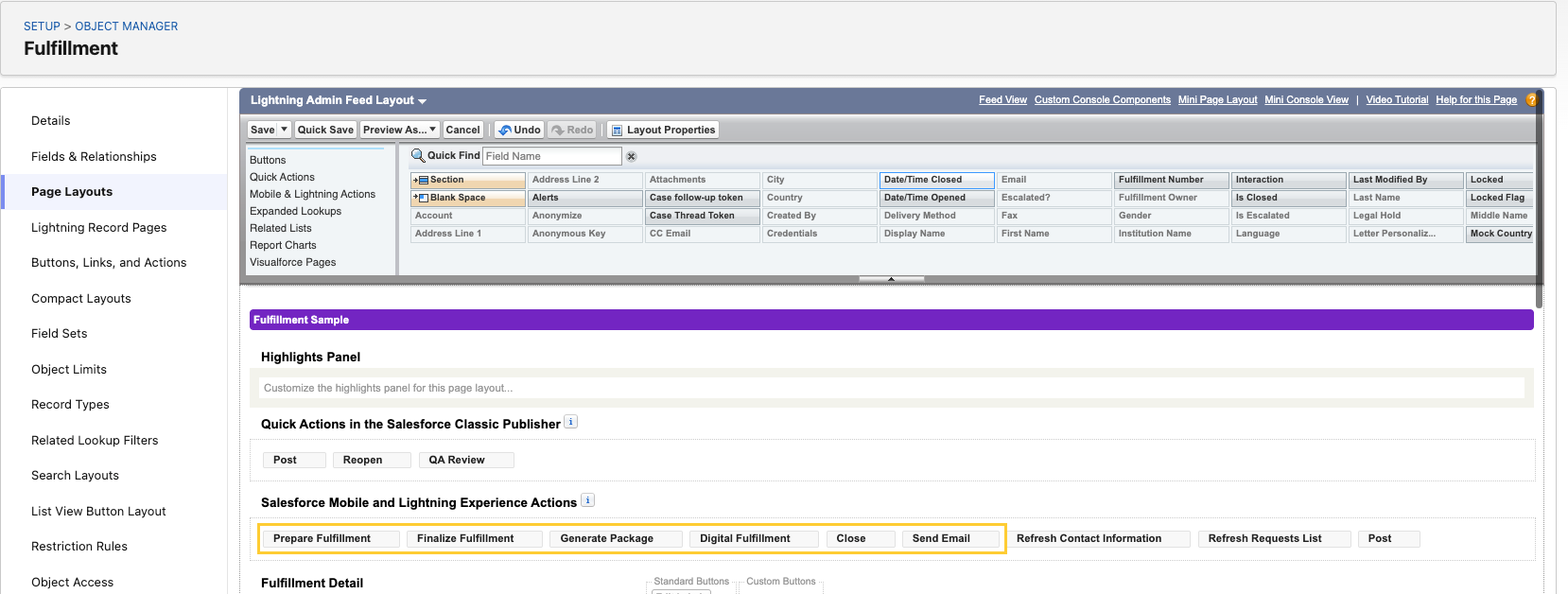
- Prepare Fulfillment (
MED_Merge_Cover_Letter) - Finalize Fulfillment (
MED_Finalize_Merge_Letter) - Generate Package (
MED_Generate_Fulfillment_Package) - Digital Fulfillment (
MED_Generate_Fulfillment_Letter) - Close Fulfillment (
MED_Close_Fulfillment) - Send Email (
MED_Send_Email_Action)
The actions appear again as soon as the status changes to Complete, Complete with Errors, or Failed. Fulfillments that aren't being assembled show the actions as usual. This includes Fulfillments created before Quick Fulfillment was available, and Fulfillments in countries where Quick Fulfillment isn't turned on.
A Medical Information Cloud upgrade does not change your existing Fulfillment record pages or page layouts. Before you turn on Quick Fulfillment in an existing org, follow the steps in Set up Quick Fulfillment in an existing org.
In new installations, closing is also blocked on the Fulfillment record itself. If someone sets Status (MED_Status__c) to Closed while assembly is still running, this error appears: Quick Fulfillment is still assembling files for this Fulfillment. Wait for the Quick Fulfillment Status to finish before closing. This applies to the Close Fulfillment action and to changes made through the API or automation.
Hide the actions on an existing Fulfillment record page
Complete these steps for each Fulfillment Lightning record page your users are assigned:
-
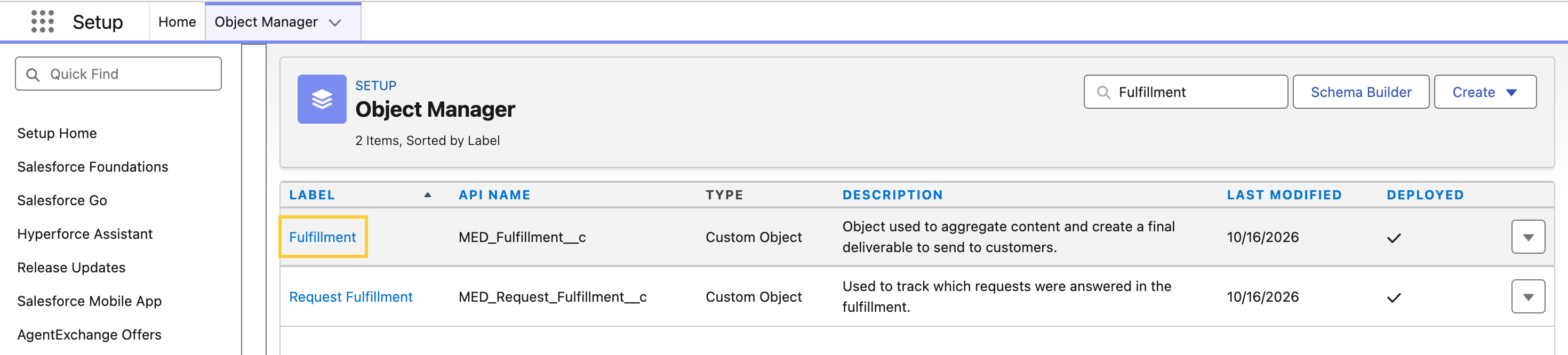
From Setup, open Object Manager and select Fulfillment.
-
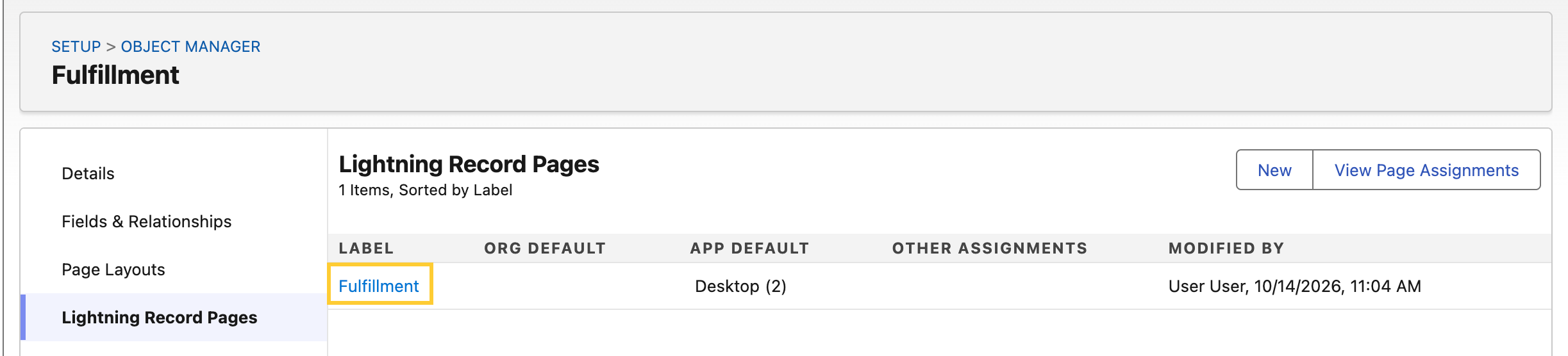
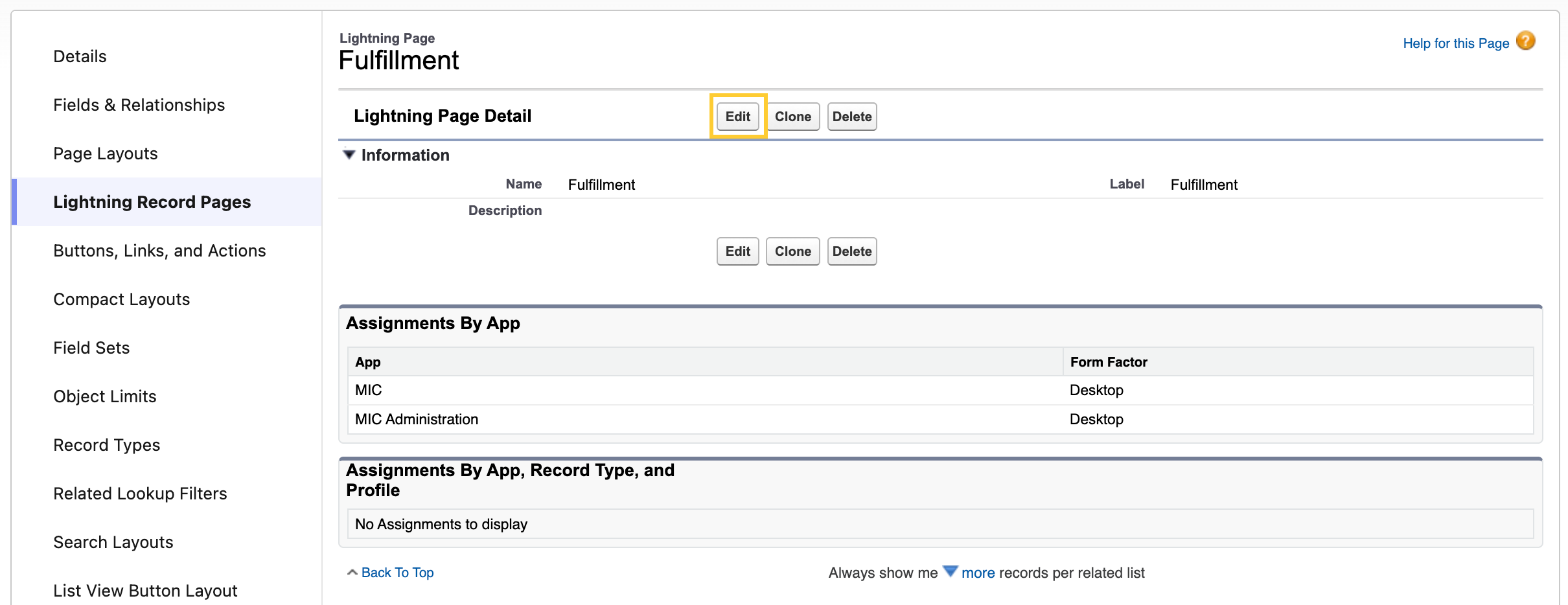
Click Lightning Record Pages, and open the page assigned to your users.
-
Click Edit to open the page in the Lightning App Builder.
-
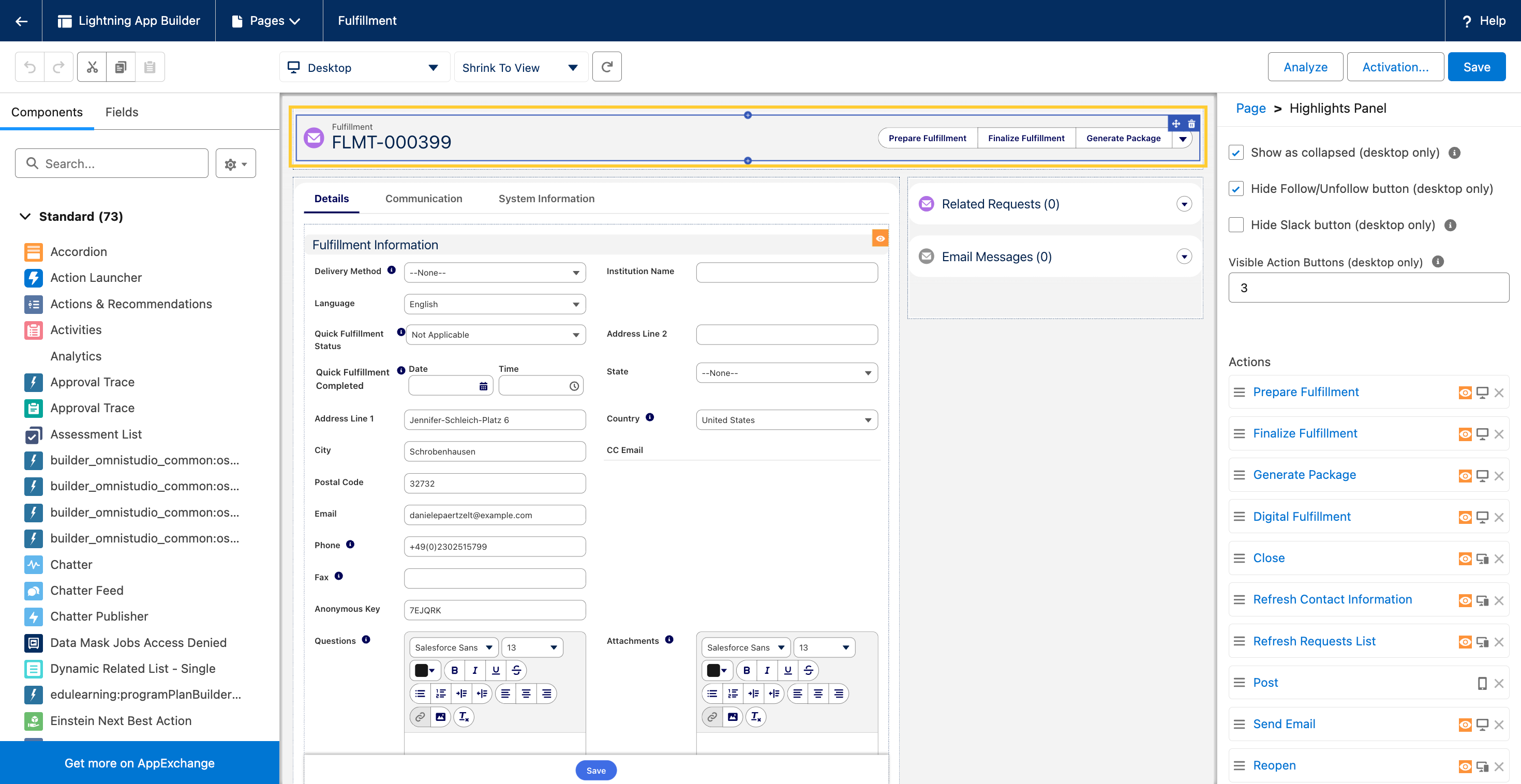
Select the Highlights Panel component, and turn on dynamic actions so the page controls which actions appear.
-
Add every action your users need. Because the page now controls the actions instead of the page layouts, include every action from each Fulfillment page layout assigned to your users.
-
For each of the following actions, add a visibility filter so the action appears only when Quick Fulfillment Status is neither Queued nor In Progress:
Action API name Prepare Fulfillment MED_Merge_Cover_LetterFinalize Fulfillment MED_Finalize_Merge_LetterGenerate Package MED_Generate_Fulfillment_PackageDigital Fulfillment MED_Generate_Fulfillment_LetterClose Fulfillment MED_Close_FulfillmentSend Email MED_Send_Email_ActionAdd two filters on the record field Quick Fulfillment Status (
MED_Quick_Fulfillment_Status__c), both with the Not Equal operator: one for Queued and one for In Progress. Combine them with the action's existing filters using AND.noteUse Not Equal so the actions stay visible for every other status, including blank and Not Applicable. Fulfillments created before V19 have a blank status, and Fulfillments in countries without Quick Fulfillment have Not Applicable. Both must keep working as they do today.
-
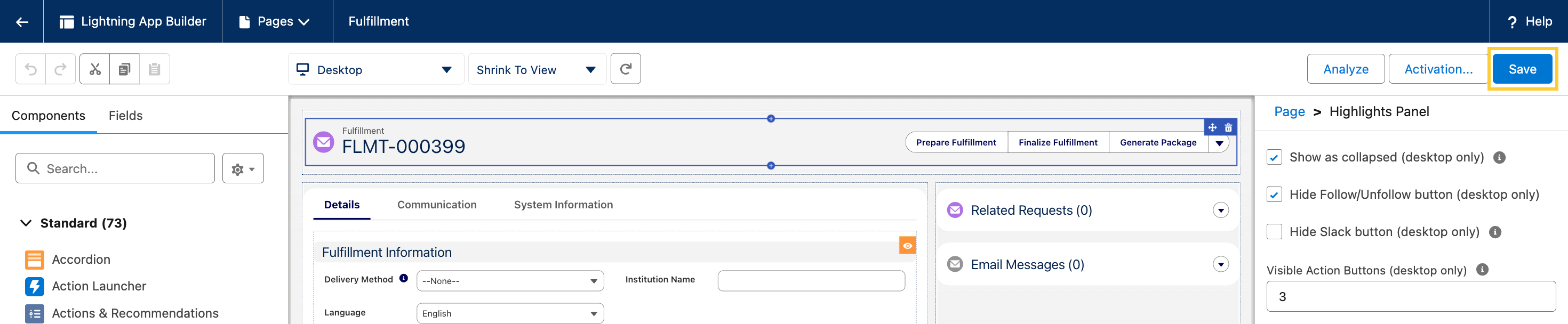
Click Save. If the page isn't active yet, click Activate. Repeat for each Fulfillment Lightning record page your users are assigned.
Set up Quick Fulfillment in an existing org
If your org already uses Digital Fulfillment, complete these steps before you turn on Quick Fulfillment.
-
Make sure your users can generate PDFs. See Authorize users in the Mavens Rendition Service topic.
-
Add the Quick Fulfillment Status (
MED_Quick_Fulfillment_Status__c) and Quick Fulfillment Completed (MED_Quick_Fulfillment_Completed__c) fields to your Fulfillment page layouts, so users can see when a Fulfillment's files are ready. -
Hide the Fulfillment actions until assembly finishes. See Hide the actions on an existing Fulfillment record page.
-
Select Quick Fulfillment on the Local Setting record for each country or segment that is ready. See Quick Fulfillment Settings.
Troubleshooting
Assembly runs in the background, so failures aren't shown to users. Instead, they're recorded in the Debug Log (mvn__Debug_Log__c). Each entry names the Fulfillment, the document, and the reason.
| What you see | What to do |
|---|---|
| Status is Complete with Errors. | Check the Debug Log to find the documents that weren't attached. Common causes:
|
| Status is Complete, but a file you uploaded is missing. | Check the Request Document's Delivery Option. Files set to Merge Into Package, Verbal Only, Send as Link, or HTML Only aren't attached, by design. If it's set to an Attach Separate option, check the Debug Log. If the log shows the file is stored as a Salesforce Attachment from an earlier release, which Quick Fulfillment can't read, attach the file to the Fulfillment by hand, or upload it to the Request again and click Refresh Requests List. |
| Status is Failed. | Assembly couldn't determine which files belong on the Fulfillment, so no files were added or removed. Fix the cause recorded in the Debug Log, then click Refresh Requests List to run assembly again. |
| Status stays Queued or In Progress. | Click Refresh Requests List to restart assembly. An interrupted run continues from where it stopped. |
| Status is Not Applicable. | Quick Fulfillment isn't turned on for the Fulfillment's country or segment. Assemble the files manually, or turn on Quick Fulfillment for that country or segment. |