
Quick Actions
Quick actions are object-specific operations that can be used to create a more user-friendly, streamlined experience. The available object-specific quick actions are shown in the table below.
Object-specific quick actions
| Object | Quick action | Description |
|---|---|---|
Interaction (Case) | Account Info (MED_Case_Account_Info__c) | Displays the Case Accounts/Quick Search widget. |
Interaction (Case) | Close (MED_Close_Interaction) | Closes the interaction and related records. |
Interaction (Case) | MIC Snapshot (MED_MIC_Snapshot) | Creates a PDF snapshot of an Interaction record and all related Request, Fulfillment, Adverse Event, and Product Quality Complaint records using the in-house snapshot feature. |
Interaction (Case) | Generate Snapshot (MED_Generate_Snapshot) | Generates a PDF snapshot of the Interaction from its Word template and saves it in the record's Files. This action isn't on any page by default. For details, see Record Snapshots. |
Interaction (Case) | Send Snapshot (MED_Send_Snapshot) | Generates a PDF snapshot of the Interaction from its Word template, lets the user choose files to attach, and opens the email composer with details filled in from the snapshot configuration. For details, see Record Snapshots. |
Interaction (Case) | Transfer Interaction (MED_Transfer_Interaction) | Changes the owner of the Interaction. |
Interaction (Case) | Account Search (MED_Account_Search) | Opens the Account Search tab. |
Interaction (Case) | Generate Snapshot (MED_Snapshot) | Makes a PDF snapshot of the record using the in-house snapshot feature. |
Adverse Event (MED_Adverse_Event__c) | Add Interaction Related Items (MED_Add_Interaction_Related_Items) | Allows copying files and emails from the related Interaction onto the AE. |
Adverse Event (MED_Adverse_Event__c) | Add Related Product Quality Complaint (MED_Add_Related_Product_Quality_Complaint) | Creates a new PQC linked to the AE. Note: Mavens recommends adding the Interaction (MED_Case__c) lookup field to the Adverse Event page layout for the best user experience for this quick action. If the Interaction field is not on the page layout and a user clicks Save on the modal, the related Product Quality Complaint record will be created successfully, but the modal will remain open, which can cause users to mistakenly assume the record was not created. |
Adverse Event (MED_Adverse_Event__c) | Generate E2B (MED_Generate_E2B_Action) | Generates E2B file. |
Adverse Event (MED_Adverse_Event__c) | MIC Snapshot (MED_MIC_Snapshot) | Creates a PDF snapshot of the Adverse Event record using the in-house snapshot feature. |
Adverse Event (MED_Adverse_Event__c) | Generate Snapshot (MED_Generate_Snapshot) | Generates a PDF snapshot of the Adverse Event from its Word template and saves it in the record's Files. This action isn't on any page by default. For details, see Record Snapshots. |
Adverse Event (MED_Adverse_Event__c) | Send Snapshot (MED_Send_Snapshot) | Generates a PDF snapshot of the Adverse Event from its Word template, lets the user choose the files to attach, and opens the email composer pre-filled from the snapshot configuration. Visit Record Snapshots. |
Adverse Event (MED_Adverse_Event__c) | Send Snapshot (MED_Send_Snapshot) | Generates a PDF snapshot of the Adverse Event from its Word template, lets the user choose files to attach, and opens the email composer with details filled in from the snapshot configuration. For details, see Record Snapshots. |
Adverse Event (MED_Adverse_Event__c) | Transfer (MED_Transfer_AE) | Allows the transferring of the AE. |
Adverse Event (MED_Adverse_Event__c) | Send To Safety (MED_Send_To_Safety) | Uses Nintex DocGen to email the AE to the Safety team. |
Fulfillment (MED_Fulfillment__c) | Generate Package (MED_Generate_Fulfillment_Package) | Opens a modal to start the fulfillment package generation process using the new package generation queue in the Utility Bar. |
Fulfillment (MED_Fulfillment__c) | Generate Package (MED_Generate_Package) | Opens tabs to generate the fulfillment package. |
Fulfillment (MED_Fulfillment__c) | Refresh Request List (MED_Refresh_Request_Fulfillments) | Refreshes the Request Fulfillment Related List. |
Fulfillment (MED_Fulfillment__c) | Transfer (MED_Transfer_Fulfillment) | Allows the transferring of the fulfillment. |
Fulfillment (MED_Fulfillment__c) | Email Fulfillment (MED_Email_Fulfillment) | Uses Nintex DocGen to email out the Fulfillment. |
Inbound Form (MED_Inbound_Form__c) | Mass Recreate Request (MED_Mass_Recreate_Request) | Triggers the recreation of a Request for selected Inbound Form. Will create a duplicate if an existing request exists. |
Inbound Form (MED_Inbound_Form__c) | Recreate Request (MED_Recreate_Request) | Triggers the recreation of a Request for selected Inbound Form. Will create a duplicate if an existing request exists. |
Product Quality Complaint (MED_Product_Quality_Complaint__c) | Add Related Adverse Event (MED_Add_Related_Adverse_Event) | Create a new, linked Adverse Event. Note: Mavens recommends adding the Interaction (MED_Case__c) lookup field to the Product Quality Complaint page layout for the best user experience for this quick action. If the Interaction field is not on the page layout and a user clicks Save on the modal, the related Adverse Event record will be created successfully, but the modal will remain open, which can cause users to mistakenly assume the record was not created. |
Product Quality Complaint (MED_Product_Quality_Complaint__c) | MIC Snapshot (MED_MIC_Snapshot) | Creates a PDF snapshot of the Product Quality Complaint record using the in-house snapshot feature. |
Product Quality Complaint (MED_Product_Quality_Complaint__c) | Generate Snapshot (MED_Generate_Snapshot) | Generates a PDF snapshot of the Product Quality Complaint from its Word template and saves it in the record's Files. This action isn't on any page by default. For details, see Record Snapshots. |
Product Quality Complaint (MED_Product_Quality_Complaint__c) | Send Snapshot (MED_Send_Snapshot) | Generates a PDF snapshot of the Product Quality Complaint from its Word template, lets the user choose files to attach, and opens the email composer with details filled in from the snapshot configuration. For details, see Record Snapshots. |
Product Quality Complaint (MED_Product_Quality_Complaint__c) | Transfer (MED_Transfer_PQC) | Allows the transfer of the PQC. |
Product Quality Complaint (MED_Product_Quality_Complaint__c) | Send to QC (MED_Send_QC) | Uses Nintex Docgen to email the PQC to the quality team. |
Request (MED_Request__c) | Follow up Request (MED_Follow_up_Request) | Clones the request and makes a follow-up Interaction for it. |
Request (MED_Request__c) | Add Related Adverse Event (MED_Add_Related_Adverse_Event) | Creates a new, linked, Adverse Event from information on the Request. Note: Mavens recommends adding the Interaction (MED_Case__c) lookup field to the Request page layout for the best user experience for this quick action. If the Interaction field is not on the page layout and a user clicks Save on the modal, the related Adverse Event record will be created successfully, but the modal will remain open, which can cause users to mistakenly assume the record was not created. |
Request (MED_Request__c) | Add Related Product Quality Complaint (MED_Add_Related_Product_Quality_Complaint) | Creates a new, linked, PQC from information on the Request. Note: Mavens recommends adding the Interaction (MED_Case__c) lookup field to the Request page layout for the best user experience for this quick action. If the Interaction field is not on the page layout and a user clicks Save on the modal, the related Product Quality Complaint record will be created successfully, but the modal will remain open, which can cause users to mistakenly assume the record was not created. |
Request (MED_Request__c) | Clone Request (MED_Clone_Request) | Clones the Request. |
Request (MED_Request__c) | New Custom Response (MED_Create_Custom_Response) | Opens wizard modal to create a new document with pre-populated fields based on the calling request and Document Wizard Setting (mvn__MED_Document_Wizard_Settings__mdt). |
Request (MED_Request__c) | Create FAQ (MED_Create_FAQ) | Opens wizard modal to create a new document with pre-populated fields based on the calling request and Document Wizard Setting (mvn__MED_Document_Wizard_Settings__mdt). |
Request (MED_Request__c) | MIC Snapshot (MED_MIC_Snapshot) | Creates a PDF snapshot of the Request record using the in-house snapshot feature. |
Request (MED_Request__c) | Generate Snapshot (MED_Generate_Snapshot) | Generates a PDF snapshot of the Request from its Word template and saves it in the record's Files. This action isn't on any page by default. For details, see Record Snapshots. |
Request (MED_Request__c) | Send Snapshot (MED_Send_Snapshot) | Generates a PDF snapshot of the Request from its Word template, lets the user choose files to attach, and opens the email composer with details filled in from the snapshot configuration. For details, see Record Snapshots. |
Request (MED_Request__c) | Snapshot (MED_Snapshot) | Uses Nintex DocGen to generate a PDF snapshot of the request. |
Request (MED_Request__c) | Transfer Request (MED_Transfer_Request) | Allows for the transferring of the Request. |
Request (MED_Request__c) | Update Follow up Consent Details (MED_Update_Follow_up_Consent_Details) | Allows the editing of the follow-up consent information for closed requests. |
In Fall '26, Send Snapshot (MED_Send_Snapshot) replaces these actions on the default Interaction, Request, Adverse Event, and Product Quality Complaint pages:
- The Nintex snapshot actions: the Nintex DocGen button on Interactions, Snapshot, Send To Safety, and Send to QC
- The in-house MIC Snapshot (
MED_MIC_Snapshot) action
The replaced actions are still in the package but are no longer on the default pages. MED_MIC_Snapshot is deprecated. For details, see Record Snapshots.
In-house snapshot generation
Snapshots are PDFs that format information from designated records into tabular layouts. Snapshots can be generated either with our Nintex integration or our in-house solution. More information about the Nintex integration can be found in Snapshot generation.
With the in-house solution, users can create snapshots via quick actions. When users click Generate Snapshot for a given record, a modal will open to confirm the Snapshot Configuration Name of the parent snapshot object to be generated.
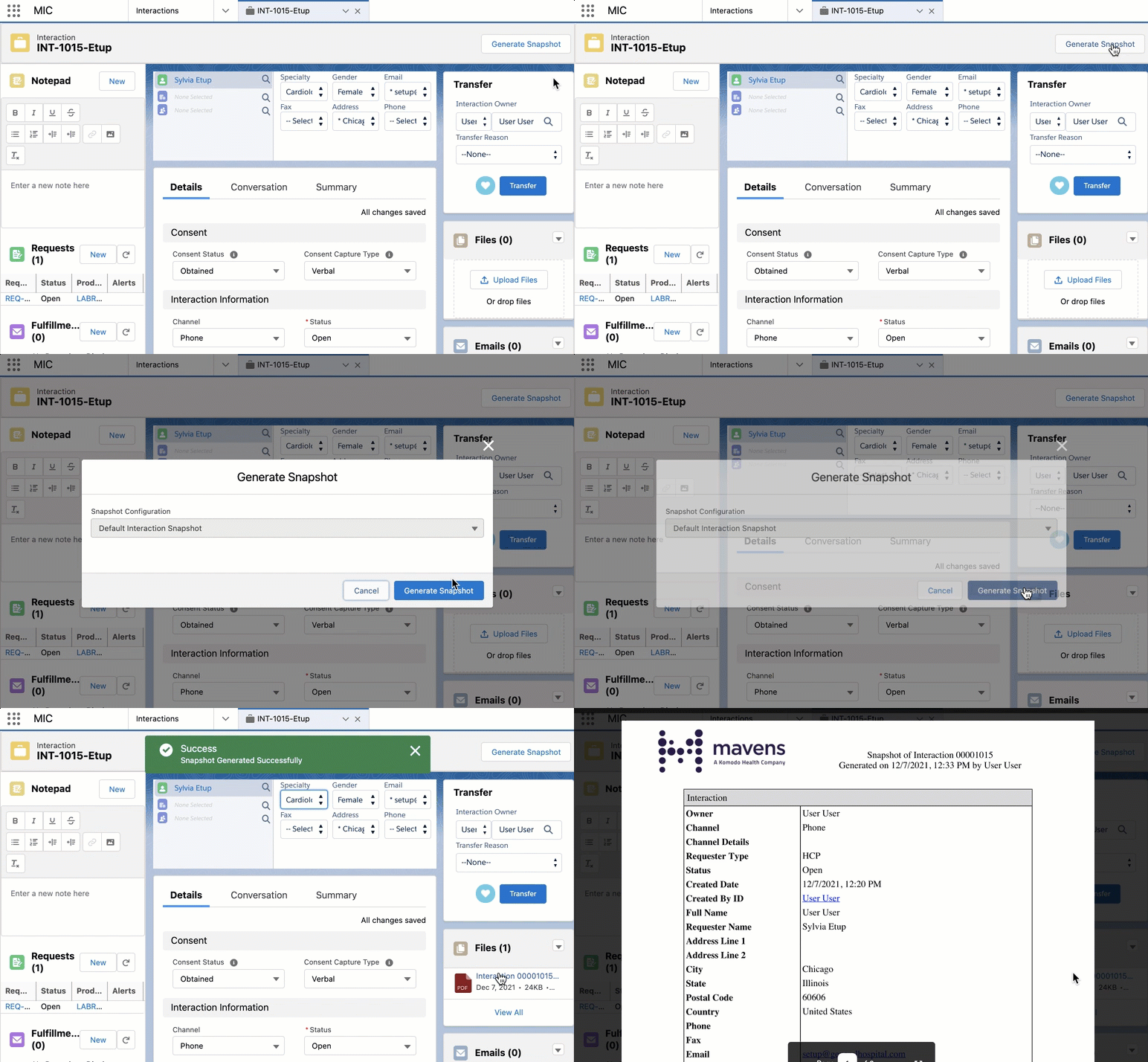
If only one Snapshot Configuration matches the record's Object and Country, it's selected automatically and can't be changed. If two or more match, none is selected by default, and the user must choose one. Clicking Generate without choosing shows the message Complete this field., and no snapshot is generated. This makes sure each snapshot uses the configuration the user intended.
For Adverse Event records, sending an email to Safety automatically generates a new snapshot and merges it into the email attachment. Likewise, for Product Quality Complaint records, sending an email to QC automatically generates and merges a new snapshot into the email attachment as well.
Configure page layouts
To enable the in-house generation of snapshots for an Interaction, Request, Adverse Event, or Product Quality Complaint record:
-
Open the associated Page Layout Editor for the designated object. For more information about Page Layouts, visit Page Layouts in Salesforce Help.
-
Drag and drop the Generate Snapshot (
MED_MIC_Snapshot) Mobile & Lightning Action into the page layout.
The Name of the in-house Generate Snapshot action is
MED_MIC_Snapshot while the Name of the Nintex Generate Snapshot
action is MED_Snapshot.
-
Drag and drop the Files Related List into the page layout.
-
Click Save.
-
Open a page of the page layout in the Lightning App builder.
-
Add a Related List - Single component to the page. The Parent Record should be the current record while the Related List should be Files. This is where the generated snapshot files will be located.
-
Click Save.
Configure snapshot layout
You can configure which parent, child, and grandchild objects as well as which fields of these objects are to be included in the generated snapshots. Visit Objects.
Create and modify snapshot objects
To create a new or modify an existing snapshot object that can be generated:
-
Open the Snapshot Configuration custom metadata type settings in Setup.
-
Click Manage Snapshot Configurations.
-
Click New to create a new snapshot object or select a label and then Edit to modify an existing snapshot object.
-
Enter a Label to represent the snapshot object. Mavens recommends formatting the label so that it includes the parent object, if applicable, followed by a colon and the current object.
-
Enter the Snapshot Configuration Name used by the generate Snapshot Apex method and managed packages to identify the snapshot object.
-
Select the designated Snapshot Object.
-
Enter the desired Field Set Name.
-
If the snapshot object is a child or grandchild object to be included in a parent object's snapshot, enter the Parent Snapshot and select the Relationship Field.
Supported parent objects include:
-
Interaction
-
Request
-
Adverse Event
-
Product Quality Complaint
- Click Save.
Reference the Snapshot Configuration custom metadata.
Create and modify snapshot fields
For each parent, child, or grandchild object, to create a new or modify an existing field set used in a snapshot:
-
Open the object in Object Manager.
-
Click Field Sets.
-
Click New to create a new field set or select a field label to modify an existing field set.
-
Drag and drop the desired fields accordingly. For more information about Field Sets, visit Field Sets in Salesforce Help.
-
Click Save.
Configure snapshot branding
You can customize the design of the generated snapshots to fit your branding needs with the following Static Resources:
Static resources for snapshots
| Static resource | MIME type | Description |
|---|---|---|
| MED_Snapshot_Logo | image/png | The organization's logo that is displayed in the generated snapshots. |
| MED_Snapshot_Style | text/css | The Master style sheet to design the generated snapshots. |
Configure snapshot delivery defaults
You can set email delivery defaults for in-house snapshots by Object and Country. They're stored on the Snapshot Configuration (MED_Snapshot_Config__mdt) custom metadata type, so you set them for each Snapshot Object and Segment (Country), with no code.
To set delivery defaults:
-
From Setup, open Custom Metadata Types, and click Manage Records next to Snapshot Configuration.
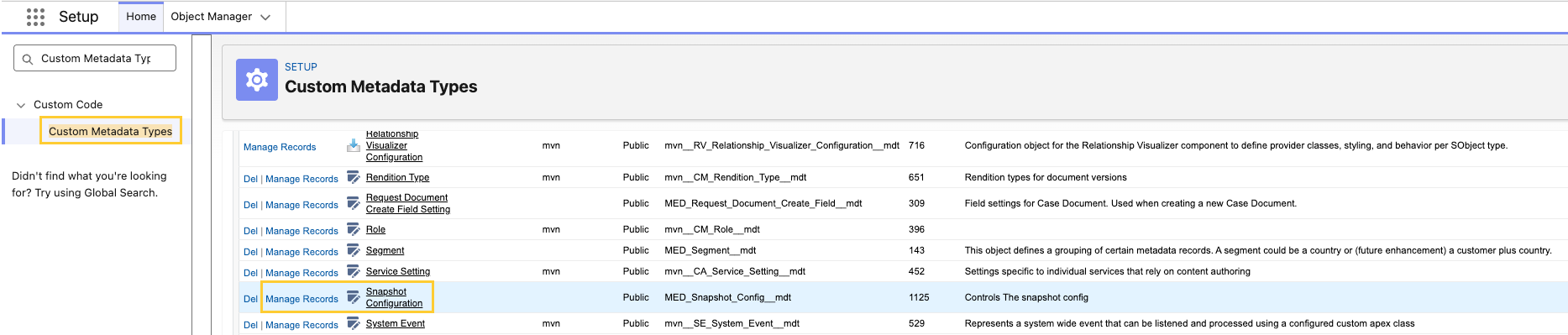
-
Click New to create a new configuration, or click Edit next to an existing one, for the Object and Country (Segment) you want to set defaults for.
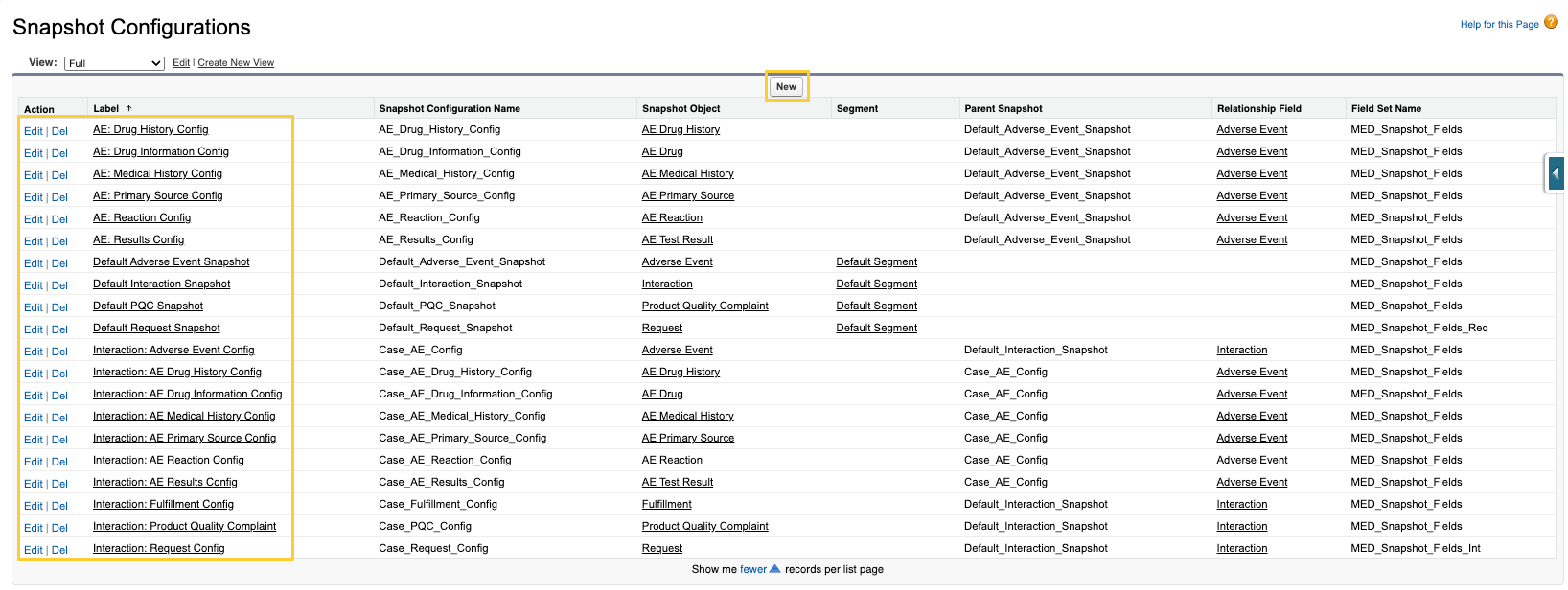
-
In the Delivery Defaults section, set the fields your org needs:
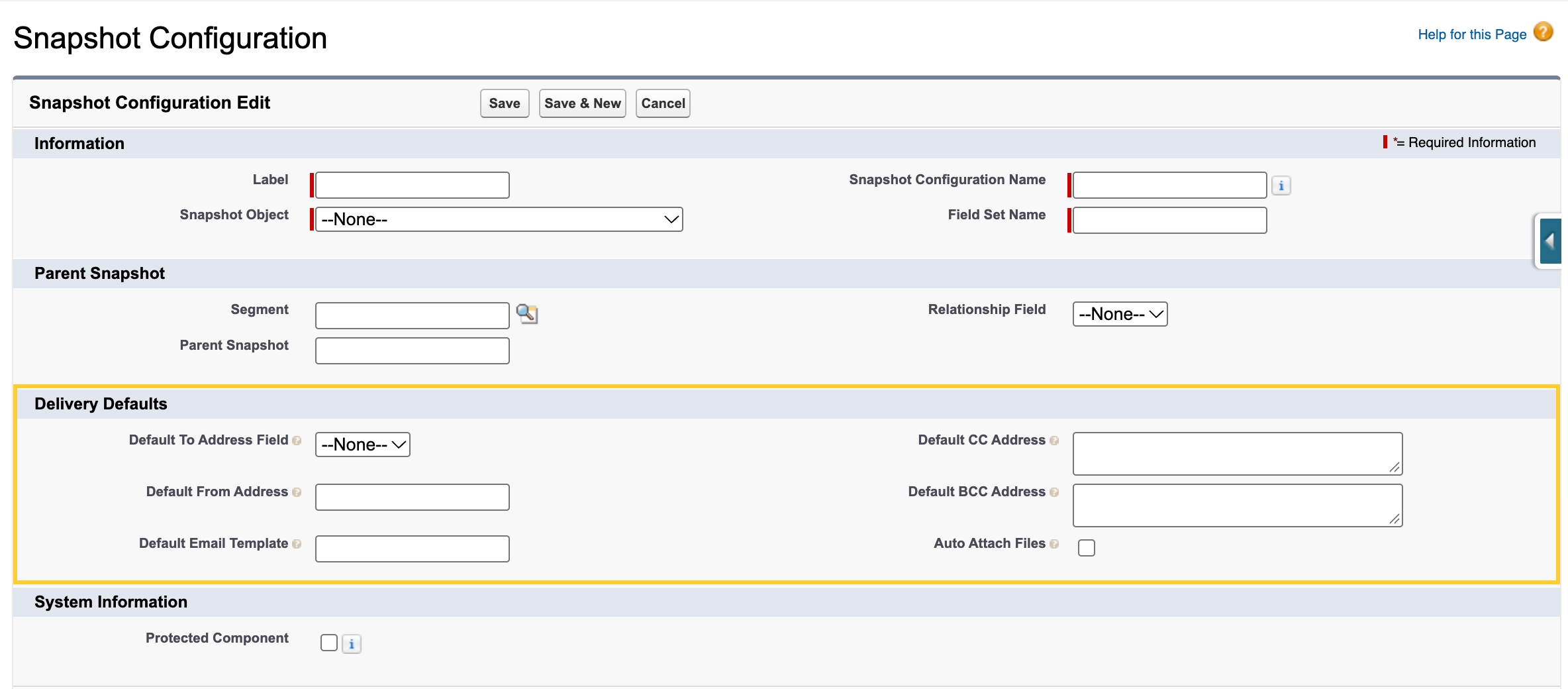
- Default To Address Field: The field on the snapshot object that provides the To address, for example Email To Address (
MED_Email_To_Address__c) on Adverse Events. The value is read from the record when the email is created. Only fields on the selected Snapshot Object are available. To always use the org-wide safety list, leave this field blank.
Because the To address can come from a field on the record, one Snapshot Configuration can send each record's snapshot to a different recipient, with no extra setup.
noteIf Default To Address Field is blank, or the field is empty on a record, the email is sent to the org-wide safety list on the Local Setting (
mvn__MED_Local_Setting__mdt) custom metadata type: AE Email List (MED_AE_Email_List__c) for Adverse Events, and PQC Email List (MED_PQC_Email_List__c) for Product Quality Complaints. Make sure these lists are filled in, so regulated communications always go to a compliant recipient.-
Default From Address: The verified org-wide email address used as the default From address.
-
Default CC Address and Default BCC Address: Recipients copied on every email. Separate multiple addresses with a semicolon (
;). -
Default Email Template: The developer name of the Salesforce email template that fills in the email's Subject and Body.
-
Auto Attach Files: If selected, the record's files, including the generated snapshot, are attached to the email automatically.
- Default To Address Field: The field on the snapshot object that provides the To address, for example Email To Address (
-
Click Save.
For the full field list, see Snapshot Configuration (in-house).
Generate snapshots with Apex method
In-house snapshots can also be generated by calling the globally exposed
MED_SnapshotService.generateSnapshots Apex method. Each snapshot
object listed will have its own snapshot file generated. We recommend
calling this method in a batch job when multiple snapshot files are to
be generated at once.
generateSnapshots parameters
| Parameter | Type | Required? | Description |
|---|---|---|---|
| sObject | List of objects | Yes | The list of snapshot objects that are to be generated. The ID and Name fields for each sObject are required. |
| snapshotConfigName | String | Yes | The Snapshot Configuration Name of the top-level snapshot record will identify and include the linked child records in the snapshots accordingly. |